DocForge: Convert Documents, Spreadsheets & Images Between 17 Formats
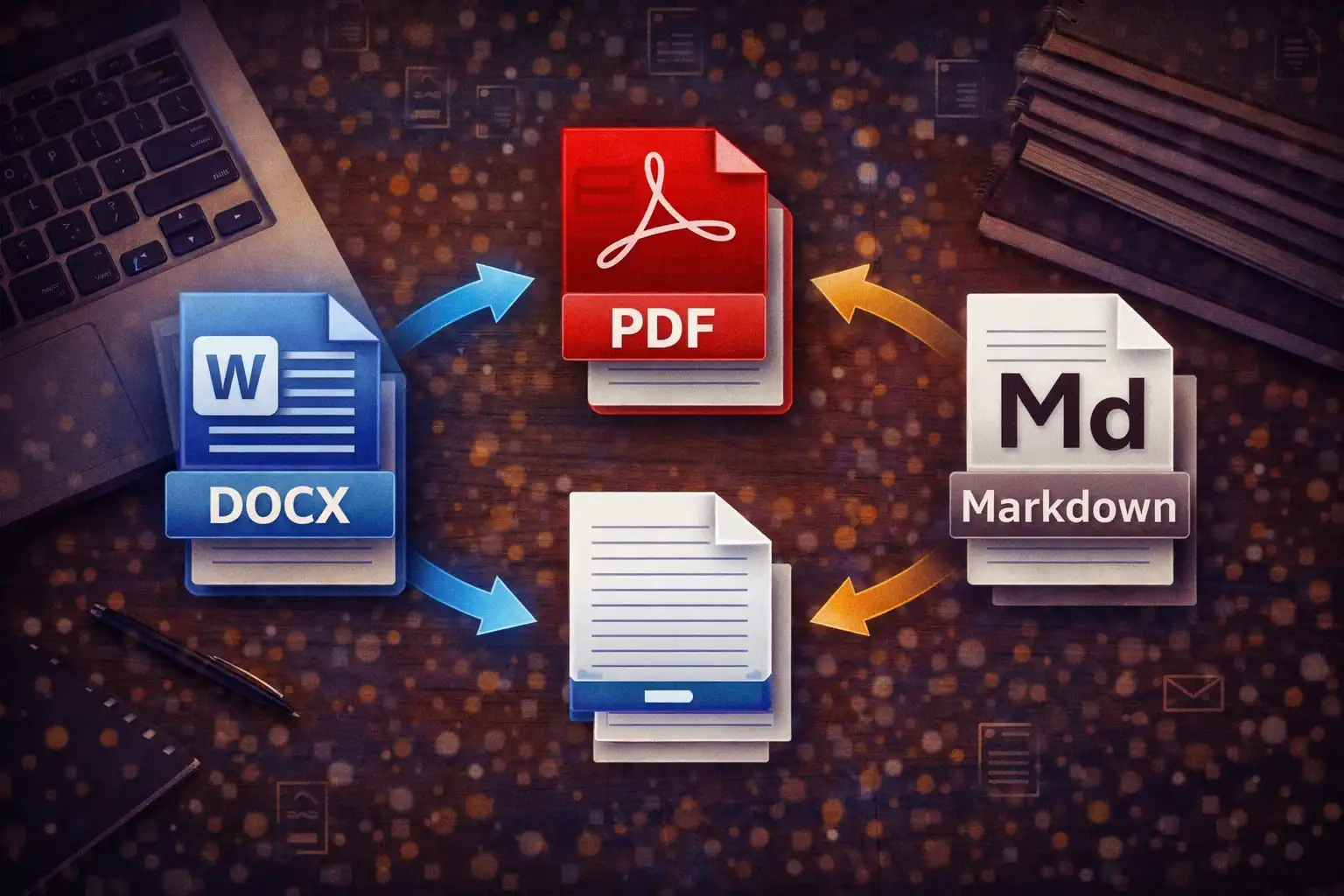
Table of Contents
- What Is DocForge?
- 17 Supported Formats
- 67 Conversion Paths: The Complete Matrix
- Document Conversions: DOCX, PDF, TXT, HTML, Markdown & RTF
- Spreadsheet Conversions: XLSX, CSV, TSV, JSON & XML
- Image Conversions: PNG, JPG, WebP, BMP, GIF & SVG
- Under the Hood: 10 Libraries Working Together
- File Preview: See Before You Convert
- How DOCX Generation Works
- PDF Generation & Rendering
- Privacy: Every Byte Stays in Your Browser
- Practical Use Cases
- DocForge vs. CloudConvert, Zamzar & Convertio
- Frequently Asked Questions
- Conclusion
Every knowledge worker eventually hits the format wall. A client sends a DOCX file but your team works in Markdown. A legacy system exports spreadsheets as XLS but your pipeline ingests JSON. A designer delivers assets as SVG but the CMS only accepts PNG. You reach for an online converter, upload your file to a server you do not control, wait for the round trip, and hope your data is not stored somewhere indefinitely. DocForge eliminates every part of that workflow except the conversion itself. It handles 17 file formats across documents, spreadsheets, and images with 67 distinct conversion paths — and every byte of processing happens inside your browser. No uploads, no server contact, no waiting.
1. What Is DocForge?
DocForge is the universal document converter on ZeroDataUpload. It accepts files in 17 formats spanning three categories — documents, spreadsheets, and images — and converts between them through 67 conversion paths. Unlike single-purpose converters that handle one pair of formats, DocForge provides a unified interface where you select a source format, select a target format, drop your file, and receive the converted output in seconds.
The engine powering DocForge consists of 10 JavaScript libraries, each responsible for a specific domain of file processing. mammoth.js parses DOCX files. pdf.js extracts text and renders pages from PDFs. jsPDF generates new PDF documents. The XLSX library reads and writes Excel spreadsheets. These libraries work together through a routing layer that determines the optimal conversion chain for any given source-target pair. Some conversions are direct (PNG to JPG via Canvas API), while others pass through intermediate representations (DOCX to PDF goes through HTML as a middle step).
Every conversion runs 100% client-side. Your files are read into the browser's memory using the FileReader API, processed entirely in JavaScript, and the converted output is saved to your disk using FileSaver.js. At no point does any data leave your device. This makes DocForge safe for converting contracts, medical records, financial spreadsheets, proprietary designs, and any other file you would not want passing through a third-party server.
2. 17 Supported Formats
DocForge handles 17 formats organized into three categories:
Document Formats (6)
- DOCX — Microsoft Word's Open XML format. The dominant document format in business, education, and government. Internally a ZIP archive containing XML files that describe content, styles, relationships, and metadata.
- PDF — Portable Document Format. Adobe's fixed-layout format used for contracts, reports, invoices, academic papers, and any document where visual fidelity across devices is critical.
- TXT — Plain text with no formatting. The universal baseline format that every system can read, used for logs, configuration files, notes, and data exchange.
- HTML — HyperText Markup Language. The rendering language of the web, used for email templates, web content, documentation, and rich text interchange.
- MD — Markdown. Lightweight markup syntax used by GitHub READMEs, technical documentation, static site generators, note-taking apps, and developer workflows.
- RTF — Rich Text Format. Microsoft's legacy rich text interchange format, still used by legal software, older word processors, and cross-platform text editors.
Spreadsheet Formats (5)
- XLSX — Microsoft Excel's Open XML spreadsheet format. The standard for business data, financial models, reporting, and data analysis.
- XLS — Legacy Excel binary format (pre-2007). Still encountered in older systems, government databases, and archived business records.
- CSV — Comma-Separated Values. The universal tabular data interchange format, supported by every spreadsheet application, database tool, and data analysis library.
- TSV — Tab-Separated Values. Preferred when field values contain commas, common in bioinformatics, linguistics datasets, and database exports.
- JSON — JavaScript Object Notation. The dominant data format for web APIs, NoSQL databases, configuration files, and modern data pipelines.
- XML — Extensible Markup Language. Used in SOAP APIs, enterprise integrations, RSS feeds, and configuration systems.
Image Formats (6)
- PNG — Portable Network Graphics. Lossless compression with alpha transparency, ideal for screenshots, UI elements, diagrams, and graphics with sharp edges.
- JPG — JPEG lossy compression. The standard for photographs, producing small file sizes with acceptable visual quality for most photographic content.
- WebP — Google's modern image format offering superior compression to both PNG and JPG, supported by all major browsers since 2020.
- BMP — Bitmap. Uncompressed raster format used in legacy Windows applications, embedded systems, and situations requiring pixel-exact data.
- GIF — Graphics Interchange Format. Limited to 256 colors, used for simple graphics, icons, and animated sequences (DocForge handles static GIF frames).
- SVG — Scalable Vector Graphics. XML-based vector format for logos, icons, illustrations, and any graphic that must scale without quality loss. DocForge supports SVG as an input format and rasterizes it to PNG, JPG, WebP, BMP, or GIF.
3. 67 Conversion Paths: The Complete Matrix
DocForge's 67 conversion paths span five categories. Here is the complete matrix showing every supported source-to-target combination:
Document Conversions (14 paths)
- DOCX → PDF, TXT, HTML, MD, RTF
- PDF → TXT, HTML, DOCX
- TXT → PDF, HTML, DOCX, MD
- HTML → PDF, TXT, MD
- MD → HTML, PDF, TXT
- RTF → TXT, PDF
Spreadsheet Conversions (24 paths)
- XLSX → CSV, TSV, JSON, XML, XLS, PDF
- XLS → CSV, TSV, JSON, XML, XLSX
- CSV → XLSX, XLS, TSV, JSON, XML, PDF
- TSV → XLSX, CSV, JSON, XML
- JSON → XLSX, CSV, TSV, XML
- XML → XLSX, CSV, TSV, JSON
Image Conversions (20 paths)
- PNG → JPG, WebP, BMP, GIF
- JPG → PNG, WebP, BMP, GIF
- WebP → PNG, JPG, BMP, GIF
- BMP → PNG, JPG, WebP, GIF
- GIF → PNG, JPG, WebP, BMP
- SVG → PNG, JPG, WebP, BMP, GIF (one-directional rasterization)
Cross-Category Conversions (9 paths)
- XLSX/CSV → PDF (spreadsheet rendered as formatted table)
- XML → CSV, JSON (structured data extraction)
- PNG/JPG/WebP/BMP/GIF → PDF (image embedded in PDF document)
You might notice that DocForge does not offer all 272 possible pairings of 17 formats (17 x 16). Certain conversions are intentionally excluded because they would produce meaningless results. Converting a JPG photograph to an XLSX spreadsheet, for example, has no sensible interpretation. DocForge only includes conversion paths where the output is genuinely useful and structurally coherent.
4. Document Conversions: DOCX, PDF, TXT, HTML, Markdown & RTF
Document conversions form the core of DocForge, and they involve the most complex processing chains because each document format represents content structure in fundamentally different ways.
DOCX to HTML/TXT is handled by mammoth.js, which reads the DOCX file's internal XML structure and maps Word elements to their HTML equivalents. mammoth.js preserves headings (mapping Word's Heading 1 through Heading 6 styles to <h1> through <h6> tags), bold text (<strong>), italic text (<em>), numbered and bulleted lists (<ol> and <ul>), hyperlinks, and paragraph structure. It deliberately ignores visual-only formatting like fonts and colors, focusing on semantic meaning. This produces clean, semantic HTML rather than the formatting soup that Word's own "Save as HTML" feature generates.
DOCX to PDF is a two-stage conversion. First, mammoth.js converts the DOCX to HTML. Then, html2canvas renders the HTML into a canvas element, and jsPDF captures the canvas as a PDF page. This chain preserves the document's heading hierarchy, paragraph structure, and inline formatting while producing a properly paginated PDF.
PDF text extraction uses pdf.js (Mozilla's PDF rendering library, version 3.11.174) to parse the PDF's internal structure and extract text content page by page. pdf.js decodes the PDF's compressed content streams, processes font encoding maps, and assembles text runs into readable lines. The extracted text preserves paragraph breaks and reading order but strips all visual formatting — fonts, sizes, colors, and layout positioning are lost, which is inherent to any PDF-to-text extraction.
Markdown conversion uses marked.js (version 12.0.0) for MD-to-HTML and Turndown (version 7.1.3) for HTML-to-MD. marked.js implements CommonMark plus GFM extensions including tables, fenced code blocks, and task lists. Turndown performs the reverse transformation, parsing an HTML DOM tree and producing clean Markdown. These two libraries together enable round-trip conversion: Markdown to HTML to Markdown produces semantically equivalent output.
RTF processing uses a regex-based parser that strips RTF control sequences — the backslash-prefixed commands like \par, \b, \i, and \fonttbl that define formatting in RTF documents. The parser removes control words, control symbols, group delimiters (curly braces), and font/color table definitions, extracting the underlying plain text content. From plain text, the content can then be converted to PDF or other document formats through DocForge's standard text conversion paths.
5. Spreadsheet Conversions: XLSX, CSV, TSV, JSON & XML
Spreadsheet conversions revolve around tabular data — rows and columns — and the challenge lies in bridging the gap between flat formats (CSV, TSV) and structured formats (JSON, XML, XLSX).
XLSX and XLS reading uses the XLSX library (SheetJS version 0.18.5), which parses both the modern Open XML format (.xlsx) and the legacy binary Excel format (.xls). The library reads the workbook structure, extracts the first sheet, and produces a JavaScript array-of-arrays representing rows and columns. It handles merged cells, numeric formats, date serialization (Excel's 1900 date system), and shared string tables.
CSV and TSV parsing uses PapaParse (version 5.4.1), the gold standard for CSV parsing in JavaScript. PapaParse implements full RFC 4180 compliance: it correctly handles quoted fields containing commas ("New York, NY"), escaped double quotes ("She said ""hello"""), newlines embedded within quoted fields, and mixed line endings. PapaParse also performs automatic header detection — when the first row appears to contain column names rather than data, it uses those names as object keys in the parsed output.
Spreadsheet to PDF is one of DocForge's most sophisticated conversion paths. jsPDF generates a landscape-orientation PDF with auto-calculated column widths based on content length. The first row is rendered as bold column headers. The table supports multi-page output — when rows exceed a single page, jsPDF automatically inserts page breaks and repeats the header row on each new page. Cell padding, border lines, and font sizing are all calculated to produce a readable, professional-looking table.
XML parsing uses the browser's native DOMParser to build a DOM tree from XML input. DocForge then walks this tree with a recursive function that converts elements to JSON objects. Attributes are preserved with an @ prefix (for example, <item id="5"> becomes {"@id": "5"}), and text content is stored in a #text property. When multiple sibling elements share the same tag name, the parser automatically groups them into arrays, preventing data loss from duplicate object keys.
// XML Input
<employees>
  <employee id="101">
    <name>Alice</name>
    <department>Engineering</department>
  </employee>
  <employee id="102">
    <name>Bob</name>
    <department>Design</department>
  </employee>
</employees>

// JSON Output
{
  "employees": {
    "employee": [
      { "@id": "101", "name": "Alice", "department": "Engineering" },
      { "@id": "102", "name": "Bob", "department": "Design" }
    ]
  }
}DocForge uses a parsedData caching mechanism that avoids re-parsing files between the preview step and the conversion step. When you load a CSV file, PapaParse parses it once, and the resulting JavaScript object is stored in memory. Both the preview renderer and the conversion engine read from this cached object, which means previewing a 10,000-row spreadsheet and then converting it to XLSX does not double the parsing time.
6. Image Conversions: PNG, JPG, WebP, BMP, GIF & SVG
Image conversions use the HTML5 Canvas API as the universal interchange layer. Every input image is first drawn onto a <canvas> element, and the target format is produced by calling canvas.toBlob() or canvas.toDataURL() with the appropriate MIME type.
Raster-to-raster conversions (PNG, JPG, WebP, BMP, GIF) follow a consistent pattern: create an Image object, set its src to a data URL from the uploaded file, wait for the onload event, draw the image onto a canvas at its original dimensions, and export the canvas in the target format. For JPG output, the canvas is first filled with a white background before drawing the image, because JPG does not support transparency — without this step, transparent regions in PNG or WebP inputs would render as black in the JPG output.
SVG rasterization deserves special attention because SVG is a vector format that must be converted to pixels. DocForge creates a canvas at a default resolution of 800 by 600 pixels, draws the SVG onto it using the drawImage() method (which triggers the browser's built-in SVG renderer), and then exports the canvas as the target raster format. For JPG output, a white background is applied before the SVG is drawn. SVG rasterization is inherently one-directional — you cannot convert a PNG back to SVG because the vector information is lost during rasterization.
Image to PDF embeds the image into a PDF document using jsPDF. The image is drawn onto a canvas, converted to a data URL, and inserted into the PDF page with dimensions calculated to fit the page while maintaining the original aspect ratio. This is useful for creating printable PDFs from photographs, scans, or design mockups.
PDF to images is one of DocForge's most powerful features. pdf.js renders every page of the PDF as a separate image at 2x scale for high-resolution output. The renderer processes up to 20 pages, creating one image file per page. Output filenames include the page number — for example, document_page_1.png, document_page_2.png — so you can easily identify and organize the extracted pages. Each page is rendered onto its own canvas at twice the PDF's native resolution, producing crisp output suitable for presentations, documentation, or print workflows.
7. Under the Hood: 10 Libraries Working Together
DocForge's conversion engine is built on 10 open-source JavaScript libraries, each handling a specific domain of file processing. Here is how they divide responsibilities:
- mammoth.js 1.6.0 — DOCX parsing. Reads the OOXML structure inside DOCX files and produces semantic HTML or plain text. Preserves headings, bold, italic, lists, links, and paragraph structure while ignoring visual-only formatting.
- pdf.js 3.11.174 — PDF reading. Mozilla's PDF rendering engine, used for text extraction (PDF to TXT) and page rendering (PDF to image). Decodes compressed content streams, handles font encoding, and renders pages at configurable scale factors.
- pdf-lib 1.17.1 — PDF document manipulation. Used for creating, modifying, and combining PDF documents at the binary level. Handles the PDF object structure, cross-reference tables, and content streams.
- jsPDF 2.5.1 — PDF generation. Creates new PDF documents from scratch. Used for text-to-PDF, spreadsheet-to-PDF (tables with headers and pagination), and image-to-PDF conversion paths.
- XLSX 0.18.5 — Excel processing. SheetJS library that reads and writes both XLSX (Open XML) and XLS (binary) formats. Handles workbooks, sheets, cell types, date serialization, and shared string tables.
- PapaParse 5.4.1 — CSV/TSV parsing. RFC 4180 compliant parser with header detection, type inference, quoted field handling, and support for custom delimiters. The parsing backbone for all CSV and TSV input paths.
- marked 12.0.0 — Markdown to HTML. CommonMark plus GFM extensions including tables, task lists, strikethrough, and fenced code blocks. Fast single-pass parser producing standards-compliant HTML.
- Turndown 7.1.3 — HTML to Markdown. Walks an HTML DOM tree and produces clean, readable Markdown. Handles headings, paragraphs, lists, links, images, emphasis, code blocks, and blockquotes.
- html2canvas 1.4.1 — HTML to Canvas rendering. Takes a DOM element and produces a pixel-perfect canvas representation. Used as the bridge between HTML-based intermediate representations and image/PDF output formats.
- FileSaver 2.0.5 — Cross-browser file download. Handles the final step of every conversion: saving the output blob to the user's disk with the correct filename and extension. Normalizes download behavior across Chrome, Firefox, Safari, and Edge.
The conversion routing logic works like a directed graph. When you select a source format and a target format, DocForge looks up the conversion path — which may be a single library call (CSV to JSON via PapaParse), a two-step chain (DOCX to HTML via mammoth.js, then HTML to PDF via html2canvas + jsPDF), or a three-step chain for more complex cross-category conversions. The routing is deterministic: each source-target pair always follows the same conversion chain, ensuring consistent output.
8. File Preview: See Before You Convert
DocForge provides format-aware file previews that let you verify your input before committing to a conversion. Different file types receive different preview treatments, each designed to show you the most useful representation of your data.
DOCX files are previewed as rendered HTML. mammoth.js parses the document and produces HTML output that is injected into the preview panel, showing you the document's heading structure, paragraph formatting, lists, and inline styles. This is the same HTML that would be produced by a DOCX-to-HTML conversion, giving you an accurate preview of the document's semantic content.
CSV and TSV files are previewed as formatted HTML tables showing the first 15 rows of data. Column headers are displayed in bold, and the data is rendered in a scrollable table. For large spreadsheets with thousands of rows, this 15-row preview loads instantly while still giving you enough context to verify that the file parsed correctly — that column headers are in the right place, delimiters were detected properly, and no data corruption occurred during parsing.
Image files (PNG, JPG, WebP, BMP, GIF, SVG) are displayed inline in the preview panel at a size that fits the available space. This lets you visually confirm you have selected the correct image before converting it.
PDF files receive a text preview showing the extracted text from the first five pages. This is particularly useful for verifying that pdf.js can successfully extract text from your specific PDF — some PDFs contain scanned images rather than actual text layers, and the preview will show this immediately rather than letting you wait for a full conversion that produces empty output.
Text-based formats (TXT, HTML, MD, RTF, JSON, XML) are displayed as raw text in the preview panel, letting you inspect the file's actual content.
9. How DOCX Generation Works (Custom ZIP Builder)
One of DocForge's most technically interesting components is its custom MinZip class, which generates valid DOCX files without requiring a compression library. This is worth explaining because it reveals how DOCX files work at the binary level.
A DOCX file is actually a ZIP archive containing a specific directory structure defined by the Office Open XML (OOXML) standard. At minimum, a valid DOCX file must contain:
[Content_Types].xml— declares the MIME types of all files in the archive_rels/.rels— defines relationships between the document partsword/document.xml— the actual document content in WordprocessingML markup
Most tools generate DOCX files by using a full ZIP compression library (like JSZip) to create the archive. DocForge takes a different approach: its MinZip class implements the ZIP file format specification directly, writing the binary structure byte by byte. It stores files without compression (store method, compression type 0), which means the implementation only needs to handle the ZIP local file headers, the central directory, and the end-of-central-directory record — without implementing DEFLATE or any other compression algorithm.
The MinZip class computes CRC-32 checksums for each file entry using a table-driven algorithm. The CRC-32 table is generated on initialization by computing the polynomial division for all 256 possible byte values. Each file entry is then checksummed and written into the ZIP structure with its local file header (signature 0x04034b50), followed by the file data, and finally referenced in the central directory (signature 0x02014b50).
The document content itself is constructed as WordprocessingML XML. Plain text input is split into paragraphs, and each paragraph is wrapped in <w:p> and <w:r> elements (paragraph and run elements in the OOXML vocabulary). The resulting XML is combined with the content types file and relationships file, all three are added to the MinZip archive, and the archive is saved as a .docx file. The output opens correctly in Microsoft Word, Google Docs, and LibreOffice Writer.
DocForge's MinZip approach trades compression ratio for simplicity and smaller library footprint. Since DOCX files for typical documents are small (a few hundred kilobytes), the lack of compression has negligible impact on file size. The benefit is that DocForge does not need to load a full ZIP library, reducing its total JavaScript payload and avoiding an additional dependency.
10. PDF Generation & Rendering
DocForge uses two PDF libraries for different purposes: jsPDF for generating new PDFs, and pdf.js for reading and rendering existing PDFs.
PDF generation with jsPDF supports three distinct content types:
Text documents — When converting TXT, HTML, or Markdown to PDF, jsPDF creates a document with configurable page dimensions, adds the text content with automatic line wrapping and pagination, and produces a multi-page PDF when the content exceeds a single page. Font size, margins, and line spacing are pre-configured for readability.
Spreadsheet tables — When converting XLSX, CSV, or TSV to PDF, jsPDF generates a landscape-oriented document with a formatted table. Column widths are automatically calculated based on the content of each column. The header row is rendered in bold. When the table exceeds the available page height, jsPDF inserts a page break and repeats the header row on the next page, ensuring that every page of a multi-page table is readable without scrolling back to the first page for column names.
Embedded images — When converting PNG, JPG, or other image formats to PDF, jsPDF creates a document and inserts the image with dimensions calculated to fit the page while preserving the original aspect ratio. The image is centered on the page with appropriate margins.
PDF rendering with pdf.js is used for the reverse direction — extracting content from existing PDFs. For text extraction (PDF to TXT), pdf.js iterates through each page, extracts the text content items, and concatenates them with appropriate spacing and line breaks. For image rendering (PDF to PNG/JPG/WebP), pdf.js renders each page onto a canvas at 2x the PDF's native resolution. This 2x scale factor is crucial: PDF pages are typically defined at 72 DPI, and rendering at 1x would produce low-resolution images. The 2x scaling produces output at an effective 144 DPI, which is sharp enough for screen display and acceptable for many print workflows.
11. Privacy: Every Byte Stays in Your Browser
DocForge's privacy architecture is not just a marketing claim — it is an engineering constraint baked into the application's design. There is no server component. There is no API endpoint. There is no backend at all.
When you select a file in DocForge, the browser's FileReader API reads the file directly from your local filesystem into a JavaScript ArrayBuffer or DataURL in memory. The 10 processing libraries operate on this in-memory data, producing another in-memory blob as output. FileSaver.js then triggers a download of this blob, writing it to your disk through the browser's native download mechanism.
The entire conversion pipeline — file reading, parsing, transformation, encoding, and output — runs inside the browser's JavaScript sandbox. No network requests are made during conversion. You can verify this yourself by opening your browser's Network tab in Developer Tools before running a conversion: you will see zero HTTP requests during the processing phase.
"The safest way to protect data in transit is to never transmit it in the first place. DocForge processes your files where they already are — on your device."
This architecture means DocForge works offline after the initial page load. Once the page and its 10 libraries are cached in your browser, you can disconnect from the internet entirely and continue converting files. There is no license check, no usage metering, and no server dependency for any conversion operation.
12. Practical Use Cases
DocForge serves a wide range of workflows across different professions and industries:
Legal professionals frequently receive contracts as DOCX files that need to be distributed as PDFs. DocForge converts DOCX to PDF while preserving heading structure and text formatting — without uploading the contract to a cloud conversion service that might store copies of sensitive legal documents.
Data analysts work with data in whatever format their sources provide. An API returns JSON, but the analytics tool expects CSV. A legacy database exports XLS files, but the data pipeline ingests TSV. DocForge handles all of these conversions without requiring Python scripts, command-line tools, or desktop software installations.
Web developers constantly convert between Markdown and HTML for documentation, blog posts, and CMS content. They also convert SVG icons to PNG for email clients that do not support SVG, generate PDF versions of web pages, and convert CSV data files to JSON for JavaScript applications.
Students and researchers extract text from PDF research papers for note-taking, convert data tables between CSV and XLSX for analysis in different tools, and generate PDFs from plain text notes or Markdown documents for submission.
Designers convert between image formats for different delivery contexts: PNG for web with transparency, JPG for photographs, WebP for modern web performance, and PDF for print-ready deliverables. SVG to PNG rasterization is particularly common when preparing assets for platforms that do not accept vector formats.
IT administrators convert configuration files between formats, extract data from XML exports into CSV for spreadsheet analysis, and transform JSON API responses into human-readable documents for non-technical stakeholders.
13. DocForge vs. CloudConvert, Zamzar & Convertio
The online document conversion market is dominated by server-based services that upload your files for processing. Here is how DocForge compares to the three largest competitors:
CloudConvert ($8/month for 500 conversions) supports over 200 formats and produces high-fidelity output, but every file is uploaded to their AWS servers for processing. They state that files are deleted after 24 hours, but your data traverses the internet and resides on third-party infrastructure during processing. CloudConvert also imposes file size limits on free accounts and rate-limits conversions.
Zamzar ($18/month for unlimited conversions) has been operating since 2006 and supports a wide range of formats. Like CloudConvert, all processing happens on their servers. Their free tier limits files to 50MB and conversions to 2 per day. Zamzar also historically required an email address for free conversions, raising additional privacy concerns.
Convertio ($9.99/month for unlimited conversions) offers 300+ format pairs and a clean interface, but follows the same upload-process-download model. Free tier is limited to 100MB files and 10 conversions per day. Files are stored on their servers for up to 24 hours.
DocForge is free with no conversion limits, no file size limits (beyond your browser's memory), no account required, and zero server contact. The trade-off is that DocForge's conversion fidelity depends on what JavaScript libraries can achieve in the browser. Complex DOCX files with embedded charts, custom fonts, or advanced layout features may lose some formatting. Server-based converters can use LibreOffice or Microsoft Office as a backend engine, which handles these edge cases better. For the vast majority of document, spreadsheet, and image conversions, however, DocForge produces equivalent output with the significant advantage of never touching your data.
| Feature | DocForge | CloudConvert | Zamzar | Convertio |
|---|---|---|---|---|
| Price | Free | $8/mo | $18/mo | $9.99/mo |
| Data upload | None | Yes (AWS) | Yes | Yes |
| Conversion limit | Unlimited | 500/mo | Unlimited (paid) | Unlimited (paid) |
| Account required | No | Yes | Yes | Yes |
| Works offline | Yes | No | No | No |
| Format pairs | 67 | 200+ | 150+ | 300+ |
14. Frequently Asked Questions
Q: Does DocForge upload my files to any server?
No. Every conversion runs 100% in your browser using JavaScript. Your files are read from your local filesystem into browser memory, processed by the 10 client-side libraries, and saved back to your disk. No network requests are made during conversion. You can verify this by monitoring the Network tab in your browser's Developer Tools.
Q: What is the maximum file size DocForge can handle?
There is no hard limit. The practical limit depends on your browser's available memory. Most browsers can comfortably handle files up to 100-200MB. For PDF-to-image conversion, the limiting factor is the number of pages (capped at 20) multiplied by the 2x rendering scale, which determines the total canvas memory required.
Q: Does DOCX-to-PDF preserve images and charts?
mammoth.js focuses on semantic content — headings, text formatting, lists, and paragraph structure. Embedded images in DOCX files may not be preserved in the conversion. For DOCX files with complex layouts, charts, or embedded media, a desktop application like LibreOffice may produce higher-fidelity PDF output.
Q: Can I convert password-protected PDFs?
No. pdf.js can read standard PDFs but does not support decrypting password-protected documents. You would need to remove the password protection using a PDF tool before converting the file in DocForge.
Q: Why does SVG conversion only go one direction?
SVG is a vector format that describes shapes, paths, and text as mathematical instructions. When DocForge rasterizes an SVG to PNG or JPG, it converts those instructions into a grid of pixels. This process is inherently destructive — the vector information is lost, and there is no reliable way to reconstruct vector paths from a pixel grid. That is why DocForge supports SVG as an input format but does not offer conversion to SVG.
Q: How does DocForge handle multi-sheet Excel files?
The XLSX library reads the first sheet of the workbook by default. If your Excel file contains multiple sheets, only the first sheet will be processed. For multi-sheet workbooks, you may need to save each sheet as a separate file before converting.
Q: What happens to transparent backgrounds when converting PNG to JPG?
JPG does not support transparency. DocForge fills the canvas with a white background before drawing the image, so transparent regions in PNG or WebP inputs render as white in the JPG output rather than black (which is the default canvas behavior without the white fill).
Q: Can I batch-convert multiple files at once?
DocForge processes one file at a time through its interface. For PDF-to-image conversion, however, it automatically processes all pages (up to 20) and generates one image per page, which is effectively a batch operation within a single file.
Q: Does DocForge work offline?
Yes. Once the page and its 10 JavaScript libraries are loaded and cached by your browser, you can disconnect from the internet and continue converting files. There are no server calls required for any conversion operation.
Q: What is the MinZip class mentioned in the DOCX generation?
MinZip is a custom implementation of the ZIP file format built into DocForge specifically for generating DOCX files. It writes ZIP archives using the store method (no compression) and computes CRC-32 checksums for each file entry. This avoids the need to load a full ZIP compression library like JSZip, reducing DocForge's total JavaScript payload while still producing valid DOCX files that open in Word, Google Docs, and LibreOffice.
15. Conclusion
DocForge represents a comprehensive approach to document conversion that does not compromise on privacy. With 17 supported formats, 67 conversion paths, and 10 specialized JavaScript libraries working together, it covers the document, spreadsheet, and image conversions that knowledge workers, developers, analysts, and designers encounter daily.
The technical architecture — mammoth.js for DOCX, pdf.js and jsPDF for PDF, SheetJS for Excel, PapaParse for CSV, marked and Turndown for Markdown, html2canvas for rendering, and the custom MinZip class for DOCX generation — demonstrates that sophisticated file processing is achievable entirely within the browser sandbox. No server, no upload, no waiting for a round trip across the internet.
For most everyday conversion needs, DocForge delivers results equivalent to paid cloud services while keeping your data exactly where it belongs: on your device. Try it at DocForge on ZeroDataUpload — no account, no payment, no data upload required.
Related Articles

Published: March 25, 2026