PDF Forge: The Complete Guide to 31 Browser-Based PDF Tools
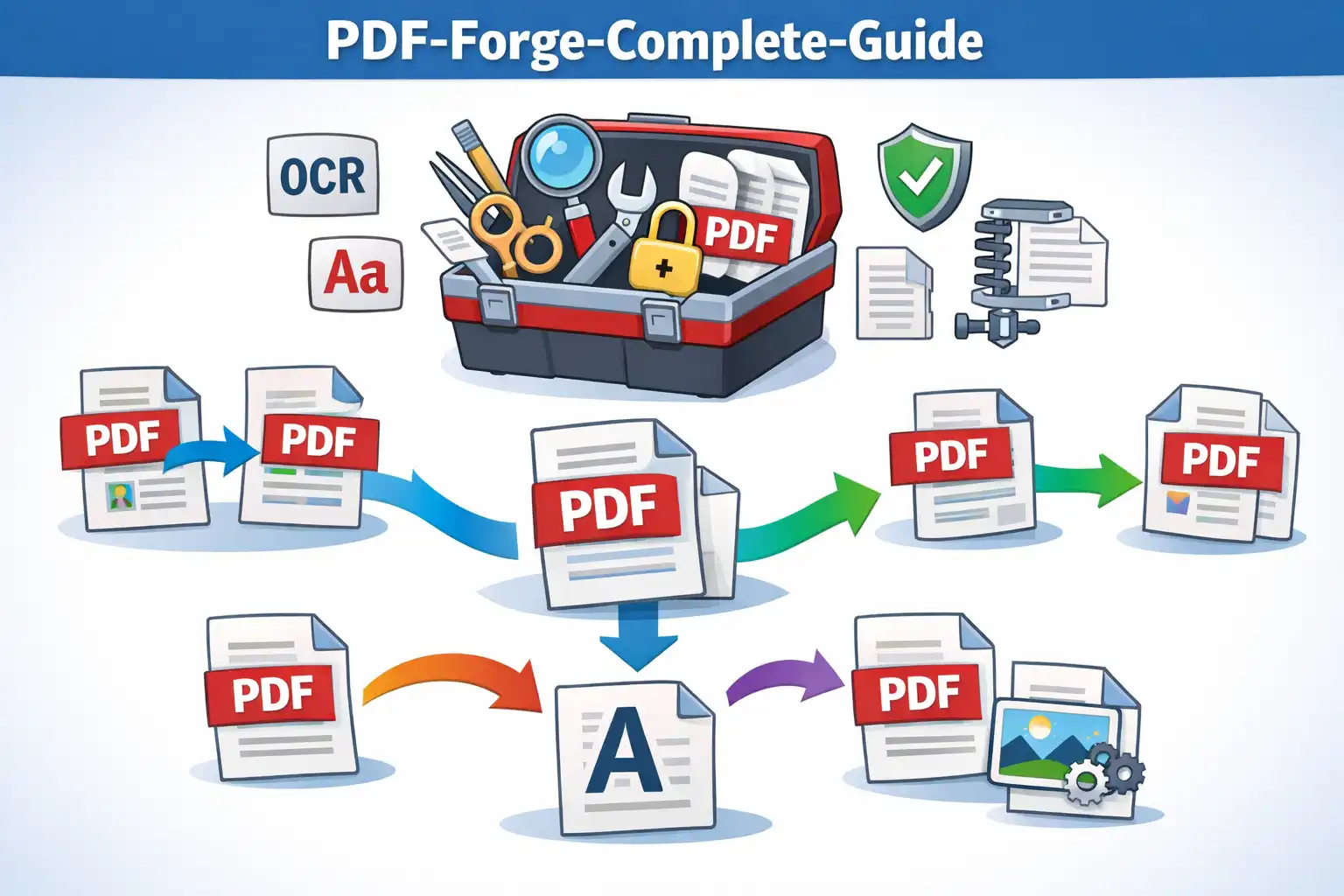
I have a confession: I used to dread working with PDFs. Not creating them — that part is fine — but the moment I needed to merge two files or pull out a few pages, I'd end up on some random website, uploading a contract or tax return to a server I knew nothing about. It always felt wrong, like handing my house keys to a stranger because I needed help moving a couch. That frustration is exactly why PDF Forge exists, and after spending months building and testing all 31 of its tools, I wanted to write the guide I wish I'd had when I started.
Table of Contents
- What Is PDF Forge?
- All 31 Tools at a Glance
- How It Works: 100% Client-Side Processing
- Privacy First: Zero Data Uploads
- Advanced Features That Set It Apart
- Supported Input & Output Formats
- Working with Password-Protected PDFs
- Who Is PDF Forge For?
- How to Use PDF Forge: Step by Step
- PDF Forge vs. iLovePDF, SmallPDF & Adobe Acrobat
- Frequently Asked Questions
- Conclusion
PDFs are everywhere. Contracts, invoices, reports, presentations, tax forms, ebooks — honestly, is there any file format more universally used? Yet working with PDFs usually means picking between expensive desktop software and online tools that want you to upload sensitive documents to who-knows-where. PDF Forge gets rid of that trade-off. It's a full PDF toolkit — 31 tools — that runs entirely in your browser. Nothing gets uploaded. Nothing leaves your machine.
1. What Is PDF Forge?
PDF Forge is the PDF converter on ZeroDataUpload — a browser-based PDF toolkit that packs 31 individual tools into one place. It covers the basics like merging and splitting, sure, but it also handles things you might not expect from a free browser tool: OCR text recognition, pixel-level document comparison, and digital signatures with dual-mode support.
Here's the thing that makes PDF Forge fundamentally different from iLovePDF, SmallPDF, or even Adobe Acrobat Online: it's the architecture itself. Every single operation happens inside your web browser. Your PDFs are never uploaded to any server, never parked in some cloud, and never accessible to anyone but you. This isn't a privacy promise buried in a terms-of-service page — it's a technical reality baked into how the tool actually works.
The tools are split into seven categories: Organize, Optimize, Convert To PDF, Convert From PDF, Edit, Security, and Intelligence. Need to merge a stack of invoices before tax season? Compress a bloated report your coworker emailed you? Slap a watermark on a draft? Redact someone's phone number from a shared doc? You can do all of it without installing anything or uploading a single byte.
2. All 31 Tools at a Glance
Thirty-one tools is a lot to keep track of, so here's the full list organized by category. I've added short descriptions for each one — scan through and you'll probably spot a few you didn't know you needed.
Organize (5 tools)
- Merge PDF — Combine multiple PDF files into a single document with drag-and-drop reordering.
- Split PDF — Divide a PDF into separate files by page ranges or individual pages.
- Remove Pages — Delete specific pages from a PDF without affecting the rest of the document.
- Extract Pages — Pull selected pages out of a PDF and save them as a new file.
- Organize — Visually rearrange, rotate, and manage pages with a thumbnail-based interface.
Optimize (3 tools)
- Scan to PDF — Convert scanned images and photos into properly formatted PDF documents.
- Compress — Reduce PDF file size while preserving visual quality, ideal for email attachments and uploads.
- Repair — Fix corrupted or damaged PDF files and restore them to working condition.
Convert To PDF (6 tools)
- JPG to PDF — Convert JPEG images into PDF documents with layout options.
- Word to PDF — Convert .docx files to PDF with proper formatting preservation.
- PowerPoint to PDF — Convert .pptx presentations to PDF slide-by-slide.
- Excel to PDF — Convert .xlsx spreadsheets to PDF with table structure intact.
- HTML to PDF — Convert web pages and HTML content to PDF with smart page breaks.
- OCR — Extract text from scanned PDFs and images using optical character recognition.
Convert From PDF (5 tools)
- PDF to JPG — Convert PDF pages to high-quality JPEG images.
- PDF to Word — Convert PDF to proper .docx format (not HTML saved as .doc).
- PDF to PowerPoint — Convert PDF to genuine .pptx format with editable slides.
- PDF to Excel — Extract tables and data from PDFs into spreadsheet format.
- PDF to PDF/A — Convert standard PDFs to the archival-standard PDF/A format for long-term preservation.
Edit (6 tools)
- Rotate — Rotate individual pages or entire documents by 90, 180, or 270 degrees.
- Add Page Numbers — Insert page numbers with customizable position, format, and styling.
- Add Watermark — Apply text watermarks, image watermarks, or tiled watermarks with staggered brick patterns.
- Crop — Trim page margins and crop PDFs to specific dimensions.
- Edit PDF — Add text annotations, image overlays, and make visual edits directly on PDF pages.
- Redact — Permanently remove sensitive information from PDF documents with black-box redaction.
Security (3 tools)
- Unlock — Remove password protection from PDFs (when you have the password).
- Protect — Add password protection with Flatten and RC4 encryption options.
- Sign — Add digital signatures with draw, upload image, or dual signature-plus-stamp mode.
Intelligence (3 tools)
- Compare — Perform pixel-level PDF comparison with visual diff overlay and similarity percentage.
- Translate — Translate PDF content between languages while preserving document structure.
- OCR — Recognize and extract text from scanned documents and image-based PDFs.
3. How It Works: 100% Client-Side Processing
You might be wondering: how does a browser-based tool actually pull off things like merging, OCR, and format conversion without a server? The short answer is open-source JavaScript libraries. Here's what's under the hood:
- pdf-lib — The core library for creating and modifying PDF documents programmatically. It handles merging, splitting, page manipulation, metadata editing, form filling, and encryption. pdf-lib works with raw PDF byte streams, which means it can process files without ever needing a server.
- PDF.js — Mozilla's PDF rendering engine, the same one used in Firefox. PDF Forge uses it to render PDF pages as high-fidelity canvas images for preview, comparison, and image conversion operations.
- jsPDF — Used for generating new PDF documents from scratch, particularly for HTML-to-PDF conversion, scan-to-PDF, and document creation workflows.
- html2canvas — Captures HTML content as canvas renderings, enabling the HTML-to-PDF pipeline with accurate visual reproduction of web page layouts, CSS styling, and embedded media.
When you open PDF Forge, your browser downloads the app code and these libraries. After that initial load, every operation — merging, splitting, converting, signing, comparing — runs inside your browser's JavaScript engine. Files get read through the browser's File API, processed in memory, and saved to your device via download links. At no point does any file data leave your computer. In my experience, this local approach is actually faster for most files because you skip the upload-wait-download cycle entirely.
Open your browser's Developer Tools (F12), switch to the Network tab, and use any PDF Forge tool. You will see no outgoing requests containing your file data. The only network activity is the initial page load. Everything else happens locally.
4. Privacy First: Zero Data Uploads
Think about how most online PDF tools actually work. You upload your file, a server somewhere processes it, and you download the result. During that window, your document sits on infrastructure you don't control. It might get logged, cached, backed up, or kept around longer than anyone told you. Even services that promise to delete files after processing — can they really guarantee that backup systems, CDN caches, or logging pipelines haven't quietly made copies? They can't.
PDF Forge flips that model on its head. Your files never leave your device. No upload step, no server-side processing, no temporary cloud storage. The privacy guarantee here is architectural, not contractual — and honestly, that distinction matters more than people realize. You can't leak data from a server that never receives it in the first place.
This matters especially for sensitive documents like contracts, financial statements, medical records, legal filings, and personal identification documents. With PDF Forge, you can merge confidential contracts, redact sensitive information, or sign legal documents knowing with absolute certainty that no third party has access to your files.
PDF Forge also implements global error sanitization. If something goes wrong during processing, error messages are carefully constructed to never include file contents, file names, or any document-derived data. Even error handling is designed with privacy in mind.
5. Advanced Features That Set It Apart
The basic stuff — merge, split, compress — is table stakes at this point. What surprised me when putting this together was how many features PDF Forge has that you'd normally only find in paid desktop apps. A few of these are genuinely clever:
Dual-Mode Digital Signatures. The Sign tool gives you three ways to sign: draw your signature on a canvas pad, upload a signature image, or go with dual mode where you combine a drawn signature with an uploaded stamp or seal. I particularly like the real-time preview — you can see exactly how your signature will land on the page before committing, so there's no guesswork about positioning or sizing.
Tiled Watermarks with Staggered Brick Pattern. The watermark tool goes beyond simple centered text overlays. You can apply tiled watermarks that repeat across the entire page in a staggered brick pattern, similar to how professional document management systems mark confidential files. Options include text watermarks, image watermarks, and full tiling with configurable opacity, rotation, and spacing.
Pixel-Level PDF Comparison. This one's a personal favorite. The Compare tool renders both PDFs page by page and runs a pixel-level difference analysis. It spits out a visual diff overlay highlighting exactly what changed between two versions, plus a numerical similarity percentage. If you've ever had to verify contract revisions or check whether a design proof actually incorporated your feedback, you know how painful that process can be. This makes it almost trivial.
Smart Page Breaks for HTML to PDF. Converting HTML to PDF is notoriously tricky because web content flows continuously while PDFs use fixed pages. PDF Forge implements intelligent page break detection that avoids splitting content mid-paragraph, mid-image, or mid-table row. The result is a clean, professional PDF that reads naturally.
Proper Office Format Output. This one drives me up the wall with other tools. When you convert PDF to Word on many sites, what you actually get is an HTML file someone renamed to .doc. It looks fine until you try to edit it in Word and everything falls apart. PDF Forge generates genuine .docx files using the Open XML standard. Same goes for PowerPoint (.pptx) and Excel (.xlsx). Real, editable Office documents that open correctly in Microsoft Office, Google Docs, and LibreOffice.
PDF Validation with Magic Byte Checking. Before processing, PDF Forge validates uploaded files by checking the PDF magic bytes (%PDF- header) to ensure you are working with a genuine PDF file. This prevents errors from misnamed files and provides clear feedback if a file is not a valid PDF.
6. Supported Input & Output Formats
PDF Forge handles conversions across a wide range of document and image formats:
- PDF — The core format. All 31 tools accept PDF input, and most produce PDF output.
- DOCX — Microsoft Word format. Convert to and from PDF with formatting preservation.
- PPTX — Microsoft PowerPoint format. Convert presentations to and from PDF.
- XLSX — Microsoft Excel format. Convert spreadsheets to and from PDF with table structure intact.
- JPG/JPEG — Convert images to PDF or extract PDF pages as JPEG images.
- HTML — Convert web content and HTML documents to PDF with smart page break handling.
- PDF/A — The ISO-standardized archival format for long-term document preservation.
And yes — all of these conversions happen locally in your browser. No server touches your files at any point during the process. Whether you're converting a sensitive financial spreadsheet or a personal medical document, it stays on your machine the whole time.
7. Working with Password-Protected PDFs
Anyone who's tried to merge or convert a password-protected PDF online knows the frustration. Half the tools out there just refuse to touch encrypted files, and the other half make you strip the password first with a separate utility. It's a mess. PDF Forge handles encrypted PDFs across all 31 tools without that hassle.
When you load a password-protected PDF, PDF Forge detects the encryption and prompts you for the password. Once you enter the correct password, the file is decrypted locally in your browser and made available to whichever tool you are using. The decryption happens entirely client-side — your password is never transmitted anywhere.
The Protect tool lets you add password protection to any PDF using two methods: Flatten, which renders each page as an image within the PDF to prevent text extraction, and RC4 encryption, which applies standard PDF password protection. You can set both an owner password (to control permissions) and a user password (to control access).
The Unlock tool removes password protection from PDFs when you know the password. This is useful when you have a legitimately password-protected file that you need to share without the access restriction.
8. Who Is PDF Forge For?
Individuals who handle personal documents — tax returns, insurance paperwork, medical records, identity documents — benefit from the absolute privacy guarantee. You can merge your tax documents, sign your insurance forms, or redact personal information from a shared document without any of that data ever leaving your computer.
Businesses and professionals dealing with confidential documents — contracts, NDAs, financial reports, client data — need tools that don't create compliance headaches. Because PDF Forge processes everything client-side, it sidesteps GDPR, CCPA, and HIPAA concerns by design. No data processing agreement is needed because, well, no data is processed by the service provider. That's a surprisingly hard thing to explain to a compliance officer, but once they get it, they love it.
Legal professionals regularly need to redact sensitive information, compare contract revisions, add signatures, and manage large document sets. PDF Forge's redaction tool permanently removes content (not just visually hides it), and the comparison tool provides verifiable, pixel-level change detection.
Developers and technical users appreciate the transparency of client-side architecture. You can inspect the source code, verify the network activity, and confirm that no data is transmitted. The tool works offline after the initial page load, making it suitable for air-gapped environments.
Students and educators who need to merge lecture notes, convert assignments, add page numbers to reports, or compress large documents can do so without paying for software subscriptions or compromising their work.
9. How to Use PDF Forge: Step by Step
One thing I appreciate about PDF Forge is that the workflow is basically the same regardless of which tool you pick. Here's the quick rundown:
- Open PDF Forge — Navigate to the PDF converter on ZeroDataUpload. No account creation, no sign-up, no installation required.
- Select your tool — Choose from the 31 available tools organized by category. The interface presents all options clearly with descriptive icons and labels.
- Load your files — Click to browse or drag and drop your PDF files. For conversion tools, select the appropriate source format. If a file is password-protected, you will be prompted to enter the password.
- Configure options — Each tool provides relevant configuration options. For example, the Watermark tool lets you choose between text, image, or tiled mode. The Compress tool lets you select a quality level. The Sign tool lets you choose between draw, upload, or dual mode.
- Process — Click the process button. The operation runs immediately in your browser. Progress indicators show the status for larger files.
- Download the result — Once processing is complete, download your file directly to your device. The output file is generated locally and saved through your browser's download mechanism.
After loading PDF Forge once, most tools continue to work even without an internet connection. The application code is cached in your browser, so you can process PDFs on a plane, in a meeting, or anywhere without connectivity.
10. PDF Forge vs. iLovePDF, SmallPDF & Adobe Acrobat
This is the comparison people keep asking me about, so let me lay it out plainly.
iLovePDF has a polished interface and a wide selection of tools — I'll give them that. But every operation requires uploading your file to their servers. Free usage caps you at a small number of daily operations, and the good stuff is behind a paywall. Your documents live on iLovePDF's servers during processing, which means they're out of your hands for however long that takes.
SmallPDF similarly processes files server-side with free tier limitations. It offers 21 tools compared to PDF Forge's 31. SmallPDF's Pro plan costs $12 per month. While SmallPDF states that files are deleted after one hour, you are still trusting a third party with your data during that window.
Adobe Acrobat Online is the web version of the industry-standard PDF editor. It requires an Adobe account, processes files on Adobe's cloud, and the full-featured version costs $19.99 per month. While Adobe is a trusted name, the server-side model means your documents still travel through Adobe's infrastructure.
PDF Forge does everything locally in your browser. No daily limits. No file size caps from server uploads. No subscription. No account. It has 31 tools — more than SmallPDF, on par with iLovePDF — and the big differentiator is that your files genuinely never leave your device. For me, that alone tips the scale.
I should be upfront about the trade-off, though. Client-side processing depends on your device's hardware. A monster PDF with hundreds of pages will chug on an older phone in a way it wouldn't on a modern laptop. But for the vast majority of documents — and I'm talking about the 1-to-50-page PDFs most of us actually deal with day to day — performance is comparable to or faster than server-based tools, because you're not waiting on uploads and downloads.
11. Frequently Asked Questions
Is PDF Forge really free?
Yes. All 31 tools are free to use with no daily limits, no watermarks on output, and no subscription required.
Are my files uploaded to any server?
No. PDF Forge processes everything in your browser using client-side JavaScript. Your files never leave your device. You can verify this by checking the Network tab in your browser's developer tools.
What is the maximum file size?
There is no server-imposed file size limit. The practical limit depends on your device's available memory. Most devices handle PDFs up to 100MB without issues, and modern computers can process significantly larger files.
Does it work on mobile devices?
Yes. PDF Forge works on any device with a modern web browser, including smartphones and tablets running iOS and Android. The interface is responsive and adapts to smaller screens.
Can I use it offline?
After loading PDF Forge once, most tools work without an internet connection because the application code is cached in your browser.
Does the PDF to Word converter create real .docx files?
Yes. PDF Forge generates genuine Open XML .docx files that open correctly in Microsoft Word, Google Docs, and LibreOffice. It does not use the common shortcut of wrapping HTML in a .doc extension.
How does the Compare tool work?
The Compare tool renders both PDFs page by page as images and performs a pixel-level diff analysis. It produces a visual overlay showing differences and reports a numerical similarity percentage.
Is the redaction permanent?
Yes. The Redact tool permanently removes content from the PDF. Redacted areas are replaced with black boxes and the underlying text is deleted from the file structure, not merely hidden behind an overlay.
Can I process password-protected PDFs?
Yes. All 31 tools support encrypted PDFs. When you load a password-protected file, PDF Forge prompts for the password and decrypts it locally in your browser.
What browsers are supported?
PDF Forge works in all modern browsers: Chrome, Firefox, Safari, Edge, and Brave. It requires JavaScript to be enabled.
12. Conclusion
If I had to sum up what PDF Forge gets right, it's this: it proves you don't have to sacrifice privacy for functionality. With 31 tools spanning organization, optimization, conversion, editing, security, and analysis, it covers just about every PDF task I've thrown at it — all without sending a single file anywhere.
Features like dual-mode signatures, pixel-level comparison, tiled watermarks, and real Office format output put it in the same league as paid desktop software. The zero-upload architecture gives it a privacy edge that none of the big online competitors can match. And the fact that it's free, with no subscription, no daily caps, and no account required? That's hard to argue with.
Whether you're merging tax documents at the last minute, signing a lease, blacking out a Social Security number before sharing a form, or double-checking that a vendor actually made the contract edits they claimed — PDF Forge handles it. Your files stay on your device. Your privacy stays intact. And you didn't pay a dime or create yet another online account to get it done.
PDF Forge is available now on ZeroDataUpload. Open it in your browser and start processing PDFs with complete privacy — no sign-up, no uploads, no limits.
Related Articles

Published: March 25, 2026