DataForge
Convert spreadsheets between XLSX, CSV, TSV, JSON & XML — with multi-sheet support, live preview, and smart type detection
Launch DataForge →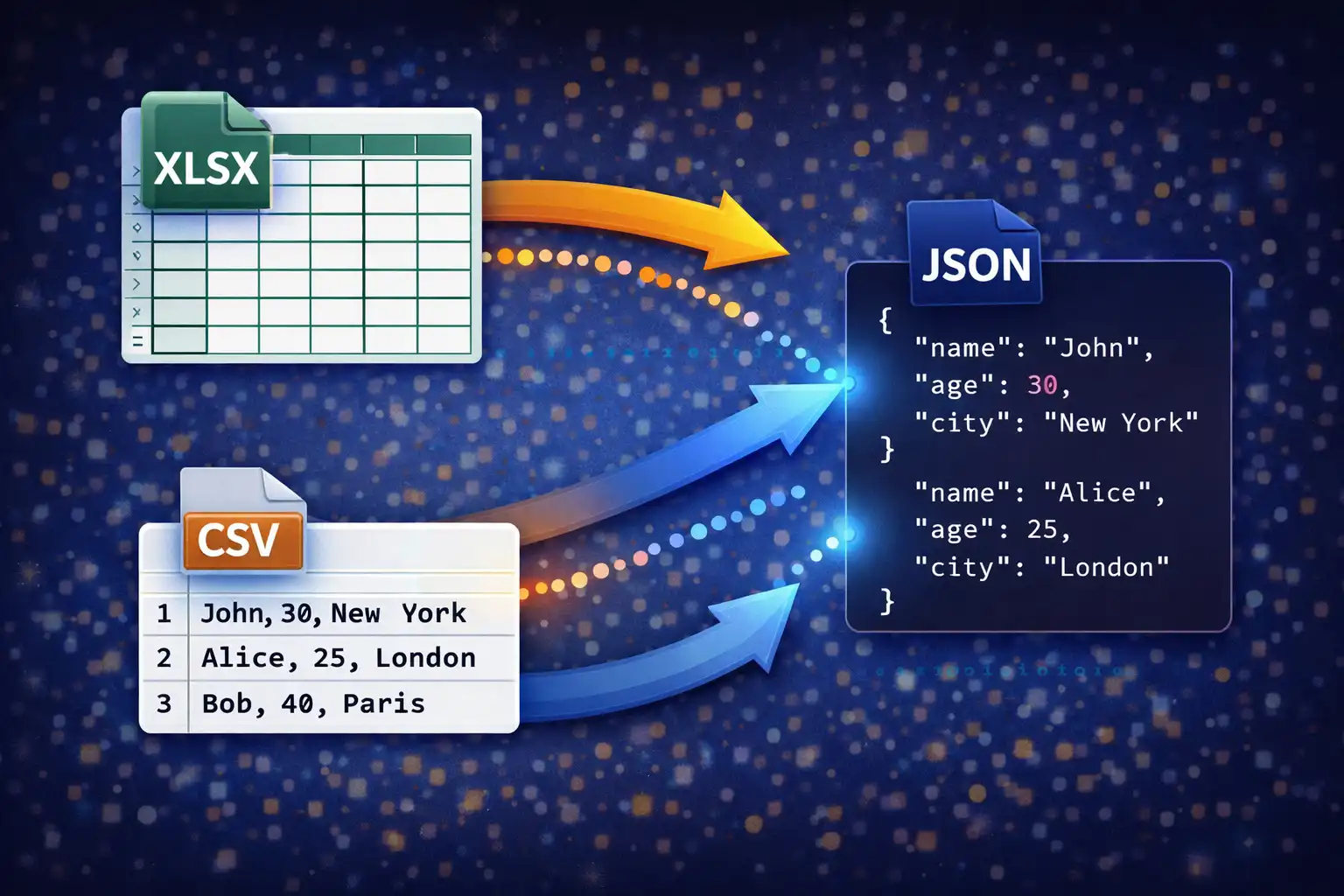
Table of Contents
Overview
DataForge is a browser-based spreadsheet and data converter that supports six formats — CSV, TSV, XLSX, XLS, JSON, and XML — with 30 conversion paths between them (every format converts to every other, plus XLS→XLSX upgrade). It is powered by two industry-standard JavaScript libraries: SheetJS 0.18.5 (862KB) for reading and writing Excel binary formats, and PapaParse 5.4.1 (20KB) for RFC 4180-compliant CSV and TSV parsing and generation. Every conversion runs entirely in your browser with zero data uploads.
What sets DataForge apart from typical online converters is its depth of intelligence. When you upload a JSON file, it does not naively assume a flat array — it analyzes the structure, detecting whether the data is an array of objects, a nested object with array-valued keys, a single object that should be wrapped, or even an array of primitives that needs a synthetic column. When you upload an XML file, it does not blindly flatten everything — it counts child tag name frequencies to identify the "record tag," extracts attributes as @attribute columns, and handles flat XML documents as single-row datasets. This smart detection means DataForge handles messy, real-world data files correctly without manual configuration.
The converter also includes multi-sheet Excel support (reads ALL sheets with a dropdown selector and independent caching), a live data preview system with both table and raw views, a "First row is header" toggle for data that lacks column headers, and auto-column-width sizing for XLSX output that produces properly formatted spreadsheets. The entire state management layer caches parsed data after upload, so switching between preview modes and output formats never requires re-parsing the original file.
Key Features
6 Formats, 30 Paths
CSV, TSV, XLSX, XLS, JSON, and XML — every format converts to every other. That is 30 distinct conversion paths, including the XLS→XLSX upgrade path that modernizes legacy Excel files to the current Open XML standard. Upload any supported format and export to any other in a single click.
SheetJS & PapaParse
SheetJS 0.18.5 (862KB) handles all Excel binary read/write operations — parsing XLSX (OOXML ZIP) and XLS (OLE2 binary), multi-sheet workbook navigation, and worksheet generation with column-width metadata. PapaParse 5.4.1 (20KB) delivers RFC 4180-compliant CSV/TSV parsing with quoted field support, escaped quotes, and embedded newline handling. Two powerful, battle-tested libraries working together.
Multi-Sheet Excel
When you upload an XLSX or XLS file with multiple sheets, DataForge reads ALL sheets via XLSX.read() and stores each one independently in an allSheets cache with its own headers and data arrays. A dropdown selector lets you switch between sheets instantly without re-reading the file. The selected sheet drives both the preview and the conversion output.
Live Data Preview
Two preview modes: a Table view showing up to 100 rows with a sticky header, striped rows (alternating backgrounds via nth-child(even)), row numbers in JetBrains Mono 11px, and ellipsis overflow for long cells (max-width 240px); and a Raw view displaying the first 20,000 characters in a monospace pre-wrap block. A "First row is header" checkbox toggles header interpretation in real time.
Smart JSON Detection
Handles four JSON structures automatically: (1) Direct arrays of objects are used as-is for tabular conversion. (2) Objects with array-valued keys — the first array found becomes the dataset. (3) Single objects are wrapped in an array to produce a single-row table. (4) Arrays of primitives (strings, numbers) generate a single "value" column. Type inference converts string "30" to number 30, "true"/"false" to booleans, and empty values to null.
XML Hierarchical Flattening
DOMParser analyzes the XML tree and counts child tag name frequencies. The most commonly repeated tag is identified as the "record tag" — each instance becomes a row. Attributes are extracted as @attribute columns, child element text becomes cell values, and #text content is captured separately. Flat XML documents (no repeating children) are handled as a single row derived from root attributes and direct child elements.
Auto-Column-Width XLSX
When generating XLSX output, DataForge calculates the optimal column width for every column by measuring the maximum content length across all rows (including the header), adding 2 characters of padding, and capping at 50 characters. These widths are applied via the SheetJS !cols worksheet property, producing Excel files with properly sized columns that do not require manual resizing after opening.
Privacy-First Processing
All parsing and generation runs entirely in-browser via SheetJS and PapaParse. No data is uploaded to any server, no temporary files are created remotely, and no server-side processing occurs at any stage. Your spreadsheet data — whether it contains financial records, customer lists, or employee information — remains exclusively on your device from upload to download.
Format Deep Dive
CSV — Comma-Separated Values
Parsing: CSV input is parsed by PapaParse 5.4.1 using RFC 4180 compliance mode. RFC 4180 is the formal specification for CSV published by the IETF, and it defines precise rules for how fields should be delimited, quoted, and escaped. PapaParse handles all RFC 4180 edge cases: fields containing commas are wrapped in double quotes ("New York, NY"), literal double-quote characters within a field are escaped by doubling them ("He said ""hello""" represents the value He said "hello"), and embedded newlines within quoted fields are preserved rather than treated as row separators. The parser uses a comma as the delimiter and enables the skipEmptyLines: true option to discard blank rows that commonly appear at the end of exported spreadsheets. CRLF (\r\n) and LF (\n) line endings are both handled transparently.
Output generation: CSV output is produced by Papa.unparse() with the delimiter set to comma. PapaParse automatically applies RFC 4180 escaping rules to the output: any cell value containing a comma, double quote, or newline is wrapped in double quotes, and internal double quotes are doubled. This ensures that the generated CSV file can be opened correctly by Microsoft Excel, Google Sheets, LibreOffice Calc, and any other CSV-compliant reader without data corruption or column misalignment.
TSV — Tab-Separated Values
Parsing: TSV is parsed using the same PapaParse engine as CSV, with the delimiter changed to the tab character (\t). The same RFC 4180-style quoting and escaping rules apply: fields containing tabs or newlines are quoted, and embedded double quotes are doubled. The skipEmptyLines: true option is enabled identically to CSV parsing. TSV is functionally identical to CSV in DataForge's processing pipeline — the only difference is the delimiter character.
Output generation: TSV output uses Papa.unparse() with the delimiter option set to \t. Fields containing tabs, newlines, or double quotes are automatically quoted. The resulting file uses the .tsv extension and opens correctly in spreadsheet applications and text editors that recognize tab-delimited data.
XLSX — Office Open XML Spreadsheet
Parsing: XLSX files are parsed by SheetJS via XLSX.read(buffer, {type: 'array'}), where the file is first read into an ArrayBuffer using the FileReader API. XLSX is a ZIP-based format defined by the OOXML (Office Open XML) standard — the ZIP container holds multiple XML files describing worksheets, shared strings, styles, and metadata. SheetJS decompresses the archive and reconstructs the workbook structure, populating a SheetNames array (ordered list of sheet names) and a Sheets object (mapping sheet names to worksheet data). For each sheet, XLSX.utils.sheet_to_json() is called with header: 1 (returns an array of arrays rather than an array of objects) and defval: '' (fills missing cells with empty strings instead of undefined). The result is a clean 2D array where the first row contains headers and subsequent rows contain data. For multi-sheet workbooks, ALL sheets are parsed and stored in the allSheets cache as {sheetName: {headers, data}} objects. A dropdown selector is populated with all sheet names, defaulting to the first sheet.
Output generation: XLSX output is built using XLSX.utils.aoa_to_sheet(), which converts the 2D array of arrays (headers + data rows) into a SheetJS worksheet object. Auto-column-width is then calculated: for each column, DataForge measures the string length of the header and every data cell, takes the maximum, adds 2 characters of padding, and caps the result at 50 characters. These widths are written to the worksheet's !cols property as an array of {wch: width} objects. A new workbook is created via XLSX.utils.book_new(), the worksheet is appended with XLSX.utils.book_append_sheet(wb, ws, "Sheet1"), and the final file is generated by XLSX.write(wb, {bookType: 'xlsx', type: 'array'}), which produces an ArrayBuffer that is then wrapped in a Blob for download.
XLS — Excel Binary Format (Legacy)
Parsing: XLS files use the older OLE2 (Object Linking and Embedding) compound document format, predating the ZIP-based OOXML standard introduced with Excel 2007. SheetJS provides backward-compatible parsing through the same XLSX.read() API — it automatically detects the OLE2 container format and decodes the binary structures within. The API surface is identical to XLSX: sheet_to_json with header: 1 and defval: '' produces the same 2D array output. Multi-sheet XLS workbooks are handled identically, with all sheets loaded into the allSheets cache. This means users can convert legacy XLS files without knowing or caring about the underlying binary format differences.
XLS→XLSX upgrade: One of the 30 conversion paths is the XLS-to-XLSX upgrade, which reads the legacy OLE2 binary format and writes it back as modern OOXML. This is valuable for organizations modernizing archived spreadsheets: the new XLSX file is smaller (ZIP compression), more interoperable (supported by all modern applications), and preserves all cell data from the original. The upgrade uses the same aoa_to_sheet → book_new → book_append_sheet → write pipeline as all other XLSX output generation.
JSON — JavaScript Object Notation
Parsing (Smart Detection): JSON parsing is where DataForge's intelligence is most visible. After JSON.parse() deserializes the raw text, DataForge analyzes the resulting JavaScript value to determine its structure and the best strategy for tabular conversion:
- Case 1: Direct array of objects —
[{"name":"Alice","age":30}, {"name":"Bob","age":25}]. This is the ideal case. The array is used directly as the dataset. All unique keys across all objects are collected to form the header row. Missing keys in individual objects produce empty cells. - Case 2: Object with array-valued keys —
{"users":[{"name":"Alice"}, {"name":"Bob"}], "meta":{"count":2}}. DataForge iterates through the top-level keys and uses the first key whose value is an array. In this example,usersis detected and its array is extracted as the dataset. Themetakey is ignored. This handles common API response formats where tabular data is wrapped in a response envelope. - Case 3: Single object —
{"name":"Alice","age":30,"city":"Mumbai"}. A single object is wrapped in an array to produce[{"name":"Alice","age":30,"city":"Mumbai"}], yielding a one-row table with each key as a column header. - Case 4: Array of primitives —
[42, "hello", true, null]. When the array contains primitive values rather than objects, DataForge creates a single column named "value" and each array element becomes a row. This handles lists, enumerations, and simple sequences.
Nested objects within rows are not recursively flattened — instead, they are serialized back to JSON strings via JSON.stringify() and stored as cell values. This preserves the nested data while keeping the tabular structure manageable.
Output generation (Type Detection): When converting tabular data to JSON, DataForge performs per-cell type inference to produce semantically correct JSON values rather than treating everything as strings. The detection pipeline applies the following checks in order: (1) isNaN() check — if a string value like "30" passes numeric parsing, it is output as the number 30. (2) Boolean detection — the string "true" becomes the boolean true, and "false" becomes false (case-sensitive). (3) Null detection — empty strings and undefined values become null. (4) Objects — values that are already objects are serialized via JSON.stringify(). The final output is formatted with JSON.stringify(array, null, 2) for human-readable indentation with 2-space nesting.
XML — Extensible Markup Language
Parsing (Hierarchical Flattening): XML parsing uses the browser's native DOMParser to construct a DOM tree from the raw XML text. The flattening algorithm then applies a sophisticated strategy to convert the hierarchical tree into flat tabular rows:
- Tag frequency counting: The algorithm iterates through all direct children of the root element and counts how many times each tag name appears. For example, in
<data><user>...</user><user>...</user><meta>...</meta></data>, the taguserappears twice andmetaappears once. - Record tag identification: The tag with the highest frequency is designated as the "record tag." Each instance of this tag becomes one row in the output table. In the example above,
useris the record tag, producing two rows. - Attribute extraction: XML attributes on each record element are extracted as columns prefixed with
@. For example,<user id="5" role="admin">produces columns@idand@rolewith values5andadmin. - Child element extraction: Direct child elements of each record become columns. For
<user><name>Alice</name><age>30</age></user>, the columns arenameandagewith valuesAliceand30. - Text content: Direct text content within a record element (not wrapped in a child element) is captured as a
#textcolumn. - Flat XML handling: If no tag appears more than once (all children are unique), the document is treated as a flat structure. The root element's attributes and all direct child elements are collected into a single row. This handles configuration files and settings documents where the XML is essentially a key-value store rather than a list of records.
Output generation (Safe XML Construction): When generating XML from tabular data, DataForge applies two safety functions. The safeTag() function sanitizes column names for use as XML element tag names: non-alphanumeric characters (except underscore, hyphen, and period) are removed, and if the resulting string does not start with a letter or underscore, it is prefixed or replaced with the default tag name "field". The escXml() function escapes the five XML-reserved characters in cell values: & becomes &, < becomes <, > becomes >, " becomes ", and ' becomes '. The output structure is <records><record><tag>value</tag></record></records>, where each row becomes a <record> element and each column becomes a child element with the sanitized column name as the tag and the escaped cell value as the text content.
How to Use
- Open DataForge — Navigate to the converter page in your browser. No installation, signup, or plugin is required. SheetJS (862KB) and PapaParse (20KB) load automatically and the tool is ready to accept files immediately.
- Upload your data file — Drag and drop a CSV, TSV, XLSX, XLS, JSON, or XML file onto the upload zone, or click to browse your device. The input format is auto-detected from the file extension (
.txtfiles are treated as comma-delimited CSV). - Review the live preview — A table preview appears immediately showing your data with row numbers, sticky headers, and striped rows (up to 100 rows displayed). Switch to Raw view to see the first 20,000 characters of the parsed output in a monospace code block. Use this to confirm your data was parsed correctly.
- For multi-sheet Excel files — If your XLSX or XLS file contains multiple sheets, a dropdown selector appears above the preview. Select the sheet you want to convert. Each sheet is cached independently, so switching between sheets is instant with no re-parsing.
- Toggle "First row is header" — If your data file does not have column headers in the first row, uncheck this option. DataForge will generate synthetic headers (
Col 1,Col 2,Col 3, etc.) and treat the original first row as data rather than as column names. The preview updates in real time when you toggle this setting. - Select your output format — Choose the desired target format from the output dropdown: CSV, TSV, XLSX, JSON, or XML. All 30 conversion paths are available regardless of your input format.
- Click "Convert & Download" — Processing is instant because DataForge uses the cached parsed data rather than re-reading the original file. The converted output downloads automatically to your default download folder with the correct file extension and MIME type. Check the status bar for a green success confirmation and the output file size.
Frequently Asked Questions
" character inside a quoted field is represented as "", and embedded newlines where a line break within a quoted field is treated as part of the value rather than a row separator. The parser uses comma as the delimiter for CSV (tab for TSV), enables skipEmptyLines: true to discard trailing blank rows, and handles both CRLF and LF line endings transparently.SheetNames array and Sheets object. DataForge then iterates through ALL sheets and caches each one independently in an allSheets object, storing separate headers and data arrays for each sheet. A dropdown selector appears in the interface, populated with all sheet names, defaulting to the first sheet. When you select a different sheet, the handleSheetChange() function retrieves the cached headers and data for that sheet, updates the internal state (parsedHeaders and parsedData), and re-renders the preview — all without re-reading or re-parsing the original file. The conversion output always uses the currently selected sheet.{"results": [...], "pagination": {...}}. (3) If it is a single flat object, it is wrapped in an array to produce a one-row table. (4) If it is an array of primitives (numbers, strings, booleans), a single "value" column is created. Nested objects within any of these structures are serialized to JSON strings via JSON.stringify() and stored as cell values.DOMParser to build a DOM tree from the XML text, then applies a frequency-based flattening algorithm. It counts how many times each child tag name appears under the root element. The most frequently occurring tag is designated the "record tag" — each instance becomes one row in the output. For each record element, attributes are extracted as @attribute-prefixed columns, child elements become columns named after their tag, and direct text content becomes a #text column. If no tag appears more than once (a flat XML document), the root's attributes and all direct children are collected into a single row. This handles both list-style XML (like RSS feeds and data exports) and flat configuration-style XML without any user intervention.!cols worksheet property as an array of {wch: width} objects, where wch specifies the column width in character units. The result is a professional-looking spreadsheet that opens with readable column sizes in Excel, Google Sheets, and LibreOffice Calc.isNaN() — a string value like "30" is converted to the number 30, and "3.14" becomes 3.14. (2) Boolean detection — the exact strings "true" and "false" (case-sensitive) are converted to their boolean equivalents. (3) Null detection — empty strings and undefined values become null in the JSON output. (4) Object passthrough — values that are already objects are serialized via JSON.stringify(). The final JSON output uses JSON.stringify(array, null, 2) for human-readable formatting with 2-space indentation.Col 1, Col 2, Col 3, etc.) and the original first row is treated as data, shifting all content down by one row. Toggling this checkbox immediately re-renders the live preview so you can see the effect before converting. This is essential for data files exported from systems that do not include header rows, such as some database dump utilities and legacy mainframe exports.Privacy & Security
Spreadsheets often contain some of the most sensitive data in any organization — financial records, customer lists, employee information, salary data, business metrics, and strategic projections. DataForge processes everything locally using SheetJS for Excel binary operations and PapaParse for delimited text parsing. No cell data, column headers, sheet names, or file content is ever transmitted to any server. There is no backend API, no cloud processing pipeline, no temporary storage, and no telemetry on file content. The two processing libraries (SheetJS and PapaParse) are loaded once when the page opens and execute entirely within your browser's JavaScript sandbox. Your business data remains exclusively on your device — from the moment you drag a file onto the upload zone to the moment the converted output downloads to your computer.
Ready to try DataForge? It's free, private, and runs entirely in your browser.
Launch DataForge →Related

Last Updated: March 26, 2026