PDF Forge
Complete PDF toolkit with 31 tools -- merge, split, compress, convert, sign, watermark, and more
Launch PDF Forge →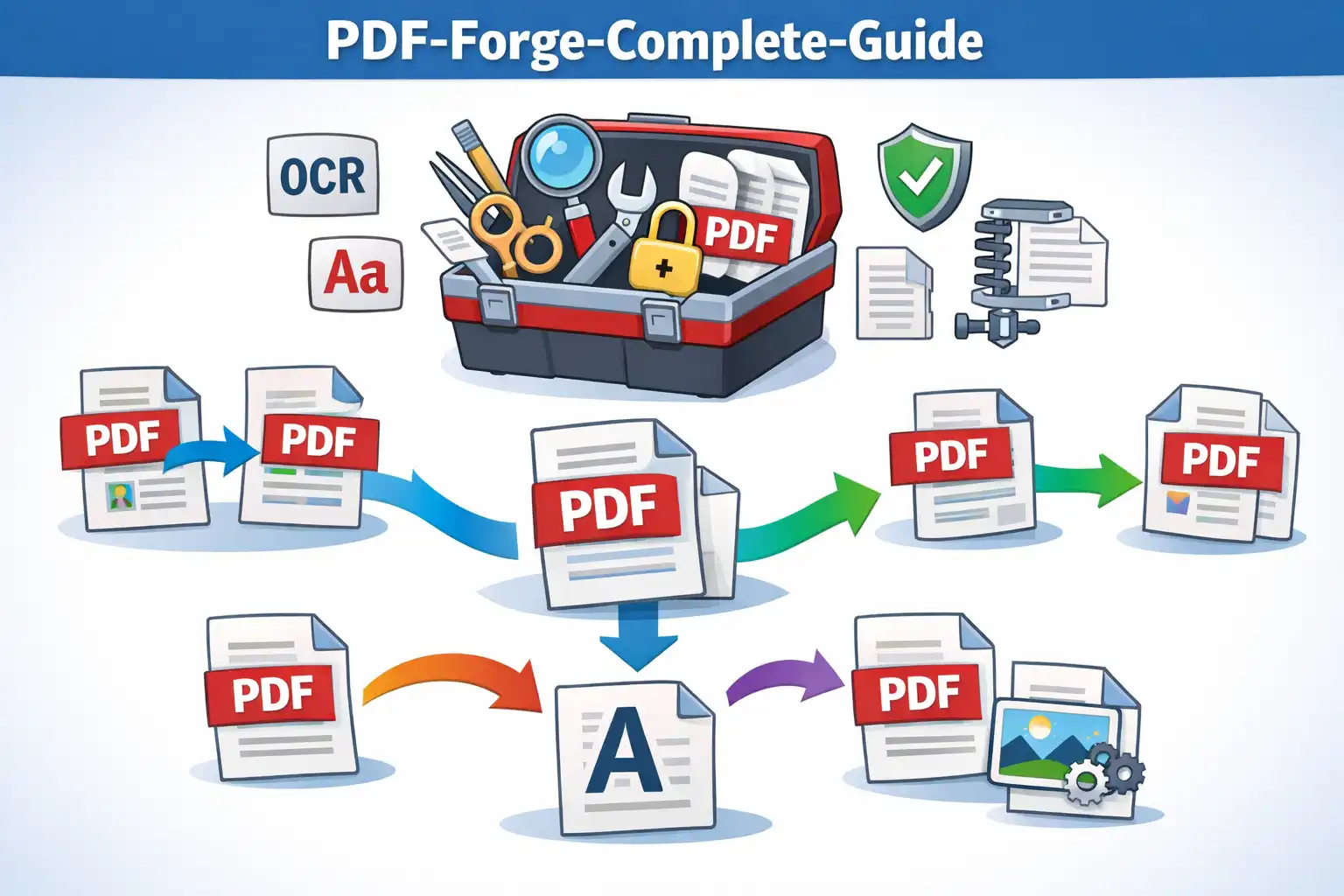
Table of Contents
Overview
PDF Forge is a comprehensive PDF toolkit that packs 31 professional-grade tools into a single browser-based application. Organized across seven categories -- Organize, Optimize, Convert To PDF, Convert From PDF, Edit, Security, and Intelligence -- it covers every PDF workflow you are likely to encounter, from merging multiple documents into one file to redacting sensitive information before sharing. Every operation runs entirely in your browser using client-side JavaScript libraries including pdf-lib, pdf.js, jsPDF, html2canvas, XLSX, JSZip, and Tesseract.js, so your documents never leave your device.
Unlike cloud-based PDF services that upload your files to remote servers for processing, PDF Forge keeps everything local. Whether you are compressing a 50MB contract for email, signing an invoice with a drawn or typed signature, adding tiled watermarks to a confidential report, or extracting text from a scanned receipt using OCR, your data stays on your machine from start to finish. There is no file size cap imposed by a server, no daily usage limit, and no account required.
PDF Forge is designed for professionals, students, and anyone who handles PDF documents regularly. Its category-based navigation makes it easy to find the right tool quickly, while advanced features like pixel-level document comparison, batch page extraction, and multi-format conversion (Word, Excel, PowerPoint, HTML, JPG, and PDF/A) ensure that even specialized workflows are fully supported without installing desktop software or paying for a subscription.
Key Features
31 Tools in 7 Categories
Organize, Optimize, Convert To, Convert From, Edit, Security, and Intelligence categories cover every PDF task. Navigate quickly with a category-based interface that groups related tools together.
Merge & Split
Combine multiple PDFs into a single document with drag-and-drop reordering, or split a large PDF by page ranges, individual pages, or fixed intervals. Extract or remove specific pages in bulk.
Compress & Optimize
Reduce PDF file size for email or web sharing with adjustable quality levels. Repair corrupted PDFs and run OCR on scanned documents to make text searchable and selectable using Tesseract.js.
Multi-Format Conversion
Convert to PDF from JPG, Word, PowerPoint, Excel, and HTML. Convert from PDF to JPG images, Word documents, PowerPoint slides, Excel spreadsheets, and archival PDF/A format.
Dual Signature Mode
Sign PDFs with a drawn signature using mouse or touch input, or type your name and choose from multiple signature fonts. Position and resize your signature precisely on any page of the document.
Tiled Watermarks
Apply text or image watermarks across every page with tiled repeat patterns, adjustable opacity, rotation, font size, and color. Protect confidential documents from unauthorized redistribution.
Security & Redaction
Password-protect PDFs with encryption, unlock password-protected files, permanently redact sensitive text and areas, and compare two PDF versions side-by-side with pixel-level difference highlighting.
Edit & Organize Pages
Rotate pages individually or in bulk, add page numbers with customizable position and format, crop pages to remove margins, and rearrange pages with a visual drag-and-drop organizer.
How to Use
- Open PDF Forge - Launch the app in your browser. No installation, account creation, or plugin is required. The tool loads instantly and all 31 tools are available immediately from the main dashboard.
- Choose a Category - Select from the seven category tabs at the top: Organize, Optimize, Convert To, Convert From, Edit, Security, or Intelligence. Each category groups related tools together so you can find the right one quickly.
- Select Your Tool - Click on the specific tool you need, such as Merge, Split, Compress, Sign, Watermark, or any of the 31 available options. Each tool opens with a clean, focused interface for that specific task.
- Upload Your Files - Drag and drop your PDF files onto the upload area, or click to browse and select files from your device. For conversion tools, upload the source format (e.g., JPG images for JPG-to-PDF or a Word document for Word-to-PDF). All files stay in your browser memory.
- Configure Options - Adjust settings specific to the tool you selected. For example, set compression quality, choose page ranges for splitting, position your signature, set watermark text and opacity, or select the output format for conversions.
- Process and Download - Click the action button to process your document. The operation runs entirely in your browser using JavaScript. Once complete, your processed PDF downloads automatically or is ready for manual download with a single click.
- Combine Multiple Operations - Return to the dashboard to run additional tools on the same document. For example, merge several PDFs, then compress the result, add a watermark, and finally password-protect it -- all without your files ever leaving your device.
Frequently Asked Questions
Privacy & Security
PDF Forge is built on the zero-data-upload principle. Every PDF operation -- merging, splitting, compressing, converting, signing, watermarking, redacting, and comparing -- runs entirely in your browser using client-side JavaScript. Your files are loaded into browser memory, processed locally by libraries like pdf-lib and pdf.js, and the output is generated on your device. No document data is ever sent to any server, stored in any cloud, or accessible to anyone other than you. There are no usage logs, no file analytics, and no temporary server copies. You retain complete control over your data at all times.
This architecture makes PDF Forge safe for handling confidential business contracts, legal agreements, financial reports, medical records, and personal identification documents. Since files never leave your device, there is zero risk of data interception during upload, server-side data breaches, or unauthorized third-party access. Your documents exist only in your browser's memory and are released when you close the tab.
PDF Forge is fully compliant with GDPR, CCPA, and DPDPA privacy regulations. The service is supported by ethical advertising partnerships, allowing all 31 tools to remain completely free with no premium tiers, usage limits, or hidden costs.
Ready to try PDF Forge? It's free, private, and runs entirely in your browser.
Launch PDF Forge →Related

Last Updated: March 26, 2026