Favicon Generator
Create complete favicon sets for all platforms with 6 input methods, a built-in image editor, and PWA manifest generator
Launch Favicon Generator →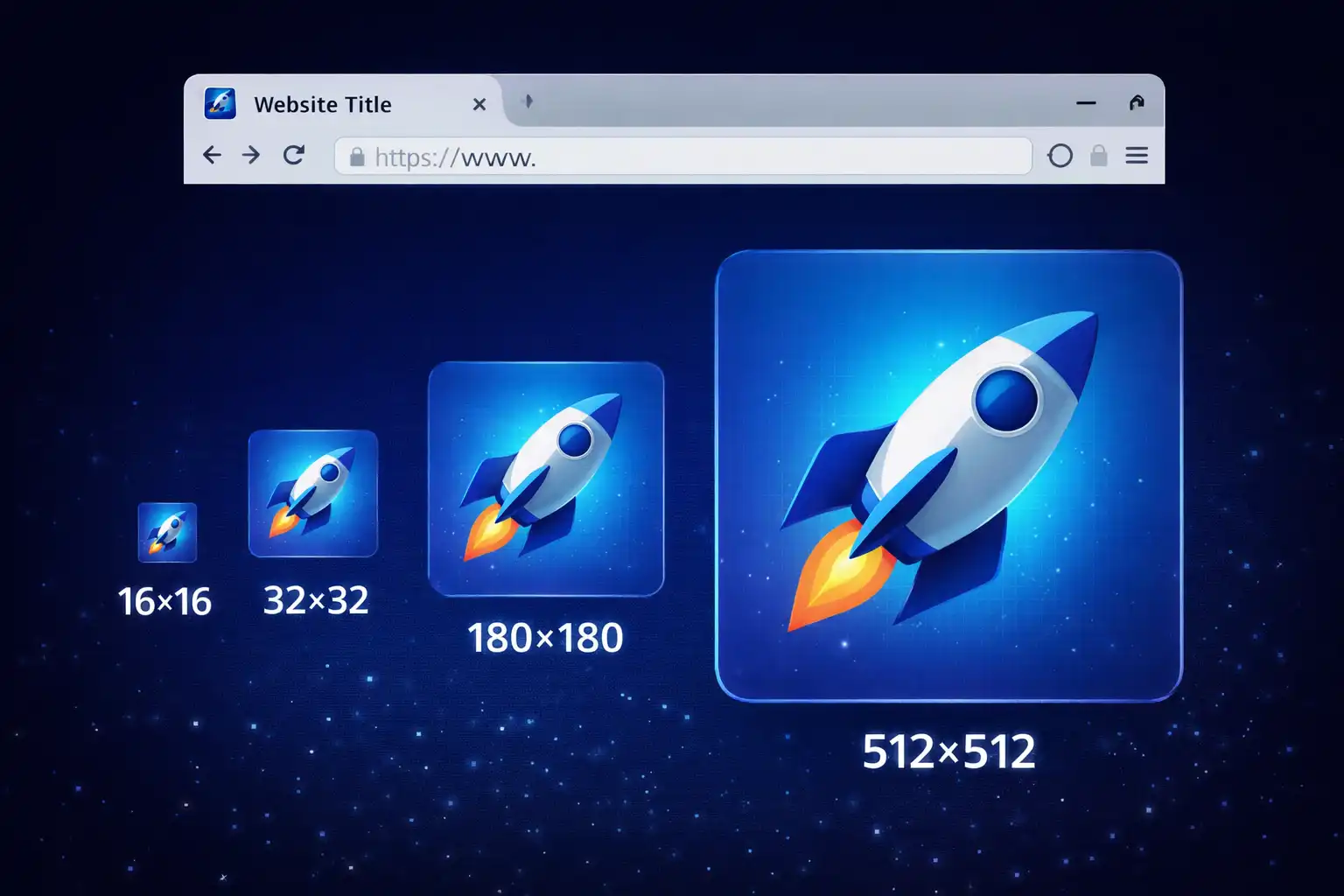
Table of Contents
Overview
Favicon Generator (Favicon Creator Pro v3.0) is a comprehensive, free tool for creating complete favicon sets that work across all browsers and platforms. Whether you need standard browser tab icons (16x16 and 32x32), Apple Touch icons (180x180), Android Chrome icons (192x192 and 512x512), or legacy ICO files, this tool generates everything you need in a single download as a neatly organized ZIP file.
The tool offers 6 different input methods: upload your existing logo or image, create favicons from text characters, use any emoji, choose from a built-in icon library with searchable categories, load images from a URL, or batch process multiple images at once. After selecting your input, a full-featured image editor lets you crop (with aspect ratio locking), adjust brightness, contrast, saturation, hue, exposure, and vibrance, apply one-click filters like grayscale, sepia, sharpen, and vintage, transform with rotate and flip, and customize backgrounds with solid colors, gradients, or patterns.
Advanced settings include configurable padding, border radius (from sharp corners to perfect circles), image quality from 50% to 100%, and format selection to choose exactly which sizes to generate. A built-in quality score system analyzes your favicon across resolution, contrast, complexity, and color diversity to help you achieve professional results. The tool also generates a customizable PWA manifest file for making your website installable as a standalone app. All processing happens entirely in your browser.
Key Features
6 Input Methods
Upload images (PNG, JPG, WebP, SVG), create from text characters, use emoji, browse a curated icon library, load from URL, or batch process multiple images at once.
Built-in Image Editor
Full editor with crop (6 aspect ratios including 1:1 for favicons), brightness/contrast/saturation adjustments, 8 one-click filters, rotate and flip transforms, and background customization.
Complete Favicon Set
Generates all sizes in one click: Android 512x512, Android 192x192, Apple Touch 180x180, Favicon 32x32, Favicon 16x16, and legacy ICO format. Downloaded as an organized ZIP.
PWA Manifest Generator
Create a customizable web app manifest with application name, short name, description, start URL with UTM tracking, theme color, display mode, orientation, and categories.
Quality Score System
Automatic analysis across 4 criteria: resolution (30 points), contrast (25 points), complexity (20 points), and color diversity (25 points). Specific recommendations help you improve.
Advanced Customization
Configurable padding (0-30%), border radius (0-50%, with 22% matching iOS icon style), image quality (50-100%), and background transparency toggle for platform-specific optimization.
Batch Processing
Process multiple images at once by dragging and dropping multiple files. Track progress for each image with status indicators. Download a single ZIP containing all favicon sets organized by image.
Background Options
Choose from transparent, solid color, gradient (horizontal, vertical, diagonal, radial), or pattern (dots, stripes, grid) backgrounds. Change backgrounds unlimited times without resetting.
How to Use
- Choose your input method - Select from 6 tabs: Upload an image (recommended, supports PNG, JPG, WebP, SVG up to 5MB), create from Text (1-3 characters with font and color choices), use an Emoji, browse the Icon library, load from URL, or use Batch for multiple images.
- Edit your image (optional) - Click Edit Image or press Ctrl+E to open the built-in editor. Use Crop to trim your image (select 1:1 Square for best favicon results), Adjust sliders for brightness, contrast, and saturation, apply Filters like Auto-Enhance or Sharpen, Transform to rotate or flip, and set Background options.
- Configure advanced settings - Click Advanced Options to set padding (10% recommended for breathing room), border radius (0% for square, 22% for iOS style, 50% for circle), image quality (95% default recommended), and select which favicon sizes to generate.
- Review the quality score - Check your favicon quality score out of 100 points. Follow the specific recommendations to improve resolution (use 1024x1024+ source images), contrast, complexity, and color diversity for professional results. Aim for 80+ score.
- Generate favicons - Click the Generate button to create all selected favicon sizes. Preview each size in the output panel to verify they look good at every resolution, especially the critical 16x16 size.
- Customize PWA manifest (optional) - Fill in the PWA manifest fields with your app name, short name, description, start URL, theme color, display mode, orientation, and categories. This creates an installable web app experience.
- Download your favicon package - Click Download ZIP to receive a complete package containing all favicon files, the PWA manifest, and ready-to-use HTML code snippets for adding favicons to your website.
Frequently Asked Questions
Privacy & Security
Favicon Generator processes all images entirely within your browser using client-side JavaScript and the Canvas API. Your logos, photos, and any other images you use are never uploaded to any server. The generated favicon files, ZIP downloads, and PWA manifest files are all created locally in browser memory and downloaded directly to your device.
The tool works entirely offline after the initial page load. There is no backend server processing, no cloud storage, and no third-party image processing services involved. Every crop, filter, adjustment, and favicon generation step happens exclusively on your machine.
All image data is automatically cleared from browser memory when you close the tab. Settings like theme preference are stored in localStorage and never transmitted. Whether you are creating favicons for a personal blog or a confidential corporate project, your brand assets and visual identity remain completely private throughout the process.
Ready to try Favicon Generator? It's free, private, and runs entirely in your browser.
Launch Favicon Generator →Related

Last Updated: February 28, 2026