How to Create Favicons for Your Website: A Complete Guide
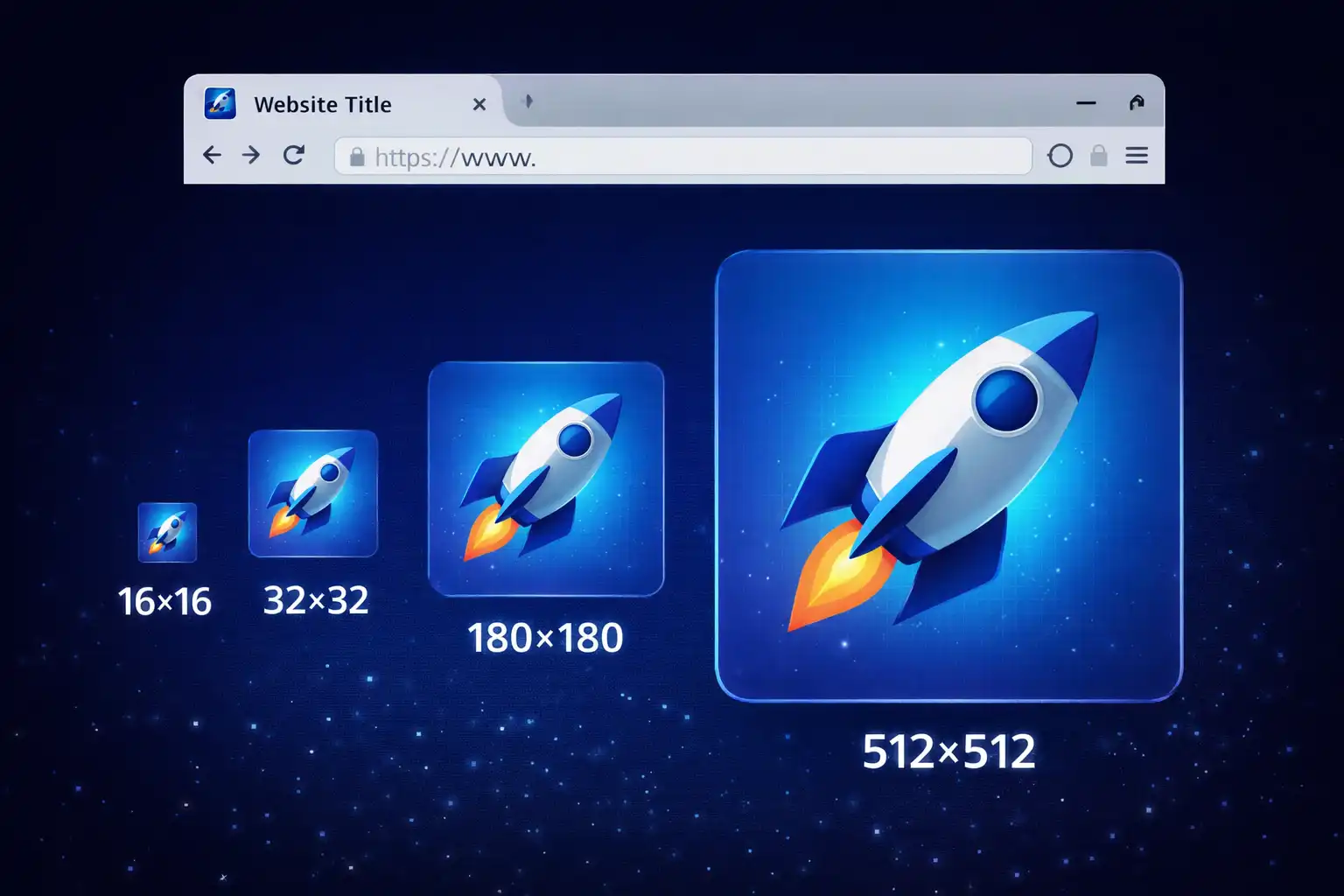
Table of Contents
That tiny icon in your browser tab might seem insignificant, but it plays a surprisingly important role in your website's identity. A favicon (short for "favorite icon") is the small image that appears in browser tabs, bookmarks, history lists, and on mobile home screens. Without one, your site looks unfinished and unprofessional. This guide covers everything you need to know about creating favicons for every platform.
1. What Is a Favicon?
A favicon is a small icon associated with a website. It was first introduced by Internet Explorer 5 in 1999 as a way to identify bookmarked pages. The original specification called for a single 16x16 pixel ICO file named favicon.ico placed in the website's root directory.
Today, favicons have evolved far beyond that simple beginning. Modern websites need multiple favicon files in different sizes and formats to support the wide variety of platforms where they appear:
- Browser tabs: The most familiar location, showing a 16x16 or 32x32 pixel icon next to the page title
- Bookmark bars and menus: When users bookmark your site, the favicon identifies it visually
- Browser history: Favicons help users quickly find previously visited sites
- Mobile home screens: When users add your site to their phone's home screen, the favicon serves as the app icon
- Tab switching: On mobile browsers and operating systems, favicons identify your site in the tab switcher
- Search results: Google and other search engines display favicons alongside search results
- PWA installations: Progressive Web Apps use favicon variants as their application icons
2. Why Favicons Matter
Favicons serve several important functions beyond simple decoration:
Brand recognition: A well-designed favicon reinforces your brand identity. Users learn to associate the icon with your site, making it instantly recognizable among dozens of open tabs or bookmarks.
Professional credibility: A missing favicon is one of the most visible signs of an incomplete or amateur website. The browser displays a generic document icon or a blank space, which undermines trust.
User experience: When users have many tabs open, favicons are often the only way to identify each tab. Without a favicon, users struggle to find your site among their open tabs.
SEO impact: Google displays favicons in mobile search results. A clear, recognizable favicon can improve click-through rates by making your result stand out from competitors.
PWA requirement: If your site functions as a Progressive Web App, proper favicon/icon configuration is a technical requirement for installation on user devices.
3. All Favicon Sizes and Formats You Need
A complete favicon setup requires multiple files to cover all platforms:
Essential (minimum viable favicon set):
favicon.ico- 16x16 and 32x32 (multi-size ICO file). This is the legacy format that works everywhere.favicon-16x16.png- For browser tabs on standard displaysfavicon-32x32.png- For browser tabs on high-DPI (Retina) displaysapple-touch-icon.png- 180x180 for iOS home screen bookmarks
Recommended (complete coverage):
android-chrome-192x192.png- For Android home screen and Chromeandroid-chrome-512x512.png- For Android splash screen and high-resolution displayssite.webmanifest- JSON manifest file that references the Android icons (required for PWA)mstile-150x150.png- For Windows Start menu tiles (optional, declining importance)safari-pinned-tab.svg- For Safari pinned tabs on macOS (optional, uses SVG)
For most websites, you need 6 files: favicon.ico, favicon-16x16.png, favicon-32x32.png, apple-touch-icon.png (180x180), android-chrome-192x192.png, and android-chrome-512x512.png. This covers all major browsers and platforms.
4. How to Create Favicons
There are several approaches to creating favicons:
From an existing logo or image: The most common approach is to start with your logo or brand mark and resize it for each required dimension. The key challenge is that a logo that looks great at 512x512 may be unreadable at 16x16. You may need to simplify the design for smaller sizes.
Design guidelines for small sizes:
- Use simple shapes with high contrast
- Avoid text (it becomes unreadable below 32x32)
- Use bold colors that stand out against both light and dark browser themes
- Consider creating a simplified version of your logo for favicon use
- Test the favicon at 16x16 to ensure it is recognizable
Using a favicon generator: The fastest approach is to start with a single high-resolution image (at least 512x512) and use a tool to automatically generate all required sizes and formats. Favicon Generator by ZeroDataUpload does this entirely in your browser: you upload your source image, and it generates every required favicon file instantly, all processed locally without uploading your image to any server.
5. Adding Favicons to Your HTML
Once you have your favicon files, add them to your HTML <head> section:
<!-- Standard favicons -->
<link rel="icon" href="/favicon.ico" type="image/x-icon">
<link rel="icon" type="image/png" sizes="16x16" href="/favicon-16x16.png">
<link rel="icon" type="image/png" sizes="32x32" href="/favicon-32x32.png">

<!-- Apple Touch Icon -->
<link rel="apple-touch-icon" sizes="180x180" href="/apple-touch-icon.png">

<!-- Web App Manifest (Android + PWA) -->
<link rel="manifest" href="/site.webmanifest">

<!-- Theme color for mobile browsers -->
<meta name="theme-color" content="#8B5CF6">
And your site.webmanifest file should reference the Android icons:
{
    "name": "Your Site Name",
    "short_name": "Site",
    "icons": [
        {
            "src": "/android-chrome-192x192.png",
            "sizes": "192x192",
            "type": "image/png"
        },
        {
            "src": "/android-chrome-512x512.png",
            "sizes": "512x512",
            "type": "image/png"
        }
    ],
    "theme_color": "#8B5CF6",
    "background_color": "#0a0a0f",
    "display": "standalone"
}
6. Favicons for Progressive Web Apps
If your website is a Progressive Web App (PWA), favicon requirements are more stringent. The web manifest must include icons at specific sizes, and the icons must meet certain quality criteria for the browser to offer the "Install" prompt:
- 192x192: Required minimum for PWA installability in Chrome
- 512x512: Required for the splash screen displayed while the PWA loads
- Maskable icons: Icons that have enough padding for the OS to apply its own shape mask (circle, rounded square, etc.). Maskable icons should have their important content within the center 80% of the image.
For PWA icons, use PNG format with transparency. Ensure the icon is recognizable at all sizes, especially 192x192, as this is the size most commonly displayed on home screens.
7. Common Mistakes to Avoid
- Using only favicon.ico: While the ICO file provides basic coverage, you miss iOS, Android, and PWA support without the PNG variants.
- Wrong file location: By default, browsers look for
/favicon.icoin the root directory. If your favicon is elsewhere, you must specify the path with a<link>tag. - Too much detail: Complex images do not scale down well. At 16x16, fine details become muddy blobs. Simplify your design for small sizes.
- Forgetting the apple-touch-icon: Without this, iOS devices will use a screenshot of your page as the home screen icon, which usually looks terrible.
- Not testing across browsers: Test your favicon in Chrome, Firefox, Safari, and Edge to ensure it displays correctly everywhere.
- Caching issues: Browsers aggressively cache favicons. When updating your favicon, you may need to clear the cache or use a cache-busting query parameter.
8. Conclusion
A proper favicon setup takes only a few minutes but makes a significant difference in how professional your website appears. Start with a clear, simple design at 512x512 pixels, generate all required sizes using a tool like Favicon Generator, add the proper HTML tags, and your site will look polished across every browser and platform.
Remember: the favicon is often the smallest element on your page, but it is one of the most visible. Every browser tab, every bookmark, and every search result showcases your favicon. Make it count.
Related Articles

Published: February 8, 2026