ArchivePro
Create and extract ZIP archives directly in your browser with password protection and AES encryption
Launch ArchivePro →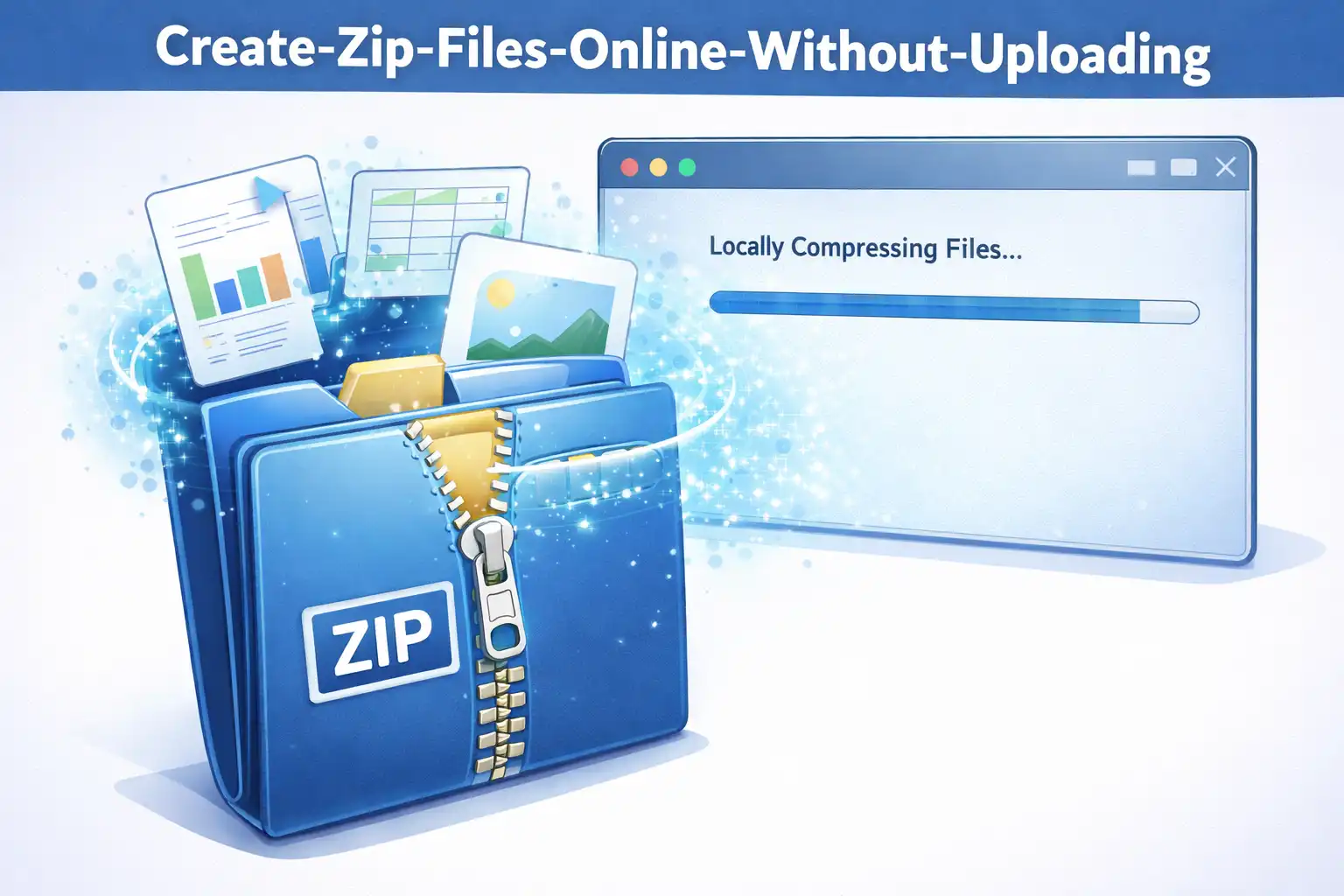
Table of Contents
Overview
ArchivePro is a free, browser-based ZIP archive tool that lets you create and extract ZIP files without uploading anything to a server. Whether you need to compress files for email, bundle project folders for sharing, or extract a ZIP archive you received, ArchivePro handles it all directly in your browser with complete privacy.
The tool operates in two modes: Create Archive for making new ZIP files, and Extract Archive for opening existing ones. In Create mode, you can add files via drag and drop, file browser, or entire folder upload while preserving directory structure. Compression levels range from Store (no compression, fastest) to Maximum (smallest output, slower), and you can optionally protect your archive with AES-128, AES-192, or AES-256 encryption with a password strength meter.
In Extract mode, ArchivePro provides a detailed analysis summary showing total files, compressed size, uncompressed size, and compression ratio. You can preview images, text files, and PDFs before extracting, and choose between extracting to a folder (Chrome/Edge), downloading all files, extracting selected files only, or downloading individual items. The tool supports encrypted ZIP files with a session-persistent password prompt.
Key Features
Create ZIP Archives
Add files via drag and drop, file browser, or entire folder upload. The folder structure is fully preserved in the resulting archive. Search and filter files by name, type, or size.
Extract ZIP Archives
Open ZIP files and extract to a folder (Chrome/Edge 86+), download all files, extract selected files only, or download individual items. Supports password-protected archives.
AES Encryption
Protect sensitive archives with AES-128, AES-192, or AES-256 encryption. Built-in password strength meter helps you choose a strong password. Same encryption used by banks and military.
Adjustable Compression
Four compression levels from Store (0, no compression) to Maximum (9, smallest file). Medium (6) is recommended for the best balance of speed and size reduction.
File Preview
Preview files inside ZIP archives before extracting. Supports images (JPG, PNG, GIF, WebP, SVG), text files (TXT, MD, JSON, XML, code), and PDFs with a built-in viewer.
Analytics Dashboard
View detailed file statistics including file type distribution with pie charts, file size distribution with bar charts, compression preview, and smart insights with recommendations.
Pause & Resume
Pause archive creation at any time and resume later. A progress window shows the current file being processed, percentage complete, estimated time remaining, and files processed count.
Multiple View Modes
Switch between Grid View with large icons and visual previews, or List View with compact table layout and detailed file information. Dark and light theme support included.
How to Use
- Choose your mode - Open ArchivePro and select either Create Archive to make a new ZIP file, or Extract Archive to open an existing one. Switch between modes using the tabs at the top.
- Add files (Create mode) - Drag and drop files or folders directly onto the upload area, click Add Files to browse, or click Add Folder to include an entire directory with its structure preserved.
- Configure compression - Set the compression level from Store (0) for fastest processing to Maximum (9) for smallest file size. Medium (6) is recommended for most use cases.
- Set password protection (optional) - Toggle Enable Password Protection, enter your password, check the strength meter, and choose your encryption level: AES-128, AES-192, or AES-256.
- Create the archive - Click the Create Archive button and watch the progress window. The ZIP file downloads automatically when complete. You can pause or cancel the operation at any time.
- Extract a ZIP (Extract mode) - Drag and drop a ZIP file onto the upload area or click Browse Files. Review the analysis summary showing file count, sizes, and compression ratio.
- Download extracted files - Choose Extract to Folder (Chrome/Edge 86+) to select a destination, Extract All to download everything, Extract Selected for specific files, or click individual download icons for single files.
Frequently Asked Questions
Privacy & Security
ArchivePro processes all files entirely within your browser. Your documents, images, videos, and any other files you add to an archive are never uploaded to any server. The ZIP file is created in browser memory and downloaded directly to your device. When extracting, the same client-side approach applies: your ZIP file is read locally and files are extracted without any network transmission.
Passwords used for AES encryption are processed locally and never stored permanently or transmitted anywhere. During ZIP creation, the password is cleared from memory immediately after the archive is built. During extraction, the password persists only for the current session to avoid repeated prompts.
All file data is automatically cleared from browser memory when you close the tab or navigate away. ArchivePro does not use tracking cookies or analytics for your file operations. The tool is built with the fundamental principle that your files are your business and nobody else's.
Ready to try ArchivePro? It's free, private, and runs entirely in your browser.
Launch ArchivePro →Related

Last Updated: February 28, 2026