Best Image Formats for Web: JPEG vs PNG vs WebP Compared
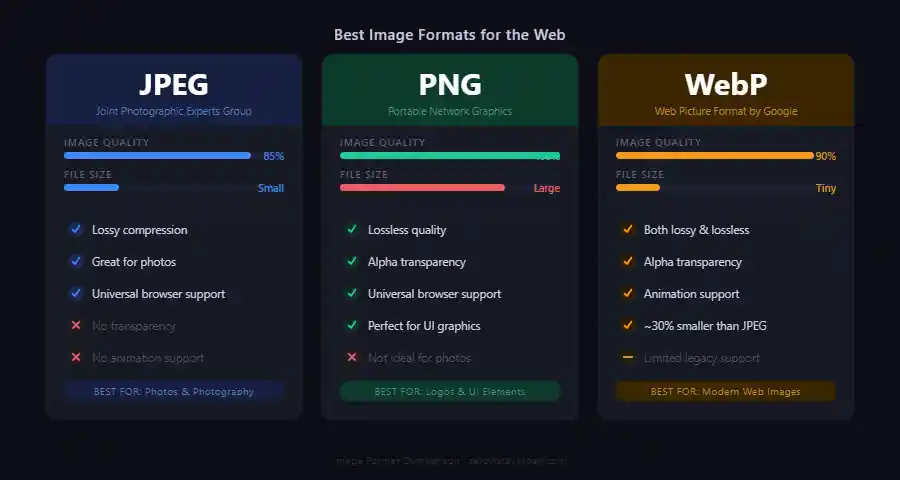
Table of Contents
I spent an embarrassing amount of time early in my career saving every image as a PNG "just to be safe." The files were enormous, my pages loaded slowly, and I had no idea why. If you have ever stared at JPEG, PNG, WebP, and AVIF wondering which one to pick -- this guide is the one I wish I had back then.
Images typically account for 50-80% of a web page's total weight. Choosing the right format for each image can dramatically cut page load times, improve user experience, and even affect your search engine rankings. But with multiple formats available, each with different strengths and trade-offs, the right choice is rarely obvious.
This guide compares the four most relevant image formats for the web in 2026: JPEG, PNG, WebP, and AVIF. By the end, you will know exactly which format to use for every type of image on your website.
1. Why Image Format Matters
Why does any of this matter? The image format you choose affects three things you probably care about:
- File size: Smaller files load faster. On mobile networks, the difference between a 500KB image and a 100KB image can mean seconds of additional load time.
- Visual quality: Some formats sacrifice quality for smaller files (lossy compression), while others preserve every pixel exactly (lossless compression). The right balance depends on the image content.
- Feature support: Not all formats support transparency, animation, or progressive loading. Your choice depends on what features your images need.
Google's Core Web Vitals, which directly affect search rankings, include Largest Contentful Paint (LCP) as a key metric. Since the largest element on many pages is an image, optimizing image format and size directly improves your LCP score and SEO performance.
2. JPEG: The Universal Standard
JPEG (Joint Photographic Experts Group) has been the workhorse of the web since the 1990s. It is older than a lot of the developers using it. It uses lossy compression, meaning it discards some image data to achieve smaller file sizes. The amount of data discarded is controlled by a quality setting, typically ranging from 0 (maximum compression, lowest quality) to 100 (minimum compression, highest quality).
Best for: Photographs, complex images with gradients, and any image where a small amount of quality loss is acceptable.
Strengths:
- Universal support: every browser, every device, every application
- Excellent compression for photographs (typically 10:1 or better)
- Adjustable quality/size trade-off
- Progressive loading support (image appears gradually)
- Small file sizes for photographic content
Weaknesses:
- No transparency support (no alpha channel)
- Lossy only: quality degrades with each re-save
- Poor for text, line art, and images with sharp edges (visible compression artifacts)
- No animation support
Optimal quality settings: For web use, a JPEG quality of 75-85% hits the sweet spot. Honestly, most people cannot tell the difference between a quality 85 JPEG and the original. Below 60%, artifacts become noticeable in most images.
3. PNG: Lossless Quality
PNG (Portable Network Graphics) was designed as a patent-free replacement for GIF -- one of those cases where the tech community actually came together and built something better out of spite. It uses lossless compression, meaning the decompressed image is identical to the original, pixel for pixel. PNG also supports full alpha channel transparency.
Best for: Logos, icons, screenshots, text overlays, images requiring transparency, and any image where pixel-perfect quality is required.
Strengths:
- Lossless compression: no quality degradation
- Full alpha channel transparency (256 levels of transparency per pixel)
- Excellent for images with text, sharp edges, and flat colors
- Universal browser support
- Can be re-saved repeatedly without quality loss
Weaknesses:
- Much larger file sizes for photographs (often 5-10x larger than equivalent JPEG)
- No native animation support (APNG exists but has limited support)
- Overkill for photographic content where slight quality loss is acceptable
PNG-8 limits the image to 256 colors and produces much smaller files. PNG-24 supports 16.7 million colors. For simple graphics like icons and logos, PNG-8 is often sufficient and significantly smaller. For images with subtle gradients or many colors, PNG-24 is necessary.
4. WebP: The Modern Choice
WebP is an image format developed by Google, first released in 2010. It supports both lossy and lossless compression, transparency, and animation -- basically doing everything JPEG and PNG do, but in a single format. As of 2026, WebP is supported by all major browsers, so the old "but Safari doesn't support it" excuse is finally dead.
Best for: All web images. WebP is essentially a better version of both JPEG and PNG in most scenarios.
Strengths:
- 25-35% smaller than JPEG at equivalent visual quality (lossy mode)
- 26% smaller than PNG for lossless compression
- Supports transparency (alpha channel) in both lossy and lossless modes
- Animation support (replacement for GIF with much better compression)
- Universal browser support (Chrome, Firefox, Safari, Edge, Opera)
Weaknesses:
- Not universally supported by image editing software (improving rapidly)
- Some social media platforms do not accept WebP uploads
- Email clients may not display WebP images
- Slightly slower to encode than JPEG
Practical benefit: In my experience, switching from JPEG to WebP across a typical website reduces total image weight by 25-35%, which can shave 0.5-2 seconds off page load time on average connections. This directly improves Core Web Vitals scores.
5. AVIF: The Next Generation
AVIF (AV1 Image File Format) is the newest major image format, derived from the AV1 video codec. It offers the best compression efficiency of any current image format, often producing files 50% smaller than JPEG at equivalent quality.
Best for: Websites targeting maximum performance where browser support allows.
Strengths:
- 50% smaller than JPEG at equivalent quality
- 20% smaller than WebP at equivalent quality
- Excellent at low bitrates (maintains quality where JPEG becomes blocky)
- Supports transparency, HDR, and wide color gamut
- Supported by Chrome, Firefox, Safari (16.4+), and Edge
Weaknesses:
- Slow encoding speed (3-10x slower than JPEG or WebP)
- Not supported by all versions of Safari (requires 16.4+)
- Maximum image dimension limits in some implementations
- Limited support in image editing tools and CMS platforms
6. Quick Comparison Table
Here is a side-by-side comparison of the key characteristics:
- JPEG: Lossy only, no transparency, no animation, universal support, good compression for photos
- PNG: Lossless only, full transparency, limited animation (APNG), universal support, large files for photos
- WebP: Lossy and lossless, full transparency, animation, universal support, 25-35% smaller than JPEG
- AVIF: Lossy and lossless, full transparency, animation, good support (Safari 16.4+), 50% smaller than JPEG
7. Practical Recommendations
Enough theory. Here is what I actually recommend for different scenarios:
Photographs and complex images: Use WebP as your primary format. Serve JPEG as a fallback for the rare browser that does not support WebP. Use AVIF if encoding speed is not a concern and you want maximum compression.
Logos and icons: Use SVG for vector graphics (infinitely scalable, tiny file sizes). For raster logos, use WebP lossless or PNG. Avoid JPEG for logos due to artifacts around text and sharp edges.
Screenshots: Use WebP lossless or PNG. Screenshots contain text and UI elements with sharp edges that lossy compression handles poorly.
Thumbnails: Use WebP lossy at moderate quality (70-80%). Thumbnails are small and viewed at reduced size, so aggressive compression is less noticeable.
Social media sharing images (OG images): Use JPEG. Social platforms have the most reliable JPEG support, and OG images need maximum compatibility.
Images with transparency: Use WebP. It supports transparency with much smaller file sizes than PNG. If you need maximum compression, use AVIF.
<!-- Using the picture element for format fallback -->
<picture>
    <source srcset="image.avif" type="image/avif">
    <source srcset="image.webp" type="image/webp">
    <img src="image.jpg" alt="Description" loading="lazy">
</picture>
8. Conclusion
So what is the bottom line? The best image format depends on your specific needs, but WebP has emerged as the most versatile default choice for web images in 2026. It handles both photographs and graphics well, supports transparency and animation, and delivers meaningful file size reductions compared to JPEG and PNG.
For maximum performance, serve AVIF with WebP and JPEG fallbacks using the HTML <picture> element. For simplicity, WebP alone covers the vast majority of use cases with excellent results. And for maximum compatibility (email, social media, legacy systems), JPEG remains the safe default.
Whatever format you choose, remember that format selection is just one piece of the puzzle. Proper sizing, lazy loading, and responsive images matter just as much. Get those right alongside your format choice, and your pages will feel noticeably faster.
Related Articles

Published: January 18, 2026