DocForge
Convert documents, spreadsheets & images between 17 formats with 67 conversion paths
Launch DocForge →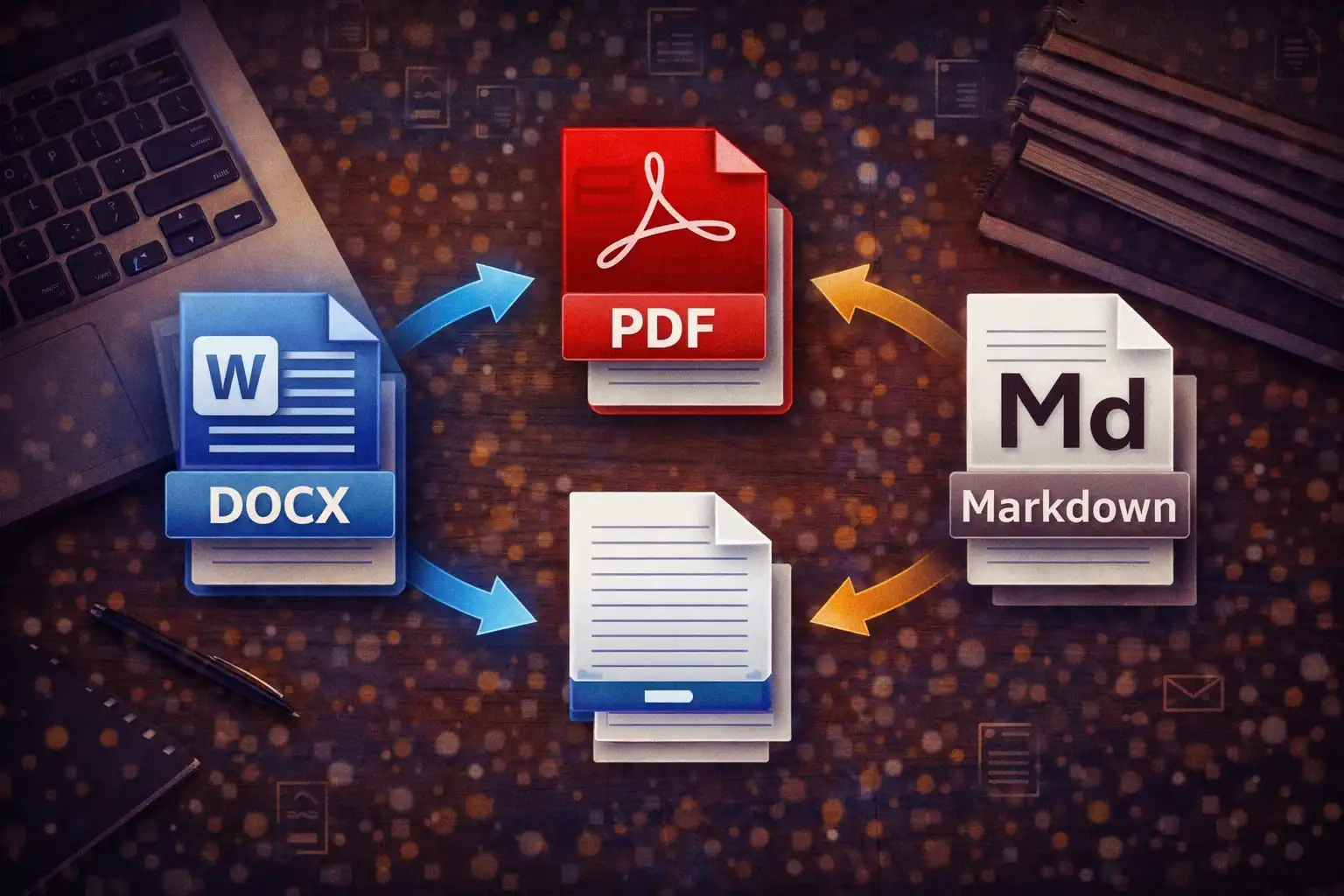
Table of Contents
Overview
DocForge is a universal document converter that transforms files between 17 formats across three categories: documents, spreadsheets, and images. With 67 distinct conversion paths powered by 10 specialized JavaScript libraries, it handles everything from DOCX-to-PDF document conversion to CSV-to-JSON data transformation to PNG-to-WebP image optimization -- all without any file ever leaving your browser.
The converter supports six document formats (DOCX, PDF, TXT, HTML, RTF, Markdown), six spreadsheet formats (XLSX, XLS, CSV, TSV, JSON, XML), and five image formats plus SVG input (PNG, JPG, WebP, BMP, GIF, SVG). Each format connects to multiple output targets through carefully engineered conversion pipelines that preserve content fidelity while adapting to the constraints of each target format.
DocForge includes a smart preview system that renders your file content before conversion -- DOCX files display as formatted HTML via mammoth.js, spreadsheets render as interactive tables via PapaParse and SheetJS, images appear inline, and PDFs show extracted text. The preview data is cached in memory so the conversion step does not need to re-parse the original file, making the entire process faster and more efficient.
A standout technical achievement is the custom MinZip class for DOCX generation. Rather than depending on a heavy ZIP library like JSZip, DocForge implements its own minimal ZIP builder that constructs valid OOXML packages with CRC-32 checksums, proper content type declarations, relationship files, and Word document XML -- creating standards-compliant .docx files from scratch using pure JavaScript.
Key Features
17 Supported Formats
Documents: DOCX, PDF, TXT, HTML, RTF, Markdown. Spreadsheets: XLSX, XLS, CSV, TSV, JSON, XML. Images: PNG, JPG, WebP, BMP, GIF, plus SVG as an input format. Every format is read and written entirely in JavaScript.
67 Conversion Paths
14 document paths (DOCX↔PDF↔TXT↔HTML↔MD↔RTF), 24 spreadsheet paths (XLSX↔CSV↔TSV↔JSON↔XML), 20 image paths (PNG↔JPG↔WebP↔BMP↔GIF, SVG→raster), and 9 cross-category paths including spreadsheet-to-PDF and image-to-PDF.
10 Processing Libraries
mammoth.js 1.6.0, pdf.js 3.11.174, pdf-lib 1.17.1, jsPDF 2.5.1, SheetJS (XLSX) 0.18.5, PapaParse 5.4.1, marked 12.0.0, Turndown 7.1.3, html2canvas 1.4.1, and FileSaver 2.0.5 -- each handling specific format conversions.
Smart File Preview
See your content before converting: DOCX renders as formatted HTML, CSV/TSV/XLSX display as sortable tables (first 15 rows), images show inline (max 280px), PDFs extract text from the first 5 pages, and text formats show the first 5000 characters.
Custom DOCX Generation
The MinZip class builds valid OOXML .docx packages without any external ZIP library. It generates CRC-32 checksums, writes uncompressed store entries, and creates proper [Content_Types].xml, _rels/.rels, and word/document.xml structures.
PDF Rendering Engine
pdf.js 3.11.174 extracts text for preview and renders pages at 2x scale for high-quality image export. Supports up to 20 pages per document. Combined with jsPDF 2.5.1 for generating PDF output from any source format.
Image Interchange Layer
The Canvas API serves as a universal image interchange format -- any image loads onto a canvas element, then exports to PNG, JPG (92% quality, white background), WebP, BMP, or GIF. SVG rasterization defaults to 800×600 pixels.
Auto-Detection & Download
Input format is detected automatically from the file extension. The output dropdown shows only compatible target formats. Converted files download instantly with the correct file extension and MIME type via FileSaver.js.
Processing Libraries
DocForge relies on 10 battle-tested open-source JavaScript libraries, each responsible for specific format operations. All libraries execute entirely in the browser -- no server-side processing occurs at any point.
- mammoth.js 1.6.0 -- Parses DOCX files by reading the underlying XML structure inside the ZIP container. Preserves headings, bold, italic, and paragraph formatting. Converts DOCX content to clean HTML that serves as an intermediate representation for further conversions to PDF, TXT, Markdown, and RTF. The HTML output is displayed directly in the preview panel.
- pdf.js 3.11.174 -- Mozilla's PDF rendering engine, used for two purposes: text extraction (reading text content from each page for preview and TXT/HTML/MD conversion) and page rendering (drawing each page onto a canvas at 2x resolution for high-quality image export). Processes up to 20 pages per document to prevent memory issues.
- pdf-lib 1.17.1 -- Handles PDF document manipulation at the binary level. Used for operations that require modifying or constructing PDF structures programmatically, complementing jsPDF's generation capabilities and pdf.js's reading capabilities.
- jsPDF 2.5.1 -- Generates PDF documents from text content, HTML tables, and images. Uses A4 page size with Helvetica font at 10pt and 15mm margins. For spreadsheet-to-PDF conversion, it creates landscape-oriented pages with auto-calculated column widths (maximum 40mm per column), bold headers, and automatic multi-page support for large datasets.
- SheetJS (XLSX) 0.18.5 -- Reads and writes Excel formats including XLSX and legacy XLS. Provides
sheet_to_jsonfor converting spreadsheets to JSON objects,sheet_to_csvfor CSV/TSV output, andaoa_to_sheetfor building worksheets from arrays of arrays. Processes the first sheet only, with all formulas evaluated to their computed values. - PapaParse 5.4.1 -- RFC 4180-compliant CSV and TSV parser with intelligent header detection, automatic delimiter inference, and proper handling of quoted fields containing commas, newlines, and escape characters. Converts CSV/TSV data into JavaScript objects that feed into the preview table (first 15 rows) and downstream format conversions.
- marked 12.0.0 -- Converts Markdown syntax to HTML. Used when Markdown files are the input format -- the generated HTML then serves as an intermediate for conversion to PDF, DOCX, TXT, and RTF. Supports standard Markdown features including headings, emphasis, links, code blocks, and lists.
- Turndown 7.1.3 -- Performs the reverse of marked: converts HTML to Markdown. Configured to use ATX-style headings (# instead of underlines) and fenced code blocks (triple backticks). Used when any HTML-producing format (DOCX, PDF, HTML) needs to output as Markdown.
- html2canvas 1.4.1 -- Renders HTML elements to canvas by parsing the DOM and recreating the layout on a canvas element. Used as part of the HTML-to-image conversion pipeline and for generating visual representations of document content for image-based output formats.
- FileSaver 2.0.5 -- Provides a cross-browser
saveAs()function that triggers file downloads from Blob objects. Handles MIME type assignment and filename extension management. Works consistently across Chrome, Firefox, Safari, and Edge without browser-specific workarounds.
67 Conversion Paths
Every conversion in DocForge follows a specific pipeline through one or more intermediate representations. The 67 paths are organized into five categories based on the source and target format types:
Document Conversions (14 paths)
Document-to-document conversions use HTML as the primary interchange format. DOCX is parsed to HTML via mammoth.js, PDF text is extracted via pdf.js, RTF control sequences are stripped via regex, and Markdown is rendered via marked. From the HTML intermediate, Turndown generates Markdown, jsPDF generates PDF, and text extraction produces TXT. The full matrix covers DOCX↔PDF↔TXT↔HTML↔MD↔RTF with 14 distinct directional paths.
Spreadsheet Conversions (24 paths)
Spreadsheet conversions center on SheetJS and PapaParse. XLSX and XLS files are read by SheetJS into a workbook object (first sheet extracted). CSV and TSV are parsed by PapaParse into row arrays. JSON is parsed natively. XML is processed by a recursive tree builder that handles attributes (prefixed with @), text nodes (as #text), and auto-arrays for duplicate sibling elements. From any parsed state, SheetJS writes XLSX, PapaParse-compatible arrays write CSV/TSV, JSON.stringify writes JSON, and a custom XML builder writes XML. The 24 paths cover XLSX↔CSV↔TSV↔JSON↔XML with XLS as an additional input format.
Image Conversions (20 paths)
All image conversions flow through the HTML Canvas API as the universal interchange layer. Source images (PNG, JPG, WebP, BMP, GIF) are drawn onto a canvas element. SVG is rasterized at a default resolution of 800×600 pixels with a white background. From the canvas, toDataURL() or toBlob() exports to the target format. JPG and BMP outputs use a white background fill (since they do not support transparency), and JPEG quality is set to 92%. The 20 paths cover PNG↔JPG↔WebP↔BMP↔GIF bidirectionally, plus SVG→PNG/JPG/WebP/BMP/GIF (SVG is input-only).
Cross-Category Conversions (9 paths)
These paths bridge format categories. Spreadsheet→PDF uses jsPDF with landscape orientation, auto-calculated column widths (capped at 40mm), bold headers, and multi-page support for large datasets. XML→CSV flattens the recursive tree structure into tabular rows. Image→PDF embeds the image into a jsPDF document. These 9 paths enable workflows like converting an Excel report to a PDF for distribution or embedding a chart image into a PDF document.
Technical Deep Dive
Custom MinZip DOCX Builder
One of DocForge's most distinctive features is its custom MinZip class that generates valid .docx files without relying on JSZip or any other external ZIP library. A DOCX file is actually a ZIP archive containing XML files in the Office Open XML (OOXML) format. MinZip constructs this archive byte-by-byte:
The builder creates three required XML files: [Content_Types].xml (declares MIME types for each file in the archive), _rels/.rels (defines relationships between document parts), and word/document.xml (contains the actual document content with paragraph and run elements). Each file entry is stored uncompressed using the ZIP store method, with CRC-32 checksums computed for data integrity verification. The resulting archive includes proper local file headers, a central directory, and an end-of-central-directory record -- producing a standards-compliant ZIP file that Microsoft Word, LibreOffice, and Google Docs can all open correctly.
SVG Rasterization Pipeline
SVG files require special handling because they are vector-based and resolution-independent. DocForge rasterizes SVGs by creating an <img> element with the SVG data as its source, then drawing that image onto an HTML canvas at a default resolution of 800×600 pixels. A white background rectangle is painted first (necessary for JPG and BMP output which do not support transparency), then the SVG content is drawn on top. The canvas is then exported to the target raster format using the standard toBlob() or toDataURL() methods.
PDF Rendering at 2x Scale
When converting PDF to image formats, pdf.js renders each page at 2x the natural resolution (double the viewport dimensions). This produces crisp, high-quality images suitable for printing or detailed viewing. Each page is rendered to its own canvas element, exported as an individual image file, and named with the page number appended (e.g., document_page1.png, document_page2.png). A maximum of 20 pages is enforced to prevent excessive memory consumption in the browser.
RTF Processing
RTF (Rich Text Format) input is processed by stripping RTF control sequences using regular expressions. The regex pipeline removes \par paragraph markers (converting them to line breaks), decodes hexadecimal character escapes in the format \'XX, strips remaining backslash control sequences, and removes curly braces that delimit RTF groups. The result is plain text that can then be converted to any other supported format.
XML↔JSON Recursive Tree Builder
The XML-to-JSON converter uses a recursive tree-walking algorithm that preserves the full structure of the XML document. Element attributes are prefixed with @ (e.g., @id, @class) to distinguish them from child elements. Text content within elements is stored under the #text key. When multiple sibling elements share the same tag name, they are automatically collected into a JSON array. This approach handles arbitrarily nested XML documents and produces clean, predictable JSON output.
Nested JSON Flattening for CSV
When converting JSON to CSV, nested object structures are flattened using dot notation. A JSON object like {"user": {"address": {"city": "Mumbai"}}} becomes a CSV column header user.address.city with the value Mumbai. This allows complex hierarchical JSON data to be represented in the flat tabular structure that CSV requires, with each unique path through the object tree becoming its own column.
Preview System Architecture
The preview system displays file content immediately after upload, before any conversion takes place. Each format has a dedicated preview handler:
- DOCX: mammoth.js converts the document to HTML, which is rendered directly in the preview panel with formatting preserved (headings, bold, italic, paragraphs).
- CSV/TSV: PapaParse reads the data and renders the first 15 rows as an HTML table with header row styling.
- XLSX/XLS: SheetJS extracts the first sheet and displays the first 15 rows as a formatted table.
- JSON: The content is pretty-printed with
JSON.stringify(data, null, 2)and displayed in a monospace code block, truncated to the first 5000 characters. - Images (PNG, JPG, WebP, BMP, GIF): Displayed inline as an
<img>element with a maximum height of 280 pixels. - PDF: pdf.js extracts text content from the first 5 pages and displays it as plain text.
- Text, Markdown, HTML, XML, RTF, SVG: Raw file content is displayed as plain text, truncated to the first 5000 characters.
Critically, the parsed data from the preview step is cached in a parsedData variable. When the user clicks "Convert & Download," the conversion engine uses this cached data instead of re-reading and re-parsing the original file. This eliminates redundant processing and makes conversions near-instantaneous for files that have already been previewed.
How to Use
- Open DocForge -- Navigate to the converter page in your browser. No installation, signup, or plugin is required. The tool loads all 10 JavaScript libraries and is ready to convert immediately.
- Upload Your File -- Drag and drop a file onto the upload zone, or click the zone to browse your device. DocForge accepts any of the 17 supported formats: DOCX, PDF, TXT, HTML, RTF, MD, XLSX, XLS, CSV, TSV, JSON, XML, PNG, JPG, WebP, BMP, GIF, and SVG.
- Review the Preview -- Your file content is displayed automatically. Spreadsheets appear as formatted tables (first 15 rows), DOCX files render with their original formatting, images display inline, and text-based formats show their raw content. Use this preview to confirm you have uploaded the correct file.
- Select the Output Format -- Choose your desired target format from the output dropdown menu. The dropdown only shows formats that are compatible with your input file -- for example, uploading a PNG will show JPG, WebP, BMP, GIF, and PDF as options.
- Click Convert & Download -- Press the convert button to begin processing. The conversion happens instantly in your browser using the cached preview data. A status bar appears showing either a green success message with the output file size, or a red error message with diagnostic details.
- Receive Your File -- The converted file downloads automatically to your default download folder with the correct file extension and MIME type. For PDF-to-image conversions, multiple files may download (one per page), each named with its page number.
- Convert Another File -- Click the "Remove file" button to clear the current file and start over. The cached preview data is released from memory. You can immediately upload a new file for conversion.
Frequently Asked Questions
document_page1.png through document_page5.png. A maximum of 20 pages is enforced to prevent excessive browser memory usage. The canvas output is exported via toBlob() with format-appropriate settings (92% quality for JPEG, white background for JPG/BMP).[Content_Types].xml, _rels/.rels, and word/document.xml. The resulting files open correctly in Microsoft Word, LibreOffice Writer, and Google Docs.@ (for example, <user id="5"> produces a column named @id). Text content within elements is stored under a #text column. When multiple sibling elements share the same tag name, they are automatically collected into arrays. The flattened data is then written as CSV with proper RFC 4180 quoting and escaping via PapaParse.<img> element with the SVG data, draws it onto an HTML canvas at a default resolution of 800×600 pixels, and then exports the canvas to the target format (PNG, JPG, WebP, BMP, GIF, or PDF). A white background is painted first, which is necessary for formats like JPG and BMP that do not support transparency. The resulting raster image captures the SVG content at the specified resolution.Privacy & Security
All 10 processing libraries run entirely in your browser. Documents, spreadsheets, and images are processed using in-memory JavaScript operations -- no file is ever uploaded to any server. Preview data is cached in a temporary variable and cleared when you remove the file. Your data remains exclusively on your device.
DocForge makes zero network requests during file processing. mammoth.js parses DOCX locally, pdf.js renders PDFs locally, SheetJS reads Excel files locally, PapaParse processes CSV/TSV locally, and the Canvas API handles all image conversions locally. The only network activity is loading the page itself and its libraries -- once loaded, the converter works completely offline. There is no authentication, no user accounts, no cookies tracking your conversions, and no telemetry reporting what formats you convert. Every byte of your data stays on your machine from upload through preview to download.
Ready to try DocForge? It's free, private, and runs entirely in your browser.
Launch DocForge →Related

Last Updated: March 26, 2026