MailShift: Convert Email Files Between EML, MBOX, MSG, VCF & More
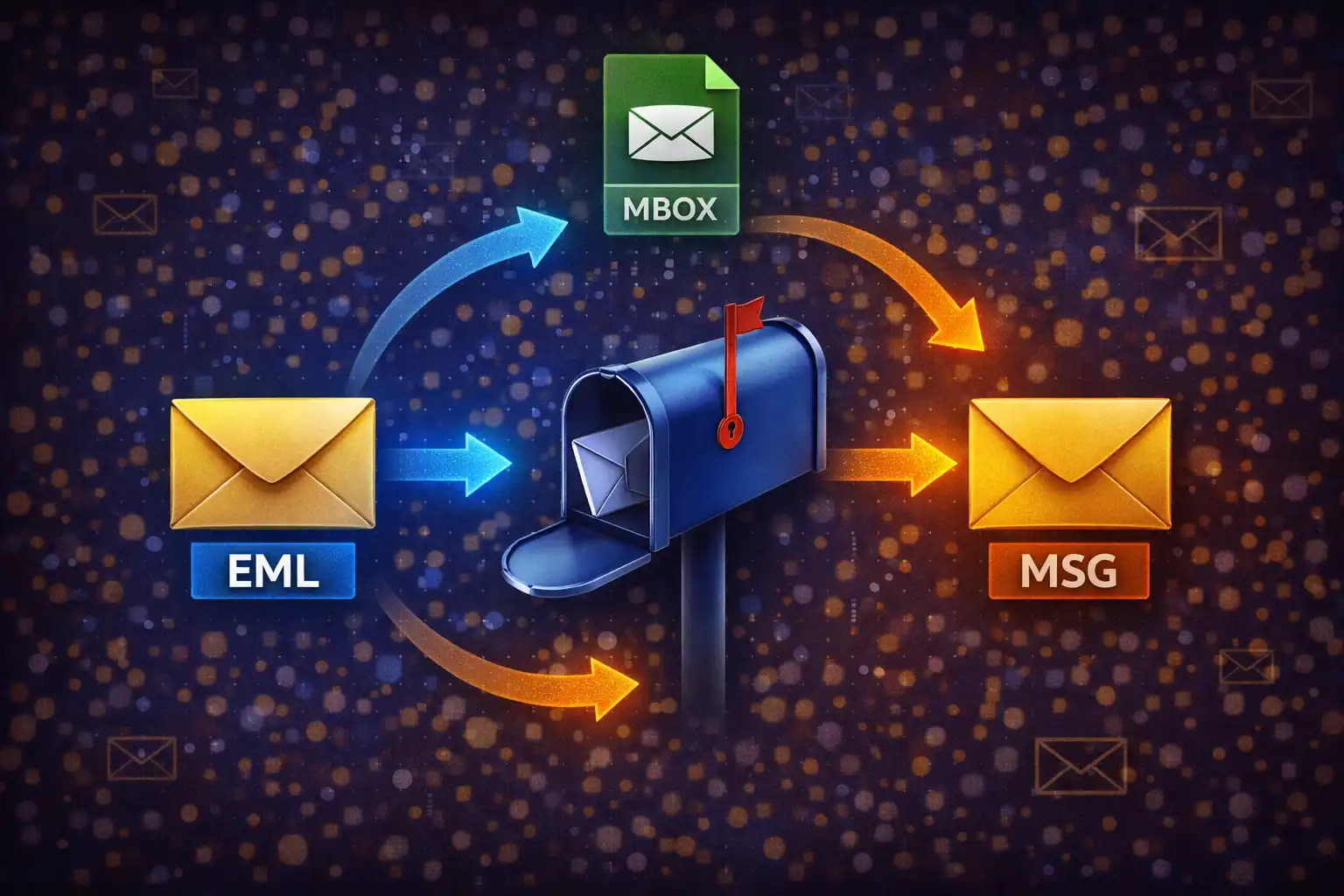
Table of Contents
- What Is MailShift?
- 7 Input Formats & 9 Output Formats
- Understanding Email File Formats
- How EML Parsing Works: MIME from the Inside Out
- MBOX: The Multi-Email Archive Format
- MSG: Parsing Microsoft Outlook’s Binary Format
- VCF: vCard Contact Conversion
- PDF Export: Formatted Email Documents
- MBOX to ZIP: Individual Email Extraction
- The Preview System
- Privacy: Why Email Files Should Never Be Uploaded
- Common Migration Workflows
- MailShift vs. Aid4Mail, Mailstore & SysTools
- Frequently Asked Questions
- Conclusion
I recently helped a friend migrate from Gmail to Thunderbird, and it struck me just how much of her life was sitting in that MBOX export file -- years of bank notifications, doctor appointment confirmations, job offers, and breakup emails she probably forgot about. The idea of uploading all of that to some random conversion website felt deeply wrong.
Your inbox is a vault. It holds password reset confirmations, bank statements, tax receipts, medical correspondence, private conversations, and legal notices stretching back years. When you need to migrate between email clients, archive old messages, or extract data from a colleague’s exported mailbox, the standard advice is to upload those files to a conversion service. That means handing your most sensitive digital footprint to a third-party server. MailShift on ZeroDataUpload takes the opposite approach. It accepts 7 input formats, produces 9 output formats, implements a full RFC 822 MIME parser, an OLE2 binary MSG decoder, a vCard contact parser, and an MBOX splitter — all running entirely inside your browser. Your email files never leave your device.
1. What Is MailShift?
MailShift is a browser-based email file converter designed for migrating, archiving, and transforming email data across formats. It runs 100% client-side using JavaScript, with two libraries handling specialized output: jsPDF 2.5.1 for generating PDF documents and JSZip 3.10.1 for creating ZIP archives from multi-message MBOX files. You select an input file, choose a target format, preview the email contents, and click convert. The entire pipeline — file reading, binary parsing, MIME decoding, format transformation, and output generation — executes within your browser’s JavaScript engine. No server receives your data. No API call is made. No upload occurs.
Here is what makes MailShift different from a generic converter: it actually understands email structure. It parses MIME multipart boundaries to separate body text from attachments. It navigates OLE2 compound binary files to extract subjects, senders, and HTML bodies from Outlook MSG files. It splits MBOX archives into individual messages. It maps vCard properties to structured contact records. Each format receives purpose-built handling that respects its internal semantics rather than treating it as an opaque blob of bytes.
2. 7 Input Formats & 9 Output Formats
Input Formats
- EML — The standard RFC 822 email format used by Thunderbird, Apple Mail, Windows Mail, and most non-Outlook email clients. A plain text file containing headers, MIME boundaries, and encoded body parts.
- MBOX — The Unix mailbox archive format. Concatenates multiple EML messages into a single file, each separated by a
Fromline. Used by Thunderbird, Apple Mail exports, and Google Takeout Gmail exports. - MSG — Microsoft Outlook’s proprietary binary format based on the OLE2 Compound Binary File specification. Each MSG file is a single email with headers, body, and attachments stored in a structured binary container.
- VCF — vCard files following RFC 2426 (vCard 3.0). Contact records containing names, email addresses, phone numbers, organizations, and addresses. Used by virtually every contact management system.
- HTML — Web pages, saved email content, and HTML-formatted correspondence. Parsed for text content and structure.
- TXT — Plain text files, raw email dumps, and unformatted message content.
- CSV — Comma-separated value files containing tabular contact data exported from spreadsheet applications, CRM systems, or address book managers.
Output Formats
- EML — RFC 822 compliant email files with proper headers and MIME structure.
- MBOX — Unix mailbox archives with
Fromenvelope separators. - PDF — Formatted documents with sender/recipient headers, subject lines, and body text rendered via jsPDF.
- HTML — Styled web documents preserving email structure and metadata.
- TXT — Clean plain text with headers and body content extracted.
- CSV — Tabular data with columns for sender, recipient, subject, date, and body.
- VCF — vCard 3.0 contact files generated from CSV contact data.
- ZIP — Archives containing individual EML files extracted from MBOX archives.
Complete Conversion Matrix
- EML → MBOX, PDF, HTML, TXT, CSV
- MBOX → EML, ZIP (individual EMLs), PDF (multi-page), HTML, TXT, CSV
- MSG → EML, PDF, HTML, TXT, CSV
- VCF → HTML, TXT, CSV
- HTML → EML, PDF, TXT and cross-conversions
- TXT → EML, PDF, HTML and cross-conversions
- CSV → HTML, TXT, VCF
MBOX supports the most output formats (6 targets including ZIP), making it the most flexible input format. This is because MBOX files contain complete RFC 822 messages that parse cleanly into individual EMLs, which then feed naturally into every other conversion path.
3. Understanding Email File Formats (EML, MBOX, MSG, VCF)
Email file formats fall into two fundamentally different camps: text-based formats that follow internet standards (EML, MBOX, VCF) and binary formats that follow Microsoft’s compound document specification (MSG). This split is the reason MailShift needs four entirely separate parsers -- you cannot just throw one algorithm at the whole lot.
EML is the internet’s native email format, defined by RFC 822 (1982) and updated by RFC 2822 (2001). An EML file is plain text. The first section contains headers — key-value pairs like From:, To:, Subject:, and Date: — followed by a blank line, followed by the message body. When the body contains HTML, attachments, or multiple content types, the MIME standard (RFC 2045–2049) defines how to encode and delimit those parts using boundary strings. Every email client that speaks SMTP produces and consumes this format internally, even if it stores messages in a proprietary database.
MBOX predates the internet itself. Originating in Unix System V in the late 1970s, it is the simplest possible email archive: concatenate multiple EML messages into a single file, prefixing each one with a line starting with From (the word “From” followed by a space, the sender address, and a timestamp). There are several MBOX variants (mboxo, mboxrd, mboxcl, mboxcl2), but the From line separator is universal. Google Takeout exports Gmail in MBOX format, making it one of the most commonly encountered email archive types.
MSG is radically different. It uses Microsoft’s OLE2 Compound Binary File Format — the same container format used by older .doc, .xls, and .ppt files. A MSG file is not human-readable text; it is a binary structure containing a File Allocation Table (FAT), sector chains, directory entries, and property streams. Parsing it requires reading binary data at specific byte offsets, constructing sector chains from the FAT, navigating a directory tree of 128-byte entries, and decoding UTF-16 Little Endian strings from property streams. This is the most technically complex parsing operation in MailShift.
VCF (vCard) is a text-based contact exchange format defined by RFC 2426 for version 3.0. Each contact is delimited by BEGIN:VCARD and END:VCARD markers, with properties like FN (formatted name), N (structured name), EMAIL, TEL, ORG, and ADR on individual lines. While technically not an email format, VCF files are deeply intertwined with email workflows — address books are exported as VCF, contact lists are shared as VCF attachments, and email migration often requires converting contact data alongside message data.
4. How EML Parsing Works: MIME from the Inside Out
Parsing an EML file means parsing the MIME standard, and honestly, MIME is more complex than most developers expect. MailShift’s EML parser handles the full depth of RFC 822 and RFC 2045 compliance, starting with header extraction and progressing through recursive multipart parsing.
Header Extraction with RFC 2822 Folding. Email headers can span multiple lines. When a header value is too long, it is “folded” by inserting a line break followed by at least one whitespace character (space or tab) on the continuation line. The parser must detect these continuation lines and rejoin them with the previous header. For example, a long To: header listing many recipients might span three or four lines, each continuation indented with a tab. MailShift’s parser scans line by line: if a line starts with whitespace, it is appended to the previous header value; otherwise, it begins a new header.
MIME Boundary Detection. When the Content-Type header specifies a multipart type (such as multipart/mixed, multipart/alternative, or multipart/related), the header includes a boundary parameter — a unique string that delimits the sub-parts of the message. The parser extracts this boundary using a regex match on the Content-Type value. Each boundary in the message body appears prefixed with two dashes: --boundary_string. The final boundary has two trailing dashes as well: --boundary_string--. The parser splits the body on these boundary markers to extract individual MIME parts.
Recursive Multipart Parsing. MIME parts can themselves be multipart. A typical HTML email uses multipart/mixed at the top level (containing body and attachments), with the body itself wrapped in multipart/alternative (containing both plain text and HTML versions). The parser handles this recursion: when a MIME part’s Content-Type is itself multipart, the parser extracts its boundary and splits again, descending into the nested structure until it reaches leaf parts containing actual content.
Content-Transfer-Encoding Decoding. Email bodies and attachments are encoded for safe transit through SMTP servers that may only support 7-bit ASCII. MailShift handles four encoding types:
- base64 — Binary data encoded as ASCII characters using the Base64 alphabet (A-Z, a-z, 0-9, +, /). The parser strips whitespace and line breaks, then decodes using JavaScript’s
atob()function. This is the standard encoding for attachments (images, PDFs, archives) and some HTML bodies. - quoted-printable — Text where non-ASCII characters and special bytes are represented as
=XX, where XX is the two-digit hexadecimal value of the byte. The parser replaces soft line breaks (=\r\nand=\n) and then decodes each=XXsequence to its character equivalent. This encoding is common for email bodies containing accented characters, currency symbols, or non-Latin scripts. - 7bit / 8bit — Content that requires no decoding. 7bit content uses only ASCII characters; 8bit content may include high bytes but is passed through as-is.
Attachment Extraction. The parser identifies attachments by examining the Content-Disposition header of each MIME part. A value of attachment (optionally with a filename parameter) marks the part as an attached file. If no Content-Disposition header is present, the parser falls back to checking the Content-Type header for a name= parameter. The filename, content type, and decoded body of each attachment are collected into a structured array that the converter uses when generating output formats.
HTML Entity Decoding. Email HTML bodies frequently contain encoded entities. After extracting the raw body content, the parser decodes standard HTML entities (&, <, >, , ") and numeric character references (— for em dashes, ’ for apostrophes) to produce clean, readable text for plain text output formats.
5. MBOX: The Multi-Email Archive Format
MBOX parsing is conceptually straightforward but requires careful error handling because real-world MBOX files are messy. (If you have ever opened a Google Takeout export in a text editor, you know what I mean.) The format was never formally standardized — it evolved as a convention, and different mail systems produce subtly different variations.
Splitting on From Lines. MailShift splits the MBOX file content using the regular expression /^From /m, which matches the word “From” followed by a space at the start of any line (the m flag enables multiline matching). Each resulting segment represents one email message. The envelope line itself — typically formatted as From sender@example.com Thu Mar 26 10:30:00 2026 — is separated from the message headers by a line break.
Individual Message Parsing. After splitting, each segment is treated as a standalone EML message and passed through the full MIME parser described in the previous section. This means MBOX parsing inherits all the capabilities of EML parsing — multipart support, Content-Transfer-Encoding decoding, attachment extraction, and header folding — applied to each message individually.
Error Tolerance. Real MBOX files exported from Google Takeout, Thunderbird, or Apple Mail sometimes contain malformed messages — corrupted headers, incomplete MIME boundaries, or binary content that was not properly encoded. MailShift wraps each individual message parse in a try-catch block: if a single message fails to parse, it is skipped, and processing continues with the next message. This error-tolerant approach means a 5,000-message MBOX file with three corrupted messages still produces 4,997 successfully converted emails rather than failing entirely.
MBOX Output Generation. When converting to MBOX format (e.g., EML → MBOX), the converter constructs a valid envelope line using the sender’s email address and the current date, prepends it to the EML content, and writes the result. For multi-message inputs, each message gets its own envelope line with a blank line separator between messages.
6. MSG: Parsing Microsoft Outlook’s Binary Format
MSG parsing is the most technically demanding operation in MailShift, and frankly, it is the part we are most proud of. While EML and MBOX are plain text that can be split with string operations, MSG files are binary containers following the OLE2 Compound Binary File Format (also known as the Compound Document File Format or Microsoft Compound File Binary Format). This is the same storage format used by legacy Microsoft Office files (.doc, .xls, .ppt) before the OOXML transition.
Magic Number Validation. The parser first checks the file’s magic number — the first 8 bytes must be D0 CF 11 E0 A1 B1 1A E1 (hexadecimal). This signature uniquely identifies OLE2 compound binary files. If the magic number does not match, the parser rejects the file immediately.
FAT Construction from the Header. The OLE2 header occupies the first 512 bytes (or 4096 bytes in version 4 files) and contains critical structural parameters. The parser reads the sector size from the 16-bit value at byte offset 30 — this value represents a power of two, so a value of 9 means 2⁹ = 512-byte sectors, and a value of 12 means 2¹² = 4096-byte sectors. The number of FAT sectors is read from offset 44. The first directory sector is at offset 48. The first mini-FAT sector is at offset 60. The header also contains the first 109 DIFAT (Double-Indirect FAT) entries, which are indices of the sectors that contain the FAT itself.
Sector Navigation. The FAT is an array of 32-bit integers, one per sector in the file. Each entry tells the parser which sector comes next in a chain — similar to a linked list where each node points to the next. Special sentinel values mark chain termination (0xFFFFFFFE, known as ENDOFCHAIN) and free sectors (0xFFFFFFFF). To read a stream, the parser starts at the stream’s first sector, reads the data, looks up the next sector in the FAT, reads that data, and continues following the chain until it hits ENDOFCHAIN. The parser constructs the FAT by reading each DIFAT-referenced sector and concatenating the 32-bit integers into a single array.
DIFAT Chain. For files with more than 109 FAT sectors, the header alone cannot hold all FAT sector references. The remaining references are stored in DIFAT sectors that form their own chain. The first DIFAT sector index is stored in the header, and each DIFAT sector contains 127 FAT sector references plus a pointer to the next DIFAT sector. MailShift follows this chain to build the complete FAT for large MSG files.
Directory Entries. The directory is a linked list of 128-byte records stored in the sector chain starting at the first directory sector. Each entry contains the entry name encoded as UTF-16 Little Endian (up to 64 bytes / 32 characters), the entry type (root, storage, or stream), the starting sector of the entry’s data, and the data size. The parser reads the directory chain from the FAT and extracts all directory entries into an array.
Mini-FAT and Mini-Stream. Files smaller than the mini-stream cutoff size (4096 bytes, hardcoded in the OLE2 specification) are stored in the mini-stream rather than in regular sectors. The mini-stream is itself stored as a regular stream starting at the root directory entry’s start sector. Mini-sectors are typically 64 bytes each. The mini-FAT works identically to the regular FAT but indexes into the mini-stream instead of the file’s regular sectors. MailShift constructs the mini-FAT and mini-stream separately to read small property values correctly.
Property Stream Decoding. Email properties in MSG files are stored as directory entries following a naming convention: __substg1.0_XXXXZZZZ, where XXXX is the property ID (in hexadecimal) and ZZZZ is the property type. MailShift extracts the following properties:
0037— Subject1000— Plain text body1035— HTML body (if the message was formatted in HTML)0C1A— Sender display name0065— Sender email address0E04— Display To (recipient names)0E06— Message delivery date0E03— Display CC (carbon copy recipients)
Type Decoding. The ZZZZ portion of the property stream name indicates the data type: 001F means the data is encoded as UTF-16 Little Endian (two bytes per character, least significant byte first), 001E means ASCII/ANSI text (one byte per character), and 0102 means binary data that MailShift attempts to decode as UTF-8. For UTF-16 LE streams, the parser reads pairs of bytes and assembles them into a JavaScript string using String.fromCharCode(low | (high << 8)). This type-aware decoding ensures that subjects containing emoji, CJK characters, or accented Latin characters are rendered correctly.
7. VCF: vCard Contact Conversion
VCF parsing follows the vCard 3.0 specification (RFC 2426), which defines a text-based format for exchanging personal data. While simpler than MIME or OLE2 parsing, vCard still has structural nuances that require careful handling.
Contact Splitting. A VCF file can contain one contact or thousands. The parser splits the file on BEGIN:VCARD markers, producing an array of individual contact blocks. Each block is processed independently.
Line Folding Removal. The vCard specification allows long property values to be folded across multiple lines. A folded line is indicated by a CRLF followed by a single space or tab character. Before parsing properties, the parser removes all fold points by replacing \r\n (and \r\n\t) sequences with empty strings, reassembling the original unbroken property values.
Property Extraction. The parser recognizes the following vCard properties: FN (formatted name — the display name as the user wants it shown), N (structured name — semicolon-delimited fields for family name, given name, middle name, prefix, and suffix), EMAIL, TEL, ORG (organization), TITLE (job title), ADR (structured address), URL, and NOTE. Each property line is split on the first colon to separate the property name (with optional parameters) from the value.
Parameter Stripping. vCard properties often include type parameters like EMAIL;TYPE=INTERNET:user@example.com or TEL;TYPE=CELL:+1234567890. The parser strips everything after the semicolon in the property name to isolate the base property, then extracts the value from after the colon. This means EMAIL;TYPE=INTERNET;TYPE=HOME is correctly recognized as an EMAIL property regardless of its type qualifiers.
CSV to VCF Auto-Detection. When converting CSV files to VCF format, MailShift performs intelligent column mapping. It reads the CSV header row and matches column names against known patterns: columns containing “name” map to FN, columns containing “email” or “mail” map to EMAIL, columns containing “phone” or “tel” map to TEL, and columns containing “org” or “company” map to ORG. This heuristic mapping means you can convert a CRM export or spreadsheet contact list to vCard format without manually specifying which column is which.
8. PDF Export: Beautifully Formatted Email Documents
PDF generation transforms email data into clean, printable documents using jsPDF 2.5.1. We did not want to just dump raw text onto a page — the PDF is structured to reflect the email’s metadata and hierarchy so it actually looks like something you would want to file away.
Single Email PDF. When converting an EML or MSG file to PDF, the output includes a formatted header block displaying the sender, recipients, CC list, subject, and date in a structured layout. The email body follows below, with automatic line wrapping calculated against the page width minus margins. Long emails automatically span multiple pages, with clean page breaks that avoid splitting lines mid-character.
Multi-Message PDF. MBOX-to-PDF conversion produces a multi-page document where each email starts on a new section with its own header block. This creates a single archival document from an entire mailbox — useful for legal discovery, compliance archiving, or printing a complete email thread for reference.
Typography. The PDF generator uses Helvetica at readable proportions: 12-point body text, 14-point headers, generous margins, and a line height of 1.5. Text is rendered left-aligned with word wrapping that respects word boundaries rather than breaking mid-word. Non-ASCII characters are handled through jsPDF’s character encoding support, though the Helvetica base font limits glyph coverage to the Latin character set.
9. MBOX to ZIP: Individual Email Extraction
One of MailShift’s most practical conversion paths is MBOX to ZIP. When you have a large MBOX archive — say, a Google Takeout export of your entire Gmail — and you need individual EML files, this conversion splits the archive and packages each message as a separate .eml file inside a ZIP archive.
The Process. The MBOX parser splits the archive into individual messages (as described in Section 5). Each message is then formatted as a standalone EML file with proper headers. JSZip 3.10.1 creates a ZIP archive in memory, adding each EML file with a sequential filename (email_001.eml, email_002.eml, etc.). The final ZIP is generated with DEFLATE compression and offered for download.
This conversion is invaluable for email migration. Many email clients can import individual EML files but cannot directly ingest MBOX archives. By converting MBOX to a ZIP of EMLs, you create a format that can be dragged and dropped into virtually any email client, including Outlook (with import plugins), Thunderbird, eM Client, and Mailbird.
10. The Preview System: Read Emails Before Converting
MailShift includes a preview panel that displays the parsed content of your email files before you commit to a conversion. This serves two purposes: verification and discovery.
Verification. After selecting an input file and before converting, you can inspect the parsed output to confirm that headers were extracted correctly, body text is readable, and attachments were detected. If the preview shows garbled text or missing fields, you know the input file may be corrupted or in an unexpected encoding before you waste time converting it.
Discovery. For MBOX files containing hundreds of messages, the preview lets you see a summary of the archive’s contents — how many messages it contains, who sent them, what the subjects are, and when they were sent. This is especially useful when you receive an MBOX export from someone else and need to understand what is inside before deciding how to convert or archive it.
The preview system uses the same parsing pipeline as the converter itself. It is not a separate lightweight parser — you see exactly what the converter sees, which means the preview is a truthful representation of what the output will contain.
11. Privacy: Why Email Files Should Never Be Uploaded
Think about this for a second: email files are arguably the most sensitive data type sitting on your computer. Consider what a typical email archive actually contains:
- Authentication credentials. Password reset emails contain links that, if intercepted, grant access to accounts. “Your new password is” emails from legacy services contain plaintext passwords. Two-factor authentication backup codes are sent via email.
- Financial data. Bank statements, investment confirmations, tax documents, payroll notifications, invoice PDFs, and payment receipts. A single year of email can reconstruct a person’s complete financial profile.
- Medical information. Appointment confirmations, lab results, prescription notifications, insurance communications, and doctor correspondence. In many jurisdictions, this data carries special legal protections (HIPAA in the US, GDPR special categories in the EU).
- Legal communications. Attorney-client privileged correspondence, contract negotiations, dispute communications, and court notifications. Uploading these to a third-party server may waive privilege protections.
- Personal correspondence. Private conversations with family, friends, and partners. Relationship details, family matters, and personal struggles that were shared in confidence.
- Business intelligence. Internal company communications, strategy discussions, personnel decisions, financial projections, and trade secrets.
When you upload an MBOX file to an online converter, you are uploading all of this — potentially years of accumulated sensitive data — to a server controlled by someone you have never met, operating under a privacy policy you almost certainly have not read, in a jurisdiction whose data protection laws may not even apply to you. Even well-intentioned services face risks: servers get breached, employees access data they should not, and “temporary” uploaded files persist in backups long after they are supposedly deleted.
MailShift eliminates this entire category of risk. Your email files are read by JavaScript running in your browser tab. The parsed data exists only in your browser’s memory. When you close the tab, the data is gone. There is no server to breach, no database to leak, no backup to persist, and no employee to access your files. The conversion is between your file system and your browser — no third party is involved at any point in the pipeline.
12. Common Migration Workflows
Gmail to Outlook. Export your Gmail data using Google Takeout, which produces an MBOX file. Open MailShift, load the MBOX, convert to ZIP (containing individual EML files). Extract the ZIP and import the EML files into Outlook using the import wizard or a plugin like EML to PST Converter. Alternatively, convert MBOX to individual EML files and drag them directly into Thunderbird.
Outlook to Thunderbird. Save individual emails from Outlook as MSG files (File → Save As). Load the MSG file into MailShift and convert to EML. Drag the resulting EML file into any Thunderbird folder. For bulk migration, convert MSG files one at a time or use Outlook’s export to build an intermediate format.
Email Archiving for Legal Discovery. Convert an MBOX archive to a multi-page PDF for a permanent, searchable, printable record. The PDF output includes full headers (sender, recipient, date, subject) for each message, meeting typical legal preservation requirements.
Contact List Migration. Export contacts from one service as a VCF file, convert to CSV for import into a spreadsheet or CRM system. Or go the other direction: export a CRM contact list as CSV, convert to VCF, and import into your phone’s contact app.
Email Data Analysis. Convert an MBOX or EML collection to CSV format. Open the CSV in a spreadsheet application to sort, filter, and analyze email metadata — find all messages from a specific sender, count emails per month, or identify the most active threads.
13. MailShift vs. Aid4Mail, Mailstore & SysTools
The email conversion market is dominated by desktop applications that charge significant fees and require installation. Here is how MailShift compares to the three leading alternatives:
Aid4Mail ($59.95+ for Converter edition). Aid4Mail is a Windows desktop application specializing in email migration with support for PST, MBOX, EML, MSG, and cloud mailbox connections. It offers more format support than MailShift (notably PST and direct IMAP/Exchange connections) and handles extremely large archives efficiently through streaming. However, it requires a Windows installation, costs $59.95 for the basic Converter edition (with higher tiers reaching $149.95 for Forensic and $799.95 for Service Provider), and processes files locally on your machine — which, while private, requires trusting installed software with access to your email data.
MailStore ($49+ per user per year). MailStore is an enterprise email archiving solution designed for businesses. It connects to Exchange, Office 365, IMAP, POP3, and file-based archives, providing centralized search, retention policies, and compliance features. It is not really a format converter but rather a complete archiving system. Pricing starts at approximately $49 per user per year for MailStore Server, making it cost-prohibitive for individuals. It also requires installation on a Windows Server environment, making it entirely unsuitable for quick one-off conversions.
SysTools ($49+ per tool). SysTools sells individual converter utilities for specific format pairs: SysTools MBOX Converter, SysTools MSG Converter, SysTools vCard Converter, and so on. Each tool costs $49 or more, and you need a separate purchase for each conversion direction. The tools are Windows-only desktop applications. If you need to convert MBOX to EML and also MSG to PDF, you are looking at two separate purchases totaling nearly $100. SysTools does handle very large files well and supports formats MailShift does not (like PST), but the cumulative cost and per-tool licensing model is expensive.
MailShift is free, runs on any operating system with a browser, requires no installation, and processes email files with zero data uploads. It does not support PST or direct server connections, but for EML, MBOX, MSG, and VCF conversions, it covers the most common migration scenarios without cost, installation, or privacy compromise.
14. Frequently Asked Questions
Q: Can MailShift convert PST files?
A: No. PST (Personal Storage Table) is Microsoft’s proprietary mailbox format with a complex B-tree structure that is prohibitively difficult to parse in client-side JavaScript. To convert PST files, export individual emails as MSG or EML from Outlook first, then use MailShift to convert those files.
Q: How large of an MBOX file can MailShift handle?
A: MailShift loads the entire file into browser memory for parsing. Practical limits depend on your device’s available RAM. Most modern devices handle MBOX files up to 100–200 MB comfortably. For very large Google Takeout exports (multiple GB), consider splitting the MBOX file with a command-line tool before converting.
Q: Are email attachments preserved during conversion?
A: The MIME parser extracts and detects attachments from EML and MBOX files. Whether attachments appear in the output depends on the target format. PDF and HTML outputs include the email body but not binary attachments. EML and MBOX outputs preserve the original MIME structure including attachments. CSV and TXT outputs extract text content only.
Q: Does MailShift handle non-English emails?
A: Yes, for text-based formats. The EML parser handles quoted-printable and base64 encoded content, which covers UTF-8 text in all languages. The MSG parser decodes UTF-16 Little Endian property streams, correctly handling CJK characters, Cyrillic, Arabic, and other scripts. PDF output is limited by the Helvetica font’s Latin character coverage in jsPDF.
Q: Can I convert multiple EML files to a single MBOX?
A: MailShift currently processes one input file at a time. To create an MBOX from multiple EMLs, convert each EML to MBOX format individually, then concatenate the resulting MBOX files in a text editor or with a command-line tool like cat *.mbox > combined.mbox.
Q: How does MSG parsing handle encrypted or rights-managed messages?
A: MailShift’s OLE2 parser reads the standard property streams in MSG files. Messages protected by Microsoft Information Rights Management (IRM) or S/MIME encryption store their content in encrypted streams that cannot be decrypted without the recipient’s private key. These messages will parse with headers intact but may have empty or garbled body content.
Q: Does the VCF parser support vCard 4.0?
A: The parser targets vCard 3.0 (RFC 2426) but handles most vCard 4.0 (RFC 6350) files successfully because the core property syntax is backward-compatible. Properties specific to vCard 4.0 (like KIND or MEMBER) are ignored, but standard properties like FN, EMAIL, TEL, and ORG parse correctly from both versions.
Q: What happens if my MBOX file contains corrupted messages?
A: MailShift wraps each individual message parse in a try-catch block. Corrupted or malformed messages are skipped, and processing continues with the next message. The converter will produce output from all successfully parsed messages and silently skip the rest. You will not lose the entire conversion because of a few bad messages.
Q: Can I use MailShift offline?
A: MailShift runs entirely in your browser with no server calls during conversion. Once the page is loaded, it works without an internet connection. You can save the page for offline use, though the initial page load requires connectivity to fetch the HTML, CSS, JavaScript, and library files.
Q: Is the CSV output compatible with Excel and Google Sheets?
A: Yes. The CSV output uses standard comma-separated format with proper quoting of fields that contain commas, newlines, or quotation marks. It opens directly in Microsoft Excel, Google Sheets, LibreOffice Calc, and any other application that reads CSV files.
15. Conclusion
Here is the bottom line: email files sit at the intersection of maximum sensitivity and frequent conversion need. People switch email clients, companies migrate platforms, legal teams archive correspondence, and researchers analyze communication patterns — all workflows that require converting between EML, MBOX, MSG, VCF, PDF, HTML, TXT, CSV, and ZIP formats. The conventional approach — upload to a server, wait, download the result — treats the most sensitive data on your computer with surprisingly little regard for privacy.
MailShift takes a different approach. Its full RFC 822 MIME parser handles multipart boundaries, Content-Transfer-Encoding, and recursive message structures. Its OLE2 binary parser navigates FAT sector chains, directory entries, and UTF-16 LE property streams to extract email data from Outlook MSG files. Its vCard parser handles RFC 2426 contact records with line folding and parameter stripping. Its MBOX splitter is error-tolerant, skipping corrupted messages rather than aborting. And all of this runs in JavaScript inside your browser tab, with no server involved, no upload required, and no data leaving your device.
Whether you are migrating from Gmail to Thunderbird, archiving legal correspondence as PDFs, extracting individual emails from a massive MBOX archive, or converting contact lists between CSV and VCF, MailShift handles it with technical depth and complete privacy. Try it at ZeroDataUpload.
Related Articles

Published: March 26, 2026