Passport Photo Maker
Create professional passport and ID photos for 70+ countries -- completely free and private
Launch Passport Photo Maker →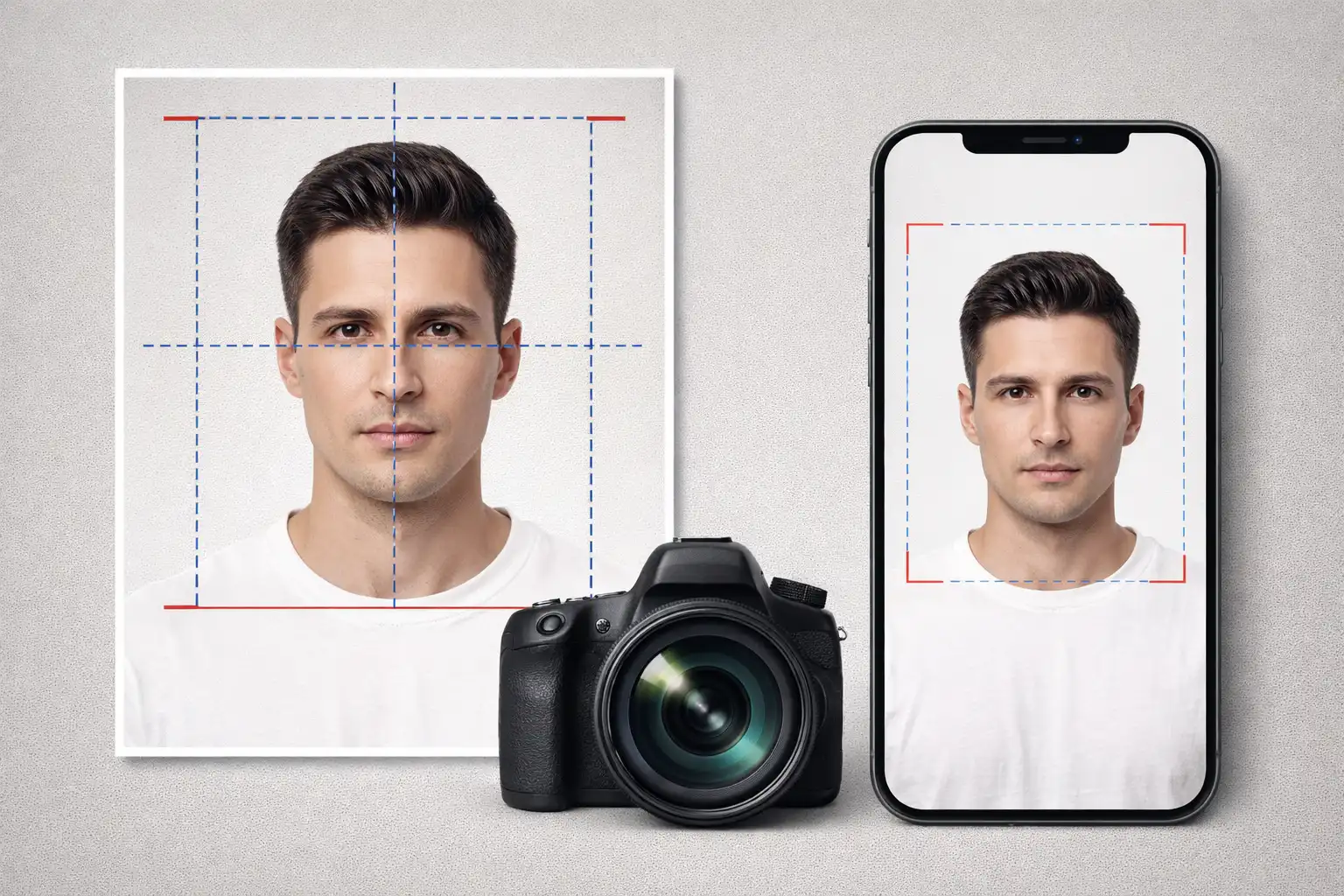
Table of Contents
Overview
The Passport Photo Maker is a free, web-based tool that helps you create professional passport and ID photos at home. It supports 70+ countries with their exact photo dimension requirements, so you never have to guess the right size. Simply select your country from the dropdown, upload your photo, adjust the crop and colors, and download a print-ready photo sheet in JPG, PNG, or PDF format. The entire process takes under 5 minutes and saves you the $10-15 you would normally pay at a photo shop.
The tool works entirely in your browser -- your photos are never uploaded to any server, never processed in the cloud, and never seen by anyone except you. This is especially important for passport photos, which are sensitive personal images. When you close your browser tab, your photo is deleted from memory immediately. Only the files you explicitly choose to download are saved to your device.
The editing suite provides precise control over zoom (50-300%), rotation (-45 to +45 degrees), brightness, contrast, saturation, and hue adjustments. You can change the background color to white, light blue, light gray, or any custom color to meet your country's passport requirements. The app automatically arranges multiple photos on a single sheet based on your selected paper size (4x6 inch, 5x7 inch, A4, or Letter), and all photos are rendered at 300 DPI for professional print quality.
Key Features
70+ Country Presets
Select your country from the dropdown, and the correct photo dimensions are automatically set. Supports USA, UK, India, Canada, Australia, EU countries, and many more with their exact size requirements.
Photo Editing Suite
Adjust zoom (50-300%), rotation (-45 to +45 degrees), brightness, contrast, saturation, and hue. Drag to reposition your photo within the crop frame. All adjustments update in real-time.
Background Color Options
Change the background to white (most common), light blue, light gray, or any custom color. Keep the original background if preferred. Meets requirements for passports, visas, and ID cards worldwide.
Multiple Paper Sizes
Arrange photos on 4x6 inch (photo lab standard), 5x7 inch, A4 (home printer), or US Letter paper. Auto-fit mode calculates the maximum number of photos that fit, or set a custom count up to 50.
300 DPI Print Quality
All photos are rendered at 300 DPI, the industry standard for professional photo printing. The app checks your source image resolution and warns you if it is too low for quality results.
3 Download Formats
Download your photo sheet as JPG (smallest file, works everywhere), PNG (highest quality, lossless), or PDF (professional format, ideal for print shops). JPG and PNG work offline; PDF requires an internet connection.
Fullscreen Editor
Double-click the crop canvas or click "Open Fullscreen Editor" for a larger editing area (up to 800px). Make precise adjustments with an independent editing session that you can apply or cancel.
Unit Conversion
Switch between millimeters and inches with a single click. All dimensions automatically convert. Custom photo sizes supported from 10-200mm for any non-standard requirements.
How to Use
- Select Your Country & Paper Size - Choose your country from the dropdown menu to automatically set the correct passport photo dimensions. Then select your paper size: 4x6 inch for photo labs, A4 or Letter for home printing. The auto-fit mode will calculate how many photos fit on the sheet.
- Upload Your Photo - Click the upload area or drag and drop your photo file. Supported formats include JPG, PNG, GIF, BMP, WebP, SVG, TIFF, and AVIF. The app automatically checks if your image resolution is sufficient for quality printing at 300 DPI.
- Adjust Zoom and Position - Use the zoom slider (50-300%) to frame your face correctly. Most passport photos require your face to fill about 70-80% of the frame height. Click and drag the photo to reposition it within the crop area.
- Fine-Tune Image Settings - Adjust brightness, contrast, saturation, and hue if needed. Small adjustments of 5-10% typically look best. Use the rotation slider to straighten a tilted photo. Press R to reset rotation to zero.
- Set Background Color - Choose a background color that meets your country's requirements. White is accepted almost everywhere and is the safest choice. Light blue is required by some countries for ID cards. You can also choose a custom color.
- Preview Your Photo Sheet - Scroll down to see the full paper layout with all photos arranged with proper spacing. The main preview shows one photo with your adjustments, and the sheet preview shows how it will look when printed. Use the fullscreen editor for precise positioning.
- Download and Print - Download your photo sheet as JPG, PNG, or PDF. When printing, set your printer to "Actual Size" or "100%" -- never use "Fit to page" as this will change the photo dimensions. Use photo paper (glossy or matte) for best results.
Frequently Asked Questions
Privacy & Security
The Passport Photo Maker is built on the zero-data-upload principle, which is especially critical for passport photos containing your face and personal biometric data. Your photos are processed entirely in your browser using the HTML5 Canvas API. No images are ever uploaded to any server, stored in any database, or transmitted over the internet. There are no analytics, no tracking cookies, no user accounts, and no data collection of any kind. When you close the browser tab, your photo is immediately purged from memory. Only the files you explicitly download are saved to your device. You are in complete control of your most sensitive personal images.
Ready to try the Passport Photo Maker? It's free, private, and runs entirely in your browser.
Launch Passport Photo Maker →Related

Last Updated: February 28, 2026