Image Format Converter
Convert images between 11 formats including HEIC, WebP, AVIF -- with Canvas API pipeline, ICO builder, and quality control
Launch Image Format Converter →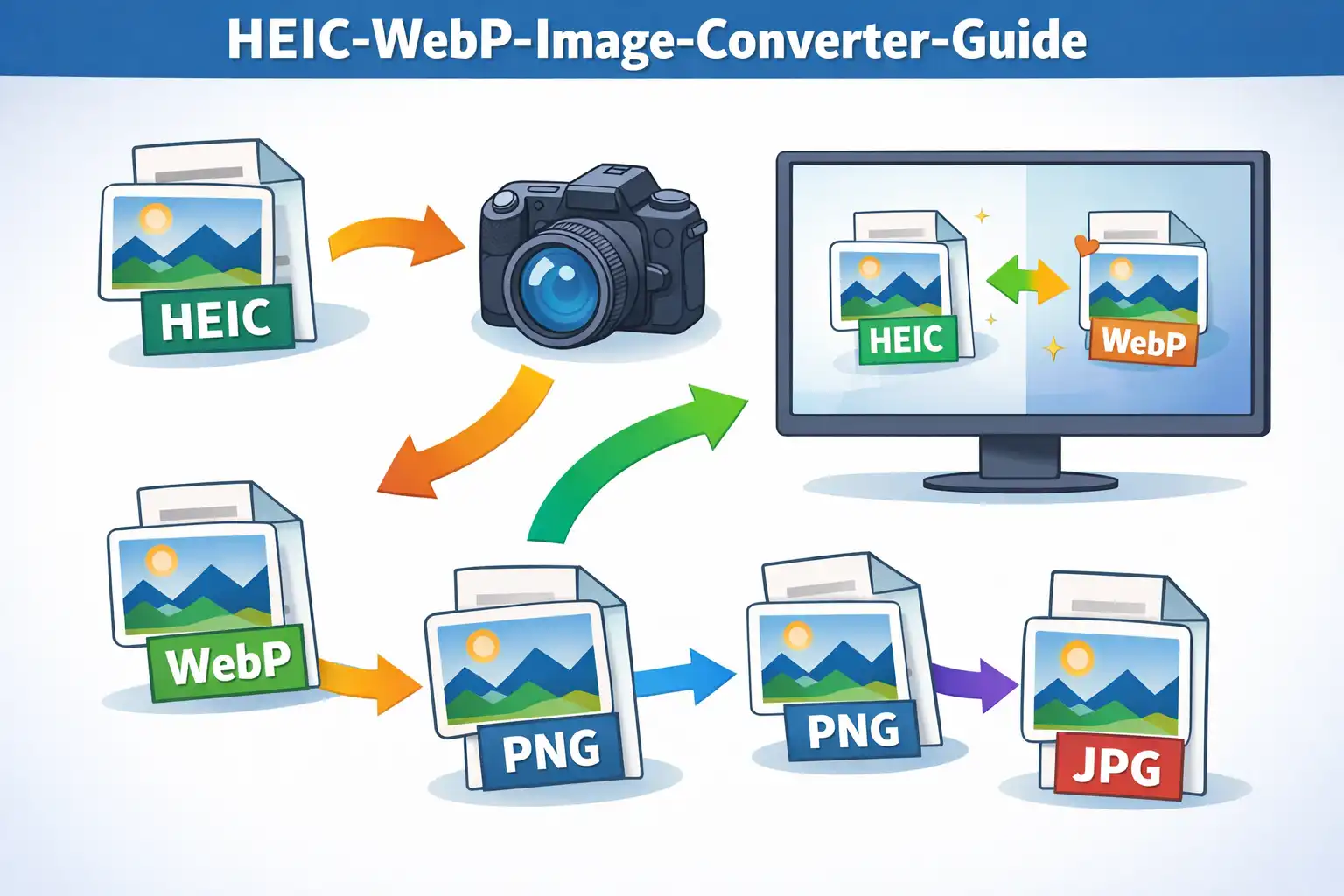
Table of Contents
Overview
The Image Format Converter is a browser-based tool that transforms images between 11 input formats and 7 output formats, covering over 70 distinct conversion paths. It handles everything from Apple's HEIC photos to standard JPG and PNG, modern next-gen formats like WebP and AVIF, and specialized outputs like multi-size ICO favicons -- all without uploading a single pixel to any server.
At its core, the converter uses the HTML5 Canvas API as a universal interchange layer. Every input image -- regardless of its original format -- is decoded, drawn onto an invisible canvas element, and then exported in the target format via canvas.toBlob(). This five-stage pipeline (load, canvas, background fill, draw, export) provides a reliable conversion mechanism that works across all modern browsers without requiring any server-side processing or heavy external libraries.
The single exception to pure Canvas-based conversion is HEIC/HEIF decoding. Apple introduced the HEIC format (High Efficiency Image Coding) with iOS 11 in 2017, using the HEVC (H.265) video codec for still images. Because most browsers cannot natively decode HEIC files, the converter lazy-loads the heic2any library (version 0.0.4) only when a HEIC file is encountered. This JavaScript-based decoder converts the HEIC blob into a standard format that the Canvas API can then process, adding 2-5 seconds of decode time but avoiding any server dependency. For all other formats, no external libraries are needed at all.
The converter also includes a dedicated ICO builder that generates multi-size favicon files containing four resolutions (256px, 48px, 32px, and 16px) with proper binary ICO headers and PNG-encoded payloads -- constructed entirely in JavaScript using ArrayBuffer and DataView. For lossy output formats (JPG, WebP, AVIF), a quality slider lets you balance file size against visual fidelity from 10% to 100%, with a sensible default of 92%. Before-and-after statistics show original size, converted size, percentage change, and conversion time, so you can immediately see the impact of your format and quality choices.
Key Features
11 Input × 7 Output (70+ Paths)
Accept HEIC, HEIF, JPG, PNG, WebP, AVIF, GIF, BMP, TIFF, SVG, and ICO as input. Convert to JPG, PNG, WebP, AVIF, GIF, BMP, or ICO. Over 70 unique format-to-format conversion combinations, all processed locally in your browser.
HEIC Decoding
Apple's HEIC/HEIF format decoded via the heic2any 0.0.4 JavaScript library, lazy-loaded only when needed. Converts HEIC blobs through a lossless PNG intermediate before passing to the Canvas pipeline. Handles multi-image HEIC containers by extracting the first image.
Canvas API Pipeline
Five-stage conversion engine: load image via Image() constructor, create canvas at original dimensions, fill background (white for JPG/BMP), draw image with drawImage(), export via toBlob() with target MIME type. Universal interchange for all formats.
ICO Multi-Size Builder
Generates proper 4-size favicon files (256px, 48px, 32px, 16px) with binary ICO header (6 bytes), directory entries (16 bytes each), and PNG-encoded payloads. Built with ArrayBuffer and DataView for byte-level binary construction.
Quality Control
Adjustable quality slider from 10% to 100% (default 92%) for lossy formats: JPG, WebP, and AVIF. Passed as a 0.10-1.00 float to canvas.toBlob(). Automatically hidden for lossless and fixed formats: PNG, GIF, BMP, and ICO.
AVIF Browser Detection
Runtime capability test using canvas.toDataURL('image/avif') on page load. If the browser cannot encode AVIF, the output option is automatically hidden. Currently supported in Chrome 121+, Firefox 113+, with varying Safari/Edge support.
Transparency Handling
PNG preserves full alpha channel through Canvas default transparency. JPG and BMP receive a white background fill (ctx.fillStyle='#FFFFFF') before drawing to prevent black or corrupted areas. WebP and AVIF pass alpha through. ICO supports alpha via PNG payloads.
Before/After Comparison
Displays original file size, converted file size, percentage change (green for smaller, red for larger), and conversion time in seconds. Formatted in B/KB/MB for readability, calculated as ((original - converted) / original) × 100.
The Canvas API Pipeline
The HTML5 Canvas API serves as the universal interchange layer at the heart of every image conversion. Regardless of whether the input is a HEIC photo from an iPhone, a WebP image from a website, or an SVG vector graphic, the conversion always passes through the same five-stage pipeline. This design means the converter needs no format-specific encoding libraries (except heic2any for HEIC decoding) -- the browser's own Canvas implementation handles all the heavy lifting.
Stage 1: Load
The input file is read as a Blob and converted to an Object URL via URL.createObjectURL(blob). A new Image() object is created with its src set to this Object URL. The browser's built-in image decoder handles format recognition and decompression. For HEIC files, the blob is first passed through heic2any to produce a standard PNG blob before this stage begins. For SVG files, the browser rasterizes the vector at a default 800×600 pixel resolution during the image load. The onload event fires when the image is fully decoded and ready for drawing.
Stage 2: Canvas
A new <canvas> element is created via document.createElement('canvas'). Its width and height are set to img.naturalWidth and img.naturalHeight respectively, preserving the original image dimensions exactly. A 2D rendering context is obtained with canvas.getContext('2d'). This invisible canvas exists only in memory and is never added to the page DOM.
Stage 3: Background Fill
For output formats that do not support transparency -- specifically JPG and BMP -- the canvas must be pre-filled with a white background before the image is drawn. Without this step, transparent areas in the source image would render as black or produce corrupted pixels. The converter sets ctx.fillStyle = '#FFFFFF' and calls ctx.fillRect(0, 0, canvas.width, canvas.height) to paint the entire canvas white. For formats that support transparency (PNG, WebP, AVIF, GIF, ICO), this stage is skipped, preserving the original alpha channel data.
Stage 4: Draw
The decoded image is painted onto the canvas with ctx.drawImage(img, 0, 0) at its original dimensions. For JPG/BMP targets, this draws on top of the white background from Stage 3. For transparent formats, it draws onto the default transparent canvas. The Canvas 2D context handles color space conversion, premultiplied alpha blending, and pixel-level rendering. This is the point where all source format encoding is fully resolved into raw pixel data on the canvas surface.
Stage 5: Export
The canvas pixel data is encoded into the target format via canvas.toBlob(callback, targetMimeType, quality). The first parameter is a callback that receives the output Blob. The second parameter is the target MIME type string (e.g., 'image/jpeg', 'image/png', 'image/webp'). The third parameter is the quality float between 0.0 and 1.0, applicable only to lossy formats (JPG, WebP, AVIF) and ignored for lossless formats (PNG, GIF, BMP). If toBlob() fails or is unsupported, a fallback path uses canvas.toDataURL() followed by atob() parsing to construct the output Blob manually. The resulting Blob is then made available for download via another Object URL.
For ICO output, the pipeline diverges after Stage 2. Instead of a single export, the image is drawn at four different canvas sizes (256px, 48px, 32px, and 16px) using scaled drawImage() calls. Each size is exported as a PNG blob, and then the four PNG payloads are assembled into a binary ICO file using the convertToICO / buildICO functions with ArrayBuffer and DataView for byte-level construction.
Format Guide
Input Formats (11)
HEIC (image/heic) -- Apple's High Efficiency Image Coding format, introduced with iOS 11 in September 2017. HEIC uses the HEVC (H.265) video codec for still image compression, achieving approximately 50% smaller file sizes than JPEG at equivalent visual quality. A single HEIC container can hold multiple images (burst photos), depth maps, and Live Photo data. Browser support is virtually nonexistent outside Safari on macOS, which is why the converter relies on the heic2any JavaScript decoder. HEIC files from iPhones and iPads are the most common use case for this converter.
HEIF (image/heif) -- The High Efficiency Image File Format is the ISO/IEC 23008-12 standard container that HEIC is based on. While HEIC specifically uses HEVC encoding, HEIF is a broader container format that can use different codecs including HEVC, AV1, and others. In practice, most HEIF files encountered in the wild are HEIC-encoded. The converter treats HEIF identically to HEIC, running it through heic2any for decoding.
JPG/JPEG (image/jpeg) -- The most ubiquitous image format on the web, standardized in 1992 by the Joint Photographic Experts Group. JPEG uses lossy DCT-based compression that discards high-frequency visual information the human eye is less sensitive to. It supports 24-bit color (16.7 million colors) but has no transparency channel. JPEG is universally supported by every browser, image viewer, and device. File sizes are typically 10-20x smaller than uncompressed equivalents, making it the default choice for photographs.
PNG (image/png) -- Portable Network Graphics, released in 1996 as a patent-free replacement for GIF. PNG uses lossless DEFLATE compression, meaning no pixel data is lost during encoding. It supports full 32-bit color with an 8-bit alpha transparency channel, enabling smooth semi-transparent effects. PNG files are larger than JPEG for photographic content but ideal for graphics with sharp edges, text, screenshots, and any image requiring transparency. Universally supported across all browsers and platforms.
WebP (image/webp) -- Developed by Google and released in 2010, WebP uses VP8 (lossy) and VP8L (lossless) compression derived from the VP8 video codec. WebP achieves 25-35% smaller file sizes than JPEG for equivalent quality and also supports lossless compression, alpha transparency, and animation. Browser support is now universal across Chrome, Firefox, Safari (14+), and Edge. WebP has become the preferred format for modern web development, offering the best balance of quality, file size, and feature support.
AVIF (image/avif) -- The newest major image format, developed by the Alliance for Open Media and released in 2019. AVIF uses the AV1 video codec's intra-frame compression, achieving even smaller file sizes than WebP -- typically 20-30% smaller than WebP and 50%+ smaller than JPEG. AVIF supports lossy and lossless compression, full alpha transparency, HDR (high dynamic range), wide color gamut, and film grain synthesis. Browser support is growing: Chrome 85+ (encoding from Chrome 121+), Firefox 93+ (encoding from Firefox 113+), with Safari support arriving in version 16.4. The converter detects AVIF encoding capability at runtime and only shows the AVIF output option if the browser supports it.
GIF (image/gif) -- Graphics Interchange Format, created by CompuServe in 1987. GIF supports a maximum of 256 colors per frame (8-bit indexed color) and binary transparency (fully transparent or fully opaque, no semi-transparency). While GIF is best known for animations, the converter only processes the first frame of animated GIFs -- animation data is lost during Canvas conversion. GIF is still widely used for simple graphics, icons, and of course animated content, though modern alternatives like WebP and AVIF offer animated formats with better compression.
BMP (image/bmp) -- The Windows Bitmap format, one of the oldest image formats still in use. BMP stores pixel data uncompressed (or with simple RLE compression), resulting in very large file sizes. It typically supports 24-bit color without an alpha channel. BMP files are rarely used on the web but remain common in legacy Windows applications, embedded systems, and situations where uncompressed pixel data is required.
TIFF (image/tiff) -- Tagged Image File Format, widely used in professional photography, publishing, and print workflows. TIFF supports a huge range of color depths, compression methods (including LZW and ZIP), and metadata standards. Browser support for TIFF is limited: Safari can render TIFF natively, but Chrome and Firefox cannot without plugins. When the browser can decode a TIFF file (via the Image() constructor), the converter can process it through the Canvas pipeline normally. On unsupported browsers, TIFF input will fail to load.
SVG (image/svg+xml) -- Scalable Vector Graphics, an XML-based vector image format. SVG defines shapes, paths, and text mathematically rather than as pixels, allowing infinite scaling without quality loss. When an SVG is loaded into the Image() constructor, the browser rasterizes it at a default resolution of 800×600 pixels. This rasterized bitmap is then processed through the Canvas pipeline like any other image. The vector nature of the original SVG is lost after conversion -- the output is a standard raster image at fixed dimensions.
ICO (image/x-icon) -- The Windows Icon format, primarily used for website favicons and application icons. An ICO file is a container that can hold multiple images at different resolutions, allowing the operating system or browser to select the most appropriate size. ICO supports PNG-encoded payloads (modern approach) or BMP-encoded payloads (legacy approach). When used as input, the converter extracts and renders the first image in the container.
Output Formats (7)
JPG -- Lossy compression with quality control from 10% to 100%. Transparent areas are filled with white before encoding. No alpha channel in output. Best for photographs, real-world images, and any content where small file size matters more than pixel-perfect accuracy. At 92% quality (the default), JPEG produces excellent visual fidelity with significant compression.
PNG -- Lossless compression with full alpha transparency. No quality slider (quality is irrelevant for lossless). Produces larger files than JPG for photographs but preserves every pixel exactly. Best for screenshots, graphics with text, logos, UI elements, and any image requiring transparency.
WebP -- Lossy compression with quality control (10-100%) and alpha transparency support. Produces 25-35% smaller files than equivalent-quality JPG. Best for web deployment where modern browser support is assured. Excellent balance of quality, file size, and transparency support.
AVIF -- Lossy compression with quality control (10-100%) and alpha transparency support. Produces the smallest files of any lossy format at equivalent quality. Only available if the browser supports AVIF encoding (Chrome 121+, Firefox 113+). Best for cutting-edge web deployment where maximum compression is the priority.
GIF -- 256-color indexed output with no quality control. Binary transparency only (no semi-transparency). Canvas renders the image to a 256-color palette approximation. Best for simple graphics, icons, and situations requiring legacy GIF compatibility. Not recommended for photographs due to severe color banding.
BMP -- Uncompressed bitmap with no quality control. Transparent areas are filled with white. Produces very large files. Best for legacy application compatibility, embedded systems, or when raw uncompressed pixel data is specifically required.
ICO -- Multi-size favicon container with no quality control. The converter generates four sizes: 256×256px, 48×48px, 32×32px, and 16×16px. Each size is PNG-encoded within the ICO container. The binary ICO structure includes a 6-byte header (reserved=0, type=1, count=4), four 16-byte directory entries (width, height, palette=0, reserved=0, planes=1, bpp=32, data size, data offset), and the concatenated PNG payloads. Best for generating website favicons from any source image.
How to Use
- Open the Image Format Converter -- Visit the converter in your browser and drag-and-drop your image file onto the upload area, or click to browse. Supported input formats include HEIC, HEIF, JPG, PNG, WebP, AVIF, GIF, BMP, TIFF, SVG, and ICO.
- Preview Your Image -- A preview thumbnail appears immediately with file metadata: the detected format, original file size, and image dimensions (width × height in pixels). For HEIC files, the preview is generated at 70% quality for faster display.
- Select Output Format -- Choose your desired output format from the dropdown menu. The options are JPG, PNG, WebP, AVIF, GIF, BMP, and ICO. Note that AVIF only appears if your browser supports AVIF encoding -- this is tested automatically on page load.
- Adjust Quality (Lossy Formats) -- For JPG, WebP, and AVIF, a quality slider appears ranging from 10% to 100% with a default of 92%. Higher quality produces larger files with fewer compression artifacts. Lower quality produces smaller files. The slider is automatically hidden for lossless formats (PNG, GIF, BMP, ICO).
- Click Convert -- Press the Convert button to begin processing. The progress bar tracks each stage: preparing (10%), loading HEIC decoder if needed (20%), decoding HEIC (30%), converting via Canvas (40-60%), completing canvas export (90%), and finishing (100%).
- Review Before/After Stats -- Once conversion completes, a comparison panel displays the original file size, the converted file size, the percentage change (green text if the file got smaller, red if larger), and the total conversion time in seconds.
- Download Your Image -- Click the download button to save the converted image to your device. The filename preserves the original name with the new file extension (e.g.,
photo.heicbecomesphoto.jpg).
Frequently Asked Questions
ctx.drawImage(), and (5) export the canvas pixels in the target format via canvas.toBlob() with the appropriate MIME type and quality setting. This pipeline works entirely within the browser's rendering engine -- no external encoding libraries are needed for standard formats.drawImage() and exported as a PNG blob. These four PNG payloads are then assembled into a binary ICO file using JavaScript's ArrayBuffer and DataView. The ICO structure consists of a 6-byte header (reserved word, type=1 for ICO, image count=4), followed by four 16-byte directory entries (each specifying width, height, color palette count, reserved byte, color planes=1, bits per pixel=32, data size, and data offset), followed by the four PNG payloads concatenated in sequence. The result is a standards-compliant multi-size favicon file.ctx.fillStyle='#FFFFFF', ctx.fillRect()) before drawing the image, so transparent areas become white. Without this white fill, transparent pixels would render as black or produce corrupted visual artifacts in the JPG output. If you need to preserve transparency, convert to PNG, WebP, or AVIF instead.canvas.toDataURL('image/avif'). If the returned string starts with data:image/avif, the browser can encode AVIF and the option is shown. If it returns a fallback PNG data URL instead, AVIF encoding is unsupported and the option is hidden. As of 2026, AVIF encoding is supported in Chrome 121+, Firefox 113+, and select versions of Safari and Edge. This test ensures users only see formats their browser can actually produce.drawImage() -- it has no mechanism for accessing individual animation frames or timing data. The resulting output will be a still image of the GIF's first frame in your chosen format. If you need to convert animated GIFs while preserving animation, consider the MORPH Media Converter, which uses FFmpeg WebAssembly to handle animated content frame by frame.Privacy & Security
Images can contain embedded GPS coordinates, camera settings, timestamps, and personal metadata through EXIF data. The Image Format Converter processes everything locally using the browser's Canvas API and the heic2any JavaScript decoder. No image data, pixels, or metadata are ever transmitted to any server. As a side effect of Canvas-based conversion, all EXIF metadata is stripped from the output -- providing an additional layer of privacy protection. Your photos' location data, camera information, and timestamps are automatically removed during conversion. The heic2any library is loaded from local assets and runs entirely in-browser. Whether you are converting a private photo, a confidential document scan, or a sensitive screenshot, the Image Format Converter ensures complete privacy by design.
Ready to convert your images? The Image Format Converter is free, private, and runs entirely in your browser.
Launch Image Format Converter →Related

Last Updated: March 26, 2026