ColorForge
6 color spaces, 8 palette types, WCAG contrast checker, image picker & 148 CSS named colors
Launch ColorForge →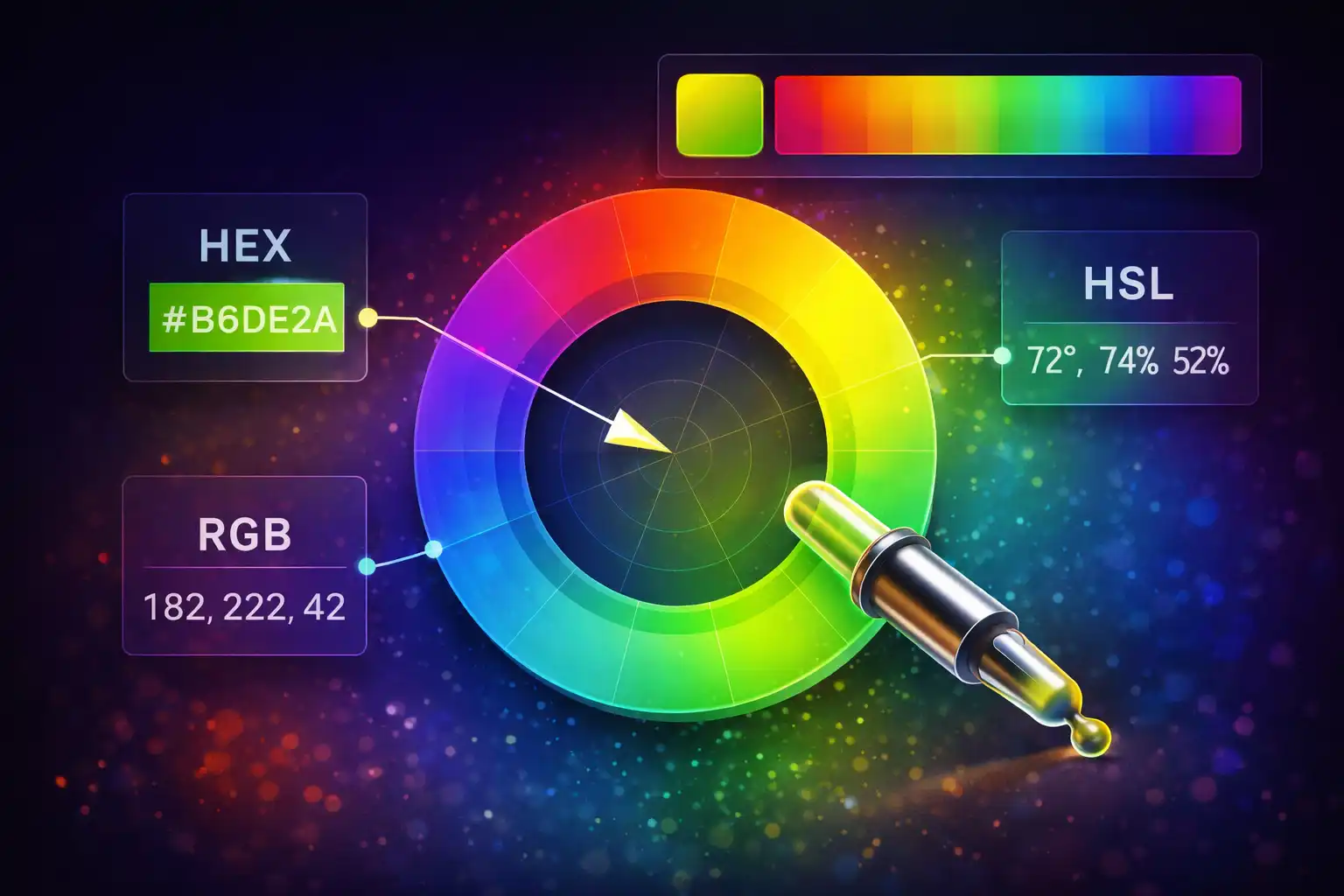
Table of Contents
Overview
ColorForge is a comprehensive color conversion and design tool that runs entirely in your web browser. It provides instant bidirectional conversion between six color spaces -- HEX, RGB, HSL, HSV, CMYK, and HWB -- alongside eight palette generators based on classical color theory, a WCAG 2.1 contrast checker for accessibility testing, an image color picker powered by the Canvas API, and a searchable database of all 148 CSS named colors. Every calculation, from gamma-corrected luminance to K-first CMYK decomposition, executes in pure JavaScript with zero external libraries.
The tool is organized into five tabs: Converter, Palette Generator, Contrast Checker, Image Picker, and Named Colors. Each tab is purpose-built for a specific workflow, but they all share the same color state -- clicking a palette swatch or sampling a pixel from an image instantly loads that color into the converter with all six color spaces updated simultaneously. ColorForge also maintains a history of your last 24 colors in localStorage (key: cf_history), automatically de-duplicating entries so you never lose track of colors you have been working with.
Whether you are a front-end developer converting a designer's HEX values to HSL for CSS animations, a print designer translating RGB screen colors to CMYK for press output, an accessibility consultant verifying WCAG AA and AAA contrast ratios, or simply someone who wants to explore color harmonies visually, ColorForge provides every tool you need in a single, private, zero-upload interface.
Key Features
6 Color Spaces
HEX (3/4/6/8-digit with alpha support), RGB (0-255 additive), HSL (cylindrical CSS-native), HSV (Photoshop model), CMYK (subtractive print), and HWB (CSS Color Level 4). All conversions are bidirectional -- edit any field and every other format updates instantly.
8 Palette Generators
Complementary (±180°), Analogous (±30°/60°/90°), Triadic (120° apart), Tetradic (90° apart), Split-Complementary (150°/210°), Monochromatic (same hue, varying lightness), Shades (progressively darker), and Tints (progressively lighter). All based on color wheel theory with clickable swatches.
WCAG 2.1 Contrast Checker
Tests four compliance levels: AA Normal (≥4.5:1), AA Large (≥3:1), AAA Normal (≥7:1), and AAA Large (≥4.5:1). Uses the standard luminance formula with gamma correction and ITU-R BT.709 coefficients. Live text preview with a swap button for quick testing.
Image Color Picker
Drag and drop any PNG, JPG, SVG, or WebP image onto the canvas. Click anywhere with the crosshair cursor to sample the exact pixel color using Canvas getImageData(). A “Use This Color” button loads the sampled color directly into the converter.
148 CSS Named Colors
The complete W3C named color list, searchable by name or hex value. Includes the rebeccapurple tribute (#663399, named after Eric Meyer's daughter Rebecca in 2014) and the gray/grey spelling quirk where both map to #808080.
EyeDropper API
Pick any color visible on your screen -- from other browser tabs, desktop apps, or your wallpaper. Uses the native EyeDropper API available in Chrome and Edge. Feature-detected at runtime and gracefully hidden on unsupported browsers like Firefox and Safari.
Color History
Your last 24 colors are automatically saved in localStorage (key: cf_history). Clickable color chips let you instantly recall any previous color. Entries are auto-deduplicated so repeated colors do not waste slots. History survives browser sessions and page refreshes.
4 CSS Output Formats
Ready-to-copy CSS values in four formats: color: #E8553D, rgb(232, 85, 61), hsl(8, 78%, 57%), and hwb(8 24% 9%). Each format has its own individual copy button for one-click clipboard access.
The 5 Tabs in Detail
Tab 1: Converter
The Converter tab is the core of ColorForge. It presents input fields for all six color spaces arranged in a clear, editable layout. When you type a value into any field -- whether it is a HEX string like #E8553D, an RGB triplet like 232, 85, 61, or an HSL value like 8, 78%, 57% -- every other color space recalculates and updates in real time. There is no “Convert” button to press; all synchronization is instantaneous as you type.
The tab also provides three quick-input methods: a native HTML5 <input type="color"> picker for visual selection, the EyeDropper API button (visible only in Chrome and Edge) for sampling any on-screen color, and a Random button that generates a random color using Math.random() mapped to the full RGB space. Below the input fields, four CSS output boxes display the current color in HEX, RGB, HSL, and HWB formats, each with a dedicated copy button. At the bottom, a row of up to 24 color history chips provides quick access to recently used colors.
HEX input supports three-digit shorthand (#F0C expands to #FF00CC), four-digit with alpha (#F0C8), standard six-digit (#FF00CC), and eight-digit with alpha (#FF00CC88). Invalid hex strings trigger a visual error state with a red border via the error CSS class, which clears automatically once the input is corrected.
Tab 2: Palette Generator
The Palette Generator tab creates harmonious color schemes based on the currently selected color. It offers eight palette types, each grounded in color wheel theory:
- Complementary -- Rotates the hue by 180° to produce the color directly opposite on the color wheel. Creates maximum contrast and visual tension.
- Analogous -- Generates colors at +30°, +60°, and +90° from the base hue. These neighboring colors create a harmonious, low-contrast palette often seen in nature.
- Triadic -- Places three colors evenly spaced at 120° intervals around the wheel. Offers vibrant contrast while maintaining color balance.
- Tetradic (Rectangle) -- Four colors at 90° intervals forming a rectangle on the color wheel. Rich and complex, best used with one dominant color and three accents.
- Split-Complementary -- Uses the two colors adjacent to the complement, at 150° and 210° from the base. Provides strong contrast with less tension than pure complementary.
- Monochromatic -- Keeps the same hue but varies lightness across multiple steps. Elegant and cohesive, ideal for creating depth within a single color family.
- Shades -- Progressively mixes the base color with black, producing darker versions. Useful for hover states, shadows, and depth effects in UI design.
- Tints -- Progressively mixes the base color with white, producing lighter versions. Perfect for backgrounds, disabled states, and subtle color fills.
Every swatch in every palette is clickable. Clicking a swatch loads that color into the converter tab with all six color spaces updated, and adds it to your color history. This makes it easy to explore variations and drill deeper into a color family.
Tab 3: Contrast Checker
The Contrast Checker tab lets you test any foreground/background color combination against the four WCAG 2.1 contrast thresholds. You enter (or paste) a text color and a background color, and ColorForge calculates the contrast ratio using the standard WCAG formula:
Contrast Ratio = (L1 + 0.05) / (L2 + 0.05)
Where L1 is the relative luminance of the lighter color and L2 is the relative luminance of the darker color. Relative luminance is computed from linear RGB values using the ITU-R BT.709 luma coefficients: L = 0.2126 × R + 0.7152 × G + 0.0722 × B. Before applying these coefficients, each sRGB channel value (0-255 normalized to 0-1) undergoes gamma correction: if the value is ≤ 0.04045, it is divided by 12.92; otherwise, the formula ((value + 0.055) / 1.055) ^ 2.4 is applied.
The four compliance levels tested are:
- AA Normal Text -- Requires a contrast ratio of at least 4.5:1. Applies to body text under 18pt (or under 14pt bold).
- AA Large Text -- Requires a contrast ratio of at least 3:1. Applies to text at 18pt or above (or 14pt bold and above).
- AAA Normal Text -- Requires a contrast ratio of at least 7:1. The highest standard for normal-sized body text.
- AAA Large Text -- Requires a contrast ratio of at least 4.5:1. The highest standard for large or bold text.
Each threshold displays a pass/fail badge in real time. A live preview panel shows sample text rendered in the chosen foreground color against the chosen background. The swap button instantly reverses foreground and background colors for quick comparison, and the contrast ratio is displayed to two decimal places.
Tab 4: Image Picker
The Image Picker tab enables you to extract exact colors from any image. Drag and drop a PNG, JPG, SVG, or WebP file onto the designated drop zone, or click to open a file browser. The image is rendered onto an HTML5 <canvas> element, and the cursor changes to a crosshair. Clicking anywhere on the image calls getImageData() on the canvas context to read the exact RGBA values of the pixel under the cursor.
The sampled color is displayed as a preview swatch alongside its HEX value. A “Use This Color” button loads the sampled color into the Converter tab, triggering a full conversion across all six color spaces and adding the color to your history. This workflow is ideal for extracting brand colors from logos, sampling colors from photographs for design palettes, or identifying exact colors in UI screenshots.
Because all image processing happens on the client-side Canvas API, your images are never uploaded to any server. The image data exists only in your browser's memory and is discarded when you navigate away or load a new image.
Tab 5: Named Colors
The Named Colors tab provides a browsable, searchable database of all 148 CSS named colors defined in the W3C specification. Each entry shows the color name, its HEX value, and a visual swatch. You can search by typing a color name (like “coral” or “slate”) or a hex value (like “#663399”) to filter the list instantly.
Notable entries include rebeccapurple (#663399), which was added to the CSS specification in 2014 as a tribute to Rebecca Meyer, the daughter of CSS pioneer Eric Meyer, who passed away at age six. It is the only CSS named color added for personal, rather than technical, reasons. The list also includes the gray/grey spelling quirk -- both gray and grey are valid CSS color names that resolve to the same value (#808080), along with variants like darkgray/darkgrey, lightgray/lightgrey, and others.
Clicking any named color swatch loads it into the converter with all six color space fields populated, making it easy to use a named color as the starting point for palette generation or contrast testing.
6 Color Spaces & Conversion Math
HEX (Hexadecimal)
The most common color format on the web. Each pair of hexadecimal digits represents one channel: red, green, and blue, each ranging from 00 (0) to FF (255). ColorForge supports three-digit shorthand (#F0C expands to #FF00CC by doubling each digit), four-digit with alpha (#F0C8 expands to #FF00CC88), standard six-digit (#FF00CC), and eight-digit with alpha channel (#FF00CC88 where 88 is ~53% opacity). Invalid hex strings that fail the /^#?([0-9A-Fa-f]{3,4}|[0-9A-Fa-f]{6}|[0-9A-Fa-f]{8})$/ pattern trigger an error state.
RGB (Red, Green, Blue)
The additive light model used by screens and monitors. Each channel ranges from 0 to 255, where rgb(0, 0, 0) is black (no light) and rgb(255, 255, 255) is white (full light on all channels). RGB is the foundational color space from which all other conversions are derived in ColorForge. The conversion from HEX to RGB is a direct mapping: each hex pair is parsed as an integer base-16.
HSL (Hue, Saturation, Lightness)
A cylindrical color model that is native to CSS. Hue is an angle from 0° to 360° on the color wheel (0° = red, 120° = green, 240° = blue). Saturation ranges from 0% (gray) to 100% (full color). Lightness ranges from 0% (black) to 100% (white), with 50% being the pure hue. The RGB-to-HSL conversion works by finding the maximum and minimum channel values, computing the lightness as their average, then deriving saturation from the delta. Hue is calculated using sector-based analysis: if red is dominant, H = (G - B) / delta; if green, H = 2 + (B - R) / delta; if blue, H = 4 + (R - G) / delta. An achromatic special case applies when the delta is zero (all channels equal), setting both hue and saturation to 0.
HSV / HSB (Hue, Saturation, Value / Brightness)
The color model used by Adobe Photoshop, Illustrator, and many design tools. While it shares the hue axis with HSL, saturation and value behave differently. In HSV, V = 100% represents the pure, fully saturated hue (e.g., pure red), whereas in HSL, L = 100% is always white regardless of hue. This distinction is critical for designers working across tools: a color that appears vibrant at hsv(0, 100%, 100%) in Photoshop corresponds to hsl(0, 100%, 50%) in CSS -- not hsl(0, 100%, 100%), which would be white. ColorForge handles this conversion precisely, making it a reliable bridge between design tools and CSS.
CMYK (Cyan, Magenta, Yellow, Key/Black)
The subtractive color model used in print production. Unlike RGB (which adds light), CMYK subtracts light by layering inks on paper. ColorForge uses the K-first decomposition algorithm: first compute K = 1 - max(R, G, B) / 255, then derive C = (1 - R/255 - K) / (1 - K), M = (1 - G/255 - K) / (1 - K), and Y = (1 - B/255 - K) / (1 - K). When K = 1 (pure black), C, M, and Y are all set to 0 to avoid division by zero. All values display as 0-100%. Note that this is a mathematical conversion -- actual print output depends on ICC color profiles, paper stock, and ink characteristics that are beyond the scope of screen-based conversion.
HWB (Hue, Whiteness, Blackness)
A CSS Color Level 4 color space designed to be more intuitive than HSL. HWB describes a color by its hue (same 0-360° wheel as HSL), the amount of white mixed in (0-100%), and the amount of black mixed in (0-100%). Think of it as starting with a pure hue and mixing in white paint and black paint. The conversion from HWB to RGB requires handling a critical edge case: when W + B ≥ 1 (whiteness plus blackness equals or exceeds 100%), the color degenerates into a gray calculated as W / (W + B). This prevents impossible color values and ensures a smooth gradient between extremes. HWB is supported in modern browsers and is increasingly used in CSS variables and design systems for its intuitive mental model.
How to Use
- Open ColorForge and start with the Converter tab -- Visit the app in your browser. The Converter tab loads by default, showing input fields for all six color spaces, the native color picker, and your color history. No installation, account, or setup is required.
- Enter a color in any format -- Type a HEX value (like
#3B82F6), an RGB triplet (like59, 130, 246), an HSL value (like217, 91%, 60%), or any of the other three formats. All six color space fields update instantly and bidirectionally as you type. Invalid values are highlighted with a red error border. - Use the native color picker, EyeDropper, or Random button -- Click the color picker square to visually select a color. In Chrome or Edge, use the EyeDropper button to sample any color from your screen (other apps, other tabs, your desktop). Or click Random to generate a surprise color for creative exploration.
- Switch to Palette Generator for color harmonies -- Select any of the 8 palette types to generate a harmonious color scheme based on your current color. Click any swatch in the generated palette to load it back into the converter and explore further. Combine Analogous for subtle themes or Triadic for vibrant, balanced designs.
- Test accessibility with the Contrast Checker -- Enter a foreground (text) color and a background color. The checker instantly calculates the WCAG 2.1 contrast ratio and shows pass/fail status for all four levels: AA Normal, AA Large, AAA Normal, and AAA Large. Use the swap button to reverse text and background.
- Sample colors from images with the Image Picker -- Drag and drop any PNG, JPG, SVG, or WebP image onto the canvas. Click anywhere on the image with the crosshair cursor to extract the exact pixel color. Click “Use This Color” to load it into the converter with all six color spaces populated.
- Copy CSS output or revisit your color history -- In the Converter tab, use the individual copy buttons next to each CSS output format (HEX, RGB, HSL, HWB) to paste directly into your code. Click any of the 24 color history chips to instantly return to a previous color.
Frequently Asked Questions
L = 50% gives you the pure, fully saturated hue, while L = 100% is always white regardless of hue or saturation. In HSV, V = 100% gives you the pure, fully saturated hue, while V = 0% is always black. HSL is the CSS-native format used in hsl() functions and is ideal for web development. HSV is the default model in Adobe Photoshop, Illustrator, and many design tools. ColorForge converts between them precisely, making it a reliable bridge between design and development workflows.L = 0.2126R + 0.7152G + 0.0722B). Each channel is first linearized: values ≤ 0.04045 are divided by 12.92, and values above that threshold use ((value + 0.055) / 1.055) ^ 2.4. The contrast ratio is then (L_lighter + 0.05) / (L_darker + 0.05), displayed to two decimal places. This ratio is tested against four WCAG 2.1 thresholds: AA Normal (≥4.5:1), AA Large (≥3:1), AAA Normal (≥7:1), and AAA Large (≥4.5:1).window.EyeDropper: if supported, the EyeDropper button is visible and functional; if not, the button is hidden entirely. Firefox and Safari do not yet support this API. On unsupported browsers, you can still use the native HTML5 color picker, image picker, or manual hex input as alternatives.W + B ≥ 1), the result is a neutral gray calculated as W / (W + B). Modern browsers support hwb() in CSS, and it is increasingly adopted in design systems for its straightforward mental model.<canvas> element, and clicking anywhere on it samples the exact pixel color using the Canvas getImageData() method. The cursor changes to a crosshair for precision. The sampled color is displayed as a swatch with its HEX value, and clicking “Use This Color” loads it into the converter with all six color spaces populated. Your images are never uploaded -- all processing happens on the client-side Canvas API.rebeccapurple is the CSS named color #663399. It was added to the CSS specification in June 2014 as a tribute to Rebecca Meyer, the six-year-old daughter of CSS pioneer Eric Meyer, who passed away from brain cancer. The web community rallied to honor her memory by adding her favorite color to the CSS standard. It is the only CSS named color added for personal rather than technical reasons, and it stands as a permanent memorial within the technology she helped inspire through her father's foundational work on CSS.cf_history. Colors are automatically added whenever you use the converter, click a palette swatch, sample a pixel from an image, or select a named color. The history auto-deduplicates: if you use a color that already exists in the history, it moves to the front instead of creating a duplicate entry. When the history reaches 24 colors, the oldest entry is removed to make room. The history persists across browser sessions and page refreshes, and is cleared only if you manually clear your browser's localStorage.Privacy & Security
All color conversions, palette generation, contrast calculations, and image sampling happen entirely in your browser using native JavaScript math and the Canvas API. No color data, images, or preferences are ever transmitted to any server. Color history is stored only in your browser's localStorage under the key cf_history, and your theme preference is stored under a separate localStorage key. There are no external library dependencies, no API calls, and no telemetry beyond standard page analytics. Every computation -- from sRGB gamma correction with the 0.04045 threshold and 2.4 exponent, to ITU-R BT.709 luminance weighting, to K-first CMYK decomposition -- executes in pure client-side JavaScript. You are in complete control of your data at all times.
Ready to try ColorForge? It's free, private, and runs entirely in your browser.
Launch ColorForge →Related

Last Updated: March 26, 2026