DataForge: Convert Spreadsheets Between XLSX, CSV, JSON, XML & More
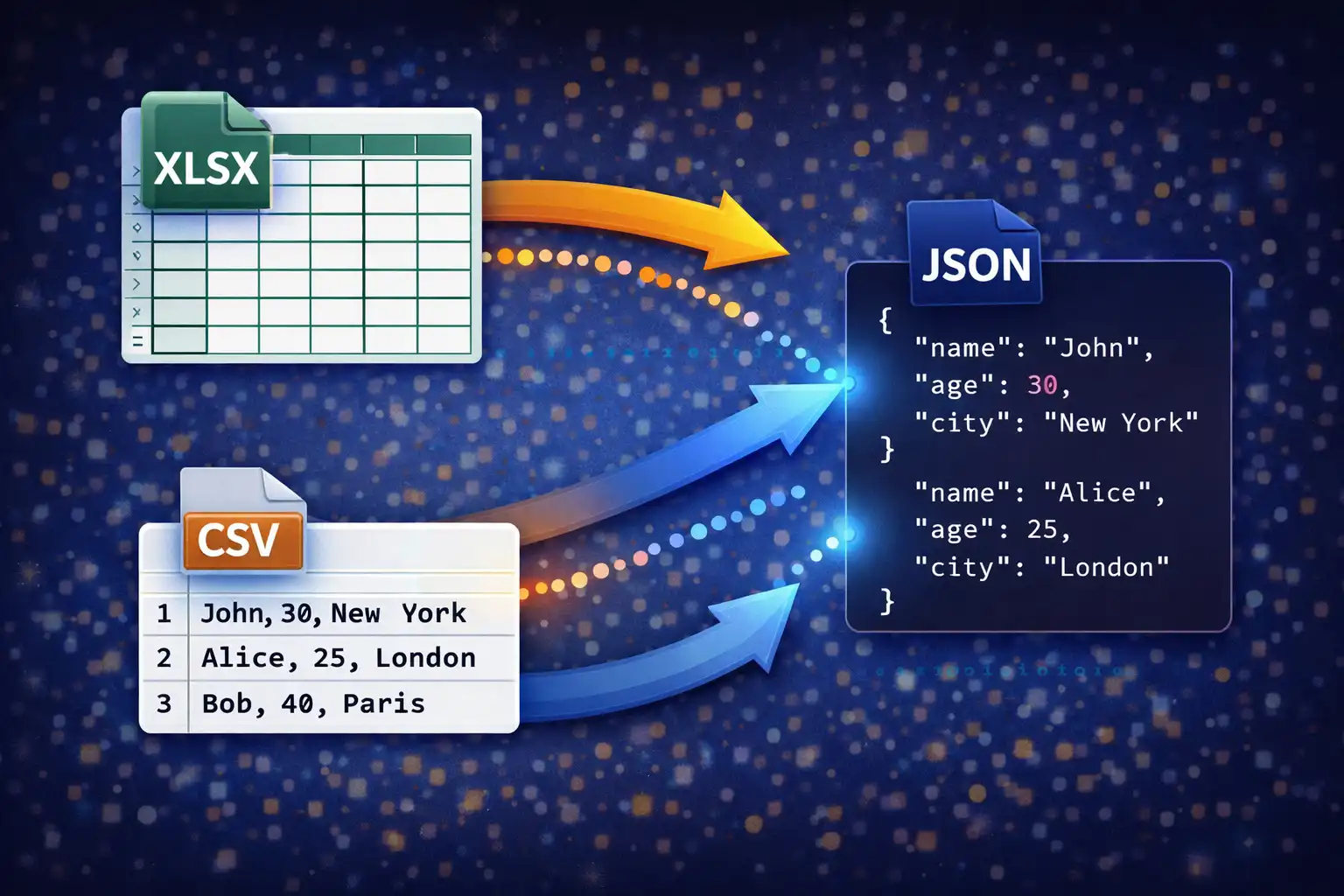
Table of Contents
- What Is DataForge?
- 6 Formats, 30 Conversion Paths
- CSV & TSV: Delimited Data Done Right (RFC 4180)
- Excel: Multi-Sheet Support with SheetJS
- JSON: Smart Detection & Type Inference
- XML: Hierarchical Flattening Algorithm
- The Live Preview System
- Auto-Column-Width & Output Quality
- Multi-Sheet Excel Handling
- SheetJS & PapaParse: The Two-Library Engine
- Privacy: Spreadsheets Never Leave Your Browser
- Common Data Migration Workflows
- DataForge vs. Convertio, AnyConv & MrData
- Frequently Asked Questions
- Conclusion
Tabular data is the backbone of modern business, research, and engineering workflows — but the formats it comes in are rarely the formats you need it in. A client exports a report from Excel as XLSX, but your data pipeline expects CSV. An API returns JSON, but the accounting team wants an Excel spreadsheet they can sort and filter. A legacy enterprise system dumps XML records, but your analytics dashboard only accepts tab-separated values. Every time you reach for a cloud-based converter to bridge these gaps, you upload your raw data — sales figures, customer records, financial projections, employee details — to someone else's server. DataForge eliminates that risk entirely. It converts between 6 data formats through 30 conversion paths, and every byte of processing happens inside your browser. No uploads, no server contact, no waiting for a round trip.
1. What Is DataForge?
DataForge is a browser-based spreadsheet and data converter on ZeroDataUpload. It handles 6 formats — CSV, TSV, XLSX, XLS, JSON, and XML — and converts between any pair of them through 30 distinct conversion paths. Unlike general-purpose converters that bolt spreadsheet conversion onto a broader feature set, DataForge is purpose-built for tabular data. Every feature — multi-sheet Excel support, live data preview, smart JSON structure detection, XML hierarchical flattening, auto-column-width sizing, and type detection — is designed specifically for the challenges of converting structured data between formats that represent it in fundamentally different ways.
The conversion engine is powered by two battle-tested open-source libraries: SheetJS 0.18.5 (862KB), the industry standard for reading and writing Excel files in JavaScript, and PapaParse 5.4.1 (20KB), the fastest RFC 4180-compliant CSV parser available for the browser. Together, these libraries handle the low-level parsing and serialization of binary Excel formats, delimited text formats, and the transformations between them — while DataForge adds the intelligence layer on top: format detection, type inference, structure analysis, and output optimization.
Every conversion runs 100% client-side. Your files are read into the browser's memory using the FileReader API, processed entirely in JavaScript, and the converted output is saved directly to your disk. At no point does any data leave your device. This makes DataForge safe for converting payroll spreadsheets, revenue forecasts, customer databases, research datasets, and any other data you would not want passing through a third-party server.
2. 6 Formats, 30 Conversion Paths
DataForge supports six data formats organized into three categories — delimited text, binary spreadsheet, and structured data — and provides full bidirectional conversion between all of them:
Delimited Text Formats
- CSV — Comma-Separated Values. The universal tabular data interchange format, supported by every spreadsheet application, database tool, programming language, and data analysis platform. Uses commas as field delimiters and follows RFC 4180 for quoting and escaping.
- TSV — Tab-Separated Values. Identical structure to CSV but uses tab characters as delimiters instead of commas. Preferred when data fields frequently contain commas — common in addresses, descriptions, natural language text, bioinformatics datasets, and database exports.
Binary Spreadsheet Formats
- XLSX — Microsoft Excel's Open XML format (Office 2007+). The dominant spreadsheet format in business, featuring multi-sheet workbooks, cell formatting, formulas, and structured references. Internally a ZIP archive containing XML files that describe worksheets, shared strings, styles, and relationships.
- XLS — Legacy Excel binary format (pre-2007). An OLE2 compound document format still encountered in older enterprise systems, government databases, archived reports, and data exported from legacy software. DataForge reads XLS files and can convert them to any of the other five formats, including upgrading them to XLSX.
Structured Data Formats
- JSON — JavaScript Object Notation. The dominant data format for web APIs, NoSQL databases, configuration files, and modern data pipelines. DataForge handles arrays of objects, nested objects with array-valued keys, and flat primitives — applying smart structure detection to extract tabular data from various JSON shapes.
- XML — Extensible Markup Language. Used in SOAP APIs, enterprise integrations, RSS feeds, healthcare data (HL7), financial reporting (XBRL), and configuration systems. DataForge's hierarchical flattening algorithm detects the record structure and extracts tabular data from deeply nested XML documents.
The 30 conversion paths cover every possible source-to-target pair:
- CSV → TSV, XLSX, XLS, JSON, XML (5 paths)
- TSV → CSV, XLSX, XLS, JSON, XML (5 paths)
- XLSX → CSV, TSV, XLS, JSON, XML (5 paths)
- XLS → CSV, TSV, XLSX, JSON, XML (5 paths)
- JSON → CSV, TSV, XLSX, XLS, XML (5 paths)
- XML → CSV, TSV, XLSX, XLS, JSON (5 paths)
Every format converts to every other format. There are no one-directional restrictions, no "premium" conversion pairs, and no limits on file size or number of conversions. The only constraint is your browser's available memory.
3. CSV & TSV: Delimited Data Done Right (RFC 4180)
CSV may be the simplest data format in widespread use, but parsing it correctly is anything but simple. The format's apparent simplicity — values separated by commas, rows separated by newlines — conceals a set of edge cases that trip up naive parsers. DataForge handles CSV through PapaParse 5.4.1, which implements full compliance with RFC 4180, the formal specification for CSV files published by the IETF.
RFC 4180 defines three critical rules that distinguish a correct CSV parser from a broken one:
Quoted fields. When a field value contains a comma, it must be enclosed in double quotes so the comma is interpreted as data rather than a delimiter. For example, the address "New York, NY" is a single field, not two fields split at the comma. PapaParse correctly identifies the opening quote, reads everything until the closing quote (including any embedded commas), and treats the entire quoted sequence as one value. Naive parsers that simply split on commas would break this field into "New York and NY", corrupting your data.
Escaped quotes. When a field value itself contains a double quote character, RFC 4180 requires it to be escaped by doubling: two consecutive double quotes inside a quoted field represent a single literal quote. The value She said "hello" is encoded as "She said ""hello""" in CSV. PapaParse correctly collapses the doubled quotes back to singles during parsing and re-doubles them during output generation via Papa.unparse().
Embedded newlines. A quoted field can contain newline characters (both CR, LF, and CRLF sequences) without terminating the row. A field like "Line 1\nLine 2" is a single value spanning two lines of the physical file but occupying one cell in the resulting table. PapaParse tracks whether it is inside a quoted field and only treats newlines as row terminators when they appear outside of quotes.
For TSV parsing, DataForge configures PapaParse with the tab character (\t) as the delimiter instead of comma. All the same quoting and escaping rules apply — RFC 4180's quoting mechanism works identically regardless of the delimiter character. PapaParse's skipEmptyLines: true option is enabled for both CSV and TSV, which filters out blank rows that frequently appear at the end of exports from spreadsheet applications and database tools.
For CSV/TSV output generation, DataForge calls Papa.unparse() with a delimiter option. PapaParse's serializer automatically determines which fields need quoting (those containing the delimiter, quotes, or newlines), applies the correct escaping, and produces RFC 4180-compliant output. This round-trip correctness — parse a CSV, convert it to another format and back, and get the identical CSV — is critical for data integrity in pipeline workflows.
4. Excel: Multi-Sheet Support with SheetJS
Excel files are the most complex format DataForge handles, and they require SheetJS 0.18.5 — an 862KB library that implements parsers for both the modern OOXML format (XLSX) and the legacy OLE2 binary format (XLS).
XLSX parsing begins when SheetJS calls XLSX.read(buffer, {type: 'array'}), where buffer is an ArrayBuffer read from the uploaded file via the FileReader API. SheetJS decompresses the XLSX ZIP archive, parses the workbook XML to discover all sheet names and their relationships, parses the shared strings table (where Excel stores all unique string values once and references them by index from each cell), and builds an internal workbook object with each sheet represented as a cell map.
To extract data as a JavaScript array-of-arrays suitable for conversion, DataForge calls XLSX.utils.sheet_to_json(sheet, {header: 1, defval: ''}). The header: 1 option tells SheetJS to return raw rows as arrays (where each element is a cell value) rather than objects keyed by header names. The defval: '' option ensures that empty cells are represented as empty strings rather than undefined, which prevents gaps in the output when converting to CSV or JSON where every row must have the same number of fields.
XLS parsing follows a different code path inside SheetJS. XLS files use Microsoft's OLE2 compound document format — a binary structure where the file is divided into sectors, stored in a FAT-like allocation table, and the workbook data is encoded in BIFF (Binary Interchange File Format) records. SheetJS reads the OLE2 container, locates the Workbook stream, and parses the BIFF records to extract cell values, shared strings, and sheet metadata. From DataForge's perspective, the output is identical to XLSX parsing: a workbook object with sheet arrays. This abstraction allows DataForge to treat XLS and XLSX identically after the parsing step, including upgrading XLS files to the modern XLSX format.
Multi-sheet support is where DataForge differentiates itself from simpler converters. When an Excel file contains multiple sheets, DataForge reads all sheet names from the workbook object and populates a sheet selector dropdown in the UI. The user can switch between sheets, and the preview updates instantly because all sheets are already parsed and held in memory. The selected sheet's data is used for the conversion operation. This is essential for real-world Excel files, which frequently contain multiple sheets — a data sheet, a summary sheet, a lookup table, and a metadata sheet — and you rarely want to convert all of them.
5. JSON: Smart Detection & Type Inference
JSON's flexibility is both its strength and the primary challenge for a converter. Unlike CSV, which has one structural pattern (rows and columns), JSON data can be organized in many different ways. DataForge implements a smart detection algorithm that identifies the structure of the input JSON and extracts tabular data regardless of the specific shape.
DataForge recognizes three primary JSON structures:
Array of objects — the most common and most directly tabular shape. Each object in the array represents a row, and the object's keys represent column names. For example:
[
  {"name": "Alice", "age": 30, "city": "Portland"},
  {"name": "Bob", "age": 25, "city": "Seattle"}
]
DataForge extracts the unique set of keys across all objects to determine column headers — this handles cases where different objects have different keys, which is common in real-world API responses where some records have optional fields. Missing keys in a particular object become empty cells in the output.
Nested objects with array values — a common API response pattern where the data array is nested inside a wrapper object. For example, an API might return {"status": "ok", "results": [...]}. DataForge scans the top-level object's keys, finds the first value that is an array, and uses that array as the data source. This means you can feed DataForge a raw API response without manually extracting the data array first.
Flat primitives and mixed structures — when the JSON is not obviously tabular (a single object, a flat array of strings or numbers, or deeply nested structures), DataForge applies fallback handling. Single objects are converted to a two-column key-value table. Flat arrays become a single-column table. Nested objects within cells are serialized back to JSON strings using JSON.stringify() so that no data is lost — the nested structure becomes a string value in the output cell.
The type inference engine operates during JSON output generation, converting string values from CSV and Excel sources into their appropriate JSON types. This is critical because CSV has no type system — every value is a string — but JSON distinguishes numbers, booleans, null, and strings. DataForge applies the following detection rules:
- Numbers: If a string value passes an
isNaN()check (meaning it is not-not-a-number — a double negative that tests whether the string can be parsed as a number), it is converted to a numeric type. The string"30"becomes the number30. The string"3.14"becomes3.14. Empty strings and whitespace-only strings are excluded from this conversion. - Booleans: The strings
"true"and"false"(case-sensitive) are converted to the boolean valuestrueandfalse. This handles the common case where boolean flags exported from a database or spreadsheet become strings in CSV. - Null: Empty string values (
"") are converted tonullin JSON output. This preserves the semantic distinction between "this field has no value" (null) and "this field's value is an empty string" — a distinction that matters for database imports and API consumption.
The final JSON output is formatted with JSON.stringify(array, null, 2), producing human-readable output with 2-space indentation. This pretty-printing makes the output immediately usable for inspection, debugging, and inclusion in configuration files without requiring a separate formatting step.
6. XML: Hierarchical Flattening Algorithm
XML is the most structurally complex format DataForge handles, because XML documents are inherently hierarchical — trees of nested elements with attributes and text content — while tabular formats like CSV and XLSX are flat grids of rows and columns. Converting between these two paradigms requires an intelligent flattening strategy, and DataForge implements a hierarchical flattening algorithm that automatically detects the record structure in an XML document.
Parsing uses the browser's native DOMParser API, which converts the XML string into a DOM tree. DataForge then analyzes this tree to identify which element represents a "record" — the repeating unit that should become a row in the output table.
Record tag detection works by counting the frequency of child element tag names under the root element. The most common child tag is identified as the record tag. For example, in the following XML:
<employees>
  <employee id="101">
    <name>Alice</name>
    <department>Engineering</department>
    <salary>95000</salary>
  </employee>
  <employee id="102">
    <name>Bob</name>
    <department>Design</department>
    <salary>88000</salary>
  </employee>
  <employee id="103">
    <name>Carol</name>
    <department>Marketing</department>
    <salary>91000</salary>
  </employee>
</employees>
The root element <employees> has three child elements, all named <employee>. The frequency count identifies employee as the most common child tag, making it the record tag. Each <employee> element becomes one row in the output table.
Attribute extraction uses the @ prefix convention. When a record element has XML attributes, they are included as columns with an @ prefix to distinguish them from child elements. In the example above, the id attribute on each <employee> element becomes a column named @id. This convention is widely used in XML-to-JSON mappings (it matches the Badgerfish and Parker conventions) and prevents name collisions between attributes and child elements that might share the same name.
Child element extraction reads each child element of the record tag and uses the child's tag name as the column name and its text content as the cell value. In the example, the child elements <name>, <department>, and <salary> become columns with their respective text values.
#text extraction handles cases where a record element has direct text content mixed with child elements. The text content is stored in a column named #text. This is uncommon in well-structured data XML but necessary for completeness when handling mixed-content documents.
The resulting flat table from the example above would have four columns — @id, name, department, salary — and three rows of data. This table can then be serialized to CSV, TSV, XLSX, or JSON using the same output generators used for all other conversion paths.
For XML output generation, DataForge reverses the process. It sanitizes column names to produce valid XML tag names using a safeTag() function that removes characters not permitted in XML element names (spaces, special characters, leading digits). Values are escaped for XML using an escXml() function that replaces &, <, >, ", and ' with their corresponding XML entities. The output uses a consistent <records><record> structure, where <records> is the root element and each row is wrapped in a <record> element with child elements for each column value.
7. The Live Preview System
DataForge's preview system lets you inspect your data before committing to a conversion, catching parsing errors, delimiter misdetection, and structural issues before they propagate to the output file.
The preview operates in two modes:
Table view renders the parsed data as a formatted HTML table with several usability features. It displays up to 100 rows of data (enough to verify the structure without overwhelming the browser's rendering engine on large datasets). The table uses sticky headers that remain visible as you scroll through the rows, so you always know which column you are looking at. Rows are striped with alternating background colors for readability. Each row has a row number in the leftmost column. Cell content that exceeds the column width is truncated with ellipsis overflow, with each cell capped at 240px max-width — you can still see the full value by hovering or clicking, but the table remains scannable rather than being stretched to absurd widths by a single long value.
Raw view displays the first 20,000 characters of the file's text content in a monospace font. This is useful for inspecting the actual file structure — seeing the literal commas and quotes in a CSV file, the tab characters in a TSV file, the JSON bracket structure, or the XML tag hierarchy. Raw view is particularly valuable for debugging parsing issues, because you can see exactly what the parser is working with rather than its interpreted output.
The "First row is header" checkbox is a critical toggle that controls how DataForge interprets the first row of delimited data. When checked (the default), the first row's values are used as column headers in the table view and as object keys in JSON output. When unchecked, the first row is treated as data, and columns are assigned generic names (Column 1, Column 2, etc.). This distinction matters because some CSV and TSV files include headers and some do not — misinterpreting a header row as data (or vice versa) corrupts the output. The preview updates immediately when you toggle this checkbox, so you can see the effect before converting.
For multi-sheet Excel files, the preview includes a sheet selector dropdown that lists all sheet names from the workbook. Selecting a different sheet updates the preview instantly because all sheets are parsed during the initial file read and held in memory. The selected sheet is also the one that will be used for the conversion operation.
8. Auto-Column-Width & Output Quality
When DataForge generates XLSX output, it does not simply dump data into cells and leave you with columns that are either too narrow (truncating your data) or too wide (wasting screen space). Instead, it implements an auto-column-width algorithm that produces professionally formatted spreadsheets ready for immediate use.
The algorithm works as follows: for each column, DataForge iterates through all rows (including the header) and measures the character length of each cell's value. The maximum length found in any row becomes the base width for that column. DataForge then adds a padding of 2 characters to provide visual breathing room around the data. Finally, the width is capped at 50 characters to prevent a single column with an exceptionally long value (such as a full URL or a JSON-stringified nested object) from dominating the spreadsheet layout.
The calculation uses SheetJS's !cols property on the worksheet object, which accepts an array of column width descriptors with a wch (width in characters) property. The code maps over columns, computes Math.min(maxLength + 2, 50) for each, and assigns the result to the worksheet's column definition array before calling XLSX.write().
This approach produces XLSX files that open in Excel, Google Sheets, and LibreOffice Calc with columns already sized to fit their content — no manual resizing needed. It is a small detail that makes a significant difference in usability, especially when converting large datasets with dozens of columns that would otherwise require tedious manual width adjustments.
The XLSX generation process uses SheetJS's aoa_to_sheet() function, which converts an array-of-arrays (where each sub-array is a row of cell values) into a SheetJS worksheet object. This is the most efficient path for tabular data because it avoids the overhead of creating individual cell objects. The worksheet is then added to a new workbook via XLSX.utils.book_new() and XLSX.utils.book_append_sheet(), and the workbook is serialized to a binary XLSX file using XLSX.write(workbook, {bookType: 'xlsx', type: 'array'}), which returns a Uint8Array suitable for creating a download blob.
9. Multi-Sheet Excel Handling
Real-world Excel workbooks almost always contain multiple sheets. A financial report might have sheets for each quarter. A data export might separate summary data from raw records. A configuration workbook might have a settings sheet alongside data sheets. DataForge handles multi-sheet files gracefully rather than silently discarding all sheets except the first one.
When DataForge parses an XLSX or XLS file, SheetJS returns a workbook object with a SheetNames array listing all sheet names and a Sheets object containing the parsed data for each sheet. DataForge reads the complete SheetNames array and populates a sheet selector dropdown in the interface. The first sheet is selected by default and displayed in the preview.
When you select a different sheet from the dropdown, DataForge reads the corresponding data from the already-parsed workbook object — there is no re-parsing of the file. The preview table updates immediately with the selected sheet's data, and the sheet selector's current value determines which sheet will be converted when you click the convert button.
This design allows you to inspect each sheet's contents, compare them, and convert only the sheet you need. If you need to convert multiple sheets from the same workbook, you can convert each one individually by selecting it from the dropdown and running the conversion. The file only needs to be loaded once because the entire workbook is cached in memory after the first parse.
For XLS-to-XLSX conversion (upgrading legacy Excel files to the modern format), DataForge reads the XLS file using SheetJS's OLE2 parser, then writes the extracted data as a new XLSX file. This is a clean re-serialization — the data passes through SheetJS's internal representation, and the output is a standard OOXML file that works in Excel 2007 and later. Cell values, sheet names, and basic structure are preserved, though formatting, macros, and embedded objects from the original XLS file are not carried over.
10. SheetJS & PapaParse: The Two-Library Engine
DataForge's conversion engine relies on exactly two libraries, each a specialist in its domain. This minimal dependency footprint keeps the total JavaScript payload under 900KB while covering all six supported formats.
SheetJS 0.18.5 (862KB) is the JavaScript ecosystem's definitive library for reading and writing spreadsheet files. Originally created by SheetJS LLC and maintained as the Community Edition, it supports both the OOXML format (XLSX) used by Excel 2007+ and the OLE2 binary format (XLS) used by earlier versions. SheetJS handles the full complexity of Excel files: shared string tables, cell type metadata, date serialization (converting Excel's serial date numbers — days since January 1, 1900 — to JavaScript dates), merged cell ranges, and multi-sheet workbook structures. In DataForge, SheetJS serves as both the input parser (reading uploaded Excel files into JavaScript arrays) and the output generator (creating downloadable XLSX files with auto-sized columns from any tabular data source).
PapaParse 5.4.1 (20KB) is the fastest and most correct CSV parser available for JavaScript. It implements full RFC 4180 compliance including quoted fields, escaped quotes, embedded newlines, and configurable delimiters. PapaParse's parser operates in streaming mode internally, processing the input character by character and building the output array incrementally, which means it can handle files much larger than available memory (though DataForge reads files into memory first via FileReader, so memory remains the practical limit). For output, PapaParse's unparse() function generates RFC 4180-compliant CSV or TSV with automatic quoting of fields that contain delimiters, quotes, or newlines. In DataForge, PapaParse handles all CSV and TSV parsing and generation, while also serving as the first-stage parser for CSV and TSV data that will be converted to XLSX, JSON, or XML.
The two libraries complement each other perfectly. SheetJS handles the binary formats (XLSX, XLS) and the array-of-arrays-to-worksheet conversion for Excel output. PapaParse handles the text-based delimited formats (CSV, TSV) with proper RFC compliance. JSON and XML parsing use the browser's built-in JSON.parse() and DOMParser respectively, with DataForge's custom code providing the structure detection and flattening logic. This architecture means DataForge has no unnecessary dependencies — every kilobyte of library code serves a direct purpose in the conversion pipeline.
11. Privacy: Spreadsheets Never Leave Your Browser
Spreadsheet data is often the most sensitive data in an organization. Payroll spreadsheets contain salaries and tax IDs. Customer databases contain names, emails, and purchase histories. Financial reports contain revenue, margins, and projections. Research datasets contain study results that may be under NDA or embargo. The idea of uploading any of these to a server you do not control should give you pause.
DataForge's architecture makes data exfiltration impossible by design. There is no server component. There is no API endpoint. There is no backend at all. The entire application — HTML, CSS, and the two JavaScript libraries — loads as static files from ZeroDataUpload's CDN, and after that initial page load, no further network communication is required for any conversion operation.
The conversion pipeline works entirely within the browser's JavaScript sandbox:
- File reading: The FileReader API reads your local file into an
ArrayBuffer(for binary formats) or a text string (for CSV, TSV, JSON, XML). This is a browser API that accesses your filesystem directly — no upload. - Parsing: SheetJS or PapaParse parses the in-memory data into a JavaScript array-of-arrays. The parsed data exists only in your browser's memory.
- Conversion: DataForge transforms the parsed data into the target format's representation, still in memory.
- Output: The converted data is packaged as a
Bloband downloaded to your disk via the browser's native download mechanism.
You can verify this yourself by opening your browser's Network tab in Developer Tools before running a conversion. You will see zero HTTP requests during the file reading, parsing, conversion, and download phases. The only network activity is the initial page load.
"The safest way to protect data in transit is to never transmit it in the first place. DataForge processes your spreadsheets where they already are — on your device."
This architecture also means DataForge works offline. Once the page and its two libraries are cached by your browser, you can disconnect from the internet entirely and continue converting spreadsheets. There is no license check, no usage metering, and no server dependency for any conversion operation.
12. Common Data Migration Workflows
DataForge serves a wide range of real-world data migration scenarios:
API response to spreadsheet. You receive JSON from an API — say, a list of 500 customer records — and need to hand it to a business analyst who works in Excel. Paste the JSON into DataForge (or load the JSON file), select XLSX as the output, and the analyst gets a properly columned Excel file with auto-sized widths. No Python scripts, no command-line tools, no manual reformatting.
Legacy Excel upgrade. An old accounting system exports reports as XLS (pre-2007 format). Your modern analytics platform only accepts XLSX. DataForge reads the XLS using SheetJS's OLE2 parser and writes a clean XLSX file, upgrading the binary format without data loss.
Database export to JSON. Your database admin exports a table as CSV. Your web application needs it as a JSON array. DataForge parses the CSV with PapaParse, applies type inference (converting string numbers to actual numbers, string booleans to actual booleans), and outputs cleanly formatted JSON ready for ingestion.
XML feed to spreadsheet. An enterprise partner sends product catalog data as XML. Your procurement team needs it in Excel to review and filter. DataForge's hierarchical flattening detects the record structure, extracts attributes and child elements, and produces an XLSX file with all the catalog data in a flat table.
Tab-separated to comma-separated. A bioinformatics tool exports data as TSV, but your visualization software only accepts CSV. A simple delimiter swap — DataForge reads TSV with PapaParse (tab delimiter) and writes CSV with PapaParse (comma delimiter), handling quoted fields correctly throughout.
Excel to JSON for web. A content team maintains a spreadsheet of product information. The website's frontend needs that data as JSON. DataForge reads the XLSX, preserves column headers as JSON keys, applies type inference to values, and outputs a JSON array ready to drop into a JavaScript application or CMS configuration.
13. DataForge vs. Convertio, AnyConv & MrData
The spreadsheet conversion market is dominated by server-based services that upload your files for processing. Here is how DataForge compares to three common alternatives:
Convertio ($9.99/month for unlimited conversions) is a popular general-purpose converter supporting 300+ format pairs including spreadsheet formats. Every file you convert is uploaded to their servers for processing. Free tier is limited to 100MB files and 10 conversions per day. While Convertio produces reliable output, the upload requirement means your spreadsheet data — potentially containing financial records, personal information, or proprietary business data — traverses the internet and resides on third-party infrastructure during processing. They state files are deleted after 24 hours, but verification is impossible.
AnyConv (free with ads, limited features) offers basic spreadsheet conversion without requiring an account. Files are uploaded to their servers, processed, and returned for download. The free tier has file size limits and the interface is heavily ad-laden. Conversion options are limited compared to DataForge — AnyConv supports fewer format pairs and does not offer features like multi-sheet selection, live preview, or type inference. Output quality is basic: XLSX files have default column widths, and JSON output lacks type detection.
MrData (free, basic functionality) focuses specifically on data format conversion but operates as a server-side service. It handles CSV, JSON, and XML conversions with a straightforward interface, but lacks Excel support, multi-sheet handling, and the smart structure detection that DataForge provides. Like other server-based tools, every conversion requires uploading your data.
DataForge is free with no conversion limits, no file size limits (beyond browser memory), no account required, and zero server contact. It supports 6 formats with 30 conversion paths, multi-sheet Excel handling, live preview with table and raw modes, smart JSON structure detection, XML hierarchical flattening, auto-column-width sizing, and type inference — all running entirely in your browser.
| Feature | DataForge | Convertio | AnyConv | MrData |
|---|---|---|---|---|
| Price | Free | $9.99/mo | Free (limited) | Free |
| Data upload | None | Yes (server) | Yes (server) | Yes (server) |
| Conversion limit | Unlimited | 10/day (free) | Limited | Limited |
| Account required | No | Yes | No | No |
| Works offline | Yes | No | No | No |
| Multi-sheet Excel | Yes | First sheet only | First sheet only | No Excel |
| Live preview | Table + Raw | No | No | No |
| JSON type inference | Yes | No | No | Basic |
| XML flattening | Smart detection | Basic | Basic | Basic |
| Auto column widths | Yes | No | No | N/A |
The trade-off is format breadth. Convertio supports 300+ format pairs across every category (audio, video, documents, images, and more). DataForge is purpose-built for tabular data and handles its 6 formats with deeper intelligence — smart detection, type inference, hierarchical flattening, multi-sheet selection — that general-purpose converters do not provide. If you need to convert a WAV file to MP3, Convertio is your tool. If you need to convert a multi-sheet XLSX to properly typed JSON with auto-detected arrays, DataForge is purpose-built for exactly that.
14. Frequently Asked Questions
Q: Does DataForge upload my spreadsheets to any server?
No. Every conversion runs 100% in your browser using JavaScript. Your files are read from your local filesystem into browser memory, processed by SheetJS and PapaParse, and saved back to your disk. No network requests are made during conversion. You can verify this by monitoring the Network tab in your browser's Developer Tools.
Q: What is the maximum file size DataForge can handle?
There is no hard file size limit. The practical limit depends on your browser's available memory, which is typically 1-4GB depending on the browser and operating system. Most spreadsheet files are well within this range. A 100,000-row CSV file with 20 columns is typically under 50MB and converts in a few seconds.
Q: How does DataForge handle CSV files with commas inside field values?
DataForge uses PapaParse, which implements full RFC 4180 compliance. Fields containing commas must be enclosed in double quotes per the RFC specification, and PapaParse correctly parses these quoted fields as single values. For example, "New York, NY" is parsed as one field containing "New York, NY" rather than two separate fields.
Q: Can DataForge convert between all 6 formats in both directions?
Yes. Every format converts to every other format, giving 30 total conversion paths (6 formats x 5 possible targets each). CSV to JSON, JSON to XLSX, XLSX to XML, XML to TSV — every combination is supported. XLS files can also be upgraded to XLSX.
Q: How does the JSON type inference work? Will it corrupt my data?
Type inference only operates during JSON output generation (when converting from CSV or Excel to JSON). It converts string values that look like numbers into JSON numbers (e.g., "30" becomes 30), string booleans into JSON booleans ("true" becomes true), and empty strings into null. This produces cleaner JSON that matches the data's semantic types. The original file is never modified — type inference only affects the output.
Q: How does DataForge handle multi-sheet Excel files?
When you load an XLSX or XLS file with multiple sheets, DataForge displays a sheet selector dropdown listing all sheet names. You can switch between sheets to preview each one, and the selected sheet is used for the conversion. All sheets are parsed during the initial file load, so switching between them is instant.
Q: What happens to nested JSON objects when converting to CSV?
Nested objects and arrays within JSON values are serialized to JSON strings using JSON.stringify() and placed in the corresponding CSV cell. This ensures no data is lost — the nested structure becomes a string value in the output. You can parse these stringified values later if needed.
Q: How does the XML flattening work for deeply nested XML?
DataForge's hierarchical flattening algorithm examines the root element's children and identifies the most frequently occurring child tag as the "record" tag. Each instance of this record tag becomes a row. Attributes are extracted with an @ prefix (e.g., @id), child elements become columns by their tag name, and direct text content becomes a #text column. This approach works well for data-oriented XML where records are direct children of the root element.
Q: Does DataForge preserve Excel formulas during conversion?
DataForge extracts the computed values from Excel cells, not the formulas themselves. If a cell contains =SUM(A1:A10) and its computed value is 500, the output will contain 500. This is the correct behavior for data conversion — you want the actual values, not the formula text — but it means you cannot round-trip formulas through a CSV or JSON conversion.
Q: Can I use DataForge to convert Excel files with macros (XLSM)?
DataForge is designed for data conversion between the six supported formats (CSV, TSV, XLSX, XLS, JSON, XML). SheetJS can read the data content from XLSM files, but macros (VBA code) are not preserved or executed. If your XLSM file contains macros you need to keep, DataForge is not the right tool for that operation.
15. Conclusion
DataForge occupies a focused niche in the data conversion landscape: it does six formats, it does them well, and it does them without ever touching your data. The 30 conversion paths cover the spreadsheet and data format translations that developers, analysts, data engineers, and business professionals encounter daily — CSV to XLSX for reporting, JSON to CSV for analysis, XML to JSON for API migration, XLS to XLSX for legacy upgrades, and every other combination in between.
The technical foundation is solid. SheetJS 0.18.5 handles the binary complexity of Excel formats — OOXML parsing, OLE2 backward compatibility, shared string tables, and auto-column-width output. PapaParse 5.4.1 provides RFC 4180-compliant CSV processing with proper quoted field handling, escaped quote support, and embedded newline parsing. DataForge's own intelligence layer adds smart JSON structure detection (arrays, nested objects, primitive fallback), XML hierarchical flattening (record tag detection, @attribute prefixing, #text extraction), type inference (strings to numbers, booleans, and null), and a live preview system with table and raw modes that lets you verify your data before converting.
Most importantly, the privacy architecture is not a feature — it is a constraint. There is no server to send data to. There is no upload endpoint. There is no backend at all. Your spreadsheets are read from your filesystem into browser memory, processed entirely in JavaScript, and downloaded back to your disk. The entire pipeline runs in the browser sandbox, and you can verify it yourself by watching the Network tab during a conversion.
For anyone who converts between CSV, TSV, XLSX, XLS, JSON, and XML regularly and values the privacy of their data, DataForge is built exactly for you. Try it at DataForge on ZeroDataUpload — no account, no payment, no data upload required.
Related Articles

Published: March 26, 2026