OCR Converter: Extract Text from Images & PDFs with Tesseract.js in Your Browser
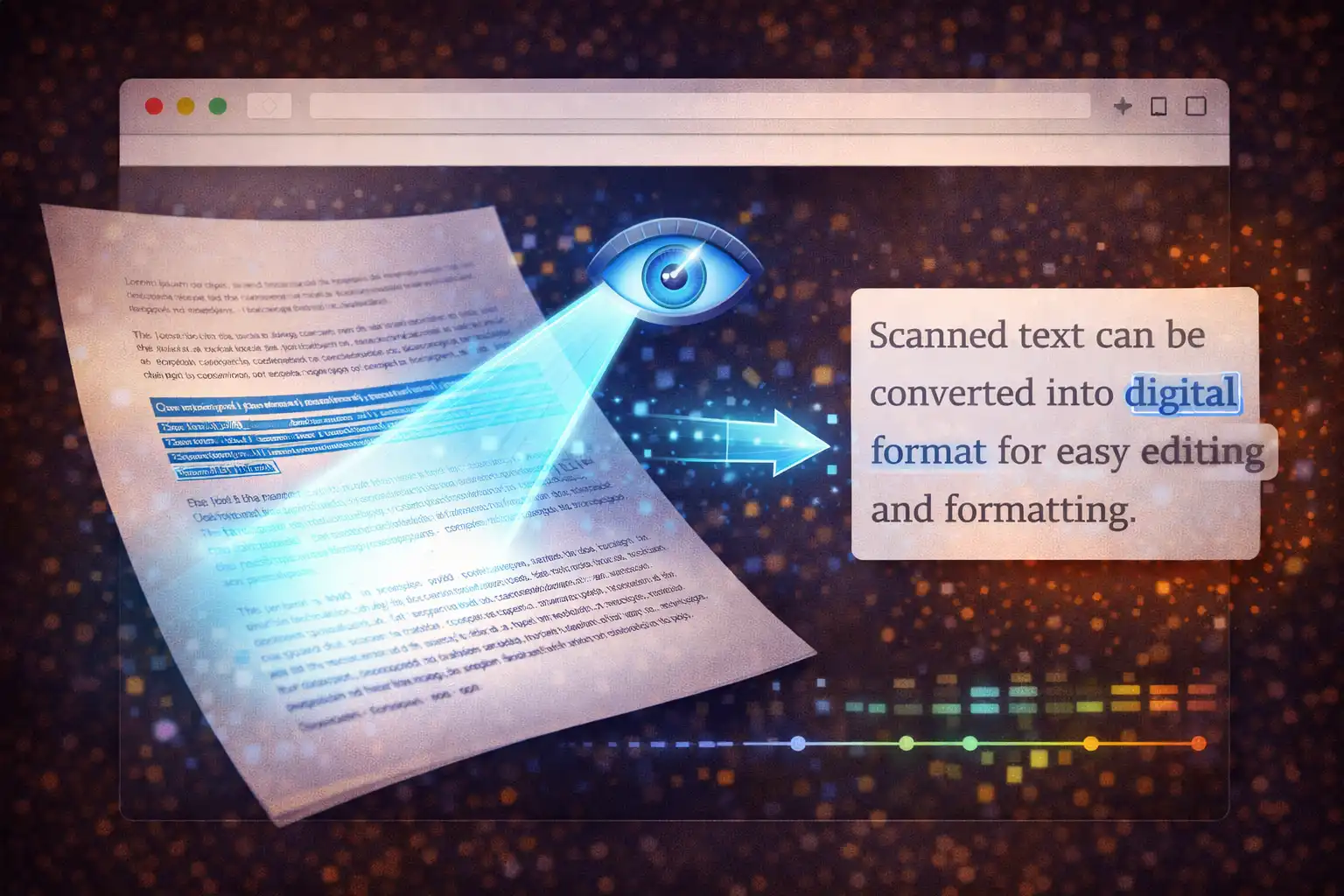
Table of Contents
- What Is the OCR Converter?
- What Is OCR? A Brief History
- Tesseract.js: The World's Best OCR Engine in WebAssembly
- 18 Languages: English to Arabic to Japanese
- How the OCR Pipeline Works
- Multi-Page PDF OCR
- 6 Output Formats
- Confidence Scores: Understanding Accuracy
- Tips for Best OCR Results
- The 5-Library Architecture
- Privacy: Documents Never Leave Your Device
- Common Use Cases
- vs. Google Vision, Adobe Acrobat & ABBYY
- Frequently Asked Questions
- Conclusion
Every day, millions of documents exist only as images: scanned contracts, photographed receipts, archived PDFs with no selectable text, screenshots of important information. The text is right there, visible to the human eye, but locked inside pixels — unsearchable, uncopyable, unusable. Optical Character Recognition unlocks that text, and until recently, doing it well required expensive desktop software or uploading your documents to a cloud service you have no reason to trust. The OCR Converter on ZeroDataUpload changes that equation entirely. It runs the same OCR algorithms used by desktop applications, but it does so entirely inside your web browser, powered by Tesseract.js and WebAssembly.
1. What Is the OCR Converter?
The OCR Converter is a browser-based text extraction tool on ZeroDataUpload that recognizes and extracts text from images and PDF documents. It supports 18 languages, handles multi-page PDFs with sequential page-by-page recognition, and exports results in six formats: plain text (TXT), Word documents (DOCX), PDF, HTML, structured JSON, and CSV. Every operation runs 100% client-side — your files are never uploaded to any server.
Under the hood, the OCR Converter is powered by Tesseract.js 5.1.1, the WebAssembly port of the world's most widely used open-source OCR engine. It accepts images in PNG, JPG, BMP, WEBP, GIF, and TIFF formats, as well as PDF documents up to 50 MB. When you drop a file into the converter, the browser loads the Tesseract recognition engine, downloads the trained language data for your selected language, runs the full OCR pipeline including preprocessing and neural network inference, and returns the extracted text along with a confidence score indicating how certain the engine is about its results.
There are no daily limits, no account requirements, and no subscription fees. The tool works on any modern browser, on any device, and continues to function offline after the initial language data has been cached.
2. What Is OCR? A Brief History
Optical Character Recognition — the ability for a machine to read printed text — has been a pursuit of computer science for over a century. The earliest patents for character-reading devices date back to 1914, when Emanuel Goldberg developed a machine that could read characters and convert them into telegraph code. But practical OCR did not emerge until the digital computing era.
In 1974, Ray Kurzweil founded Kurzweil Computer Products and built the first omni-font OCR system — a machine that could recognize text printed in virtually any font, not just the handful of specially designed OCR typefaces that earlier systems required. Kurzweil's system was initially designed to help blind people read printed material: it scanned a page, recognized the text, and read it aloud through a text-to-speech synthesizer. This was a breakthrough moment. For the first time, a computer could read ordinary printed documents without requiring the documents to be printed in a machine-specific font.
Throughout the 1980s and 1990s, OCR technology improved steadily but remained expensive and specialized. In 1985, Hewlett-Packard Labs began developing an OCR engine internally, driven by the need to digitize the enormous volume of printed documents flowing through corporate offices. HP's engineers spent two decades refining the engine, focusing on accuracy across diverse fonts, languages, and document layouts. The project was known internally as Tesseract.
In 2005, HP released Tesseract as open-source software. Google immediately recognized its potential and took over development in 2006, investing heavily in expanding language support and improving accuracy. The most significant upgrade came in 2018 with Tesseract 4.0, which replaced the traditional pattern-matching approach with LSTM (Long Short-Term Memory) neural networks — the same class of deep learning architecture that powers modern language models. The LSTM upgrade improved recognition accuracy by 20-30% on typical documents, particularly for complex scripts like Chinese, Japanese, and Arabic. Tesseract is now the most widely deployed OCR engine in the world, with its trained models covering over 100 languages.
3. Tesseract.js: The World's Best OCR Engine in WebAssembly
Tesseract was originally written in C++ and designed to run as a command-line tool on desktops and servers. Running it in a web browser was impossible until the advent of WebAssembly (WASM) — a binary instruction format that allows languages like C, C++, and Rust to be compiled into code that runs in web browsers at near-native speed.
Tesseract.js is the WebAssembly compilation of the full Tesseract OCR engine. It is not a simplified or reduced version. The same LSTM neural networks, the same preprocessing algorithms, the same trained language data — all of it runs inside your browser's WASM runtime. The recognition quality is identical to running Tesseract natively on a desktop machine.
The architecture works in three layers. First, the main Tesseract.js library (66 KB) provides the JavaScript API that your browser interacts with. Second, the Tesseract Worker (121 KB) runs the actual WASM-compiled OCR engine in a dedicated Web Worker thread, which means the OCR processing happens in a background thread and does not freeze your browser's user interface. Third, the trained language data (2-15 MB per language, depending on the complexity of the script) is downloaded on first use and cached in IndexedDB — your browser's built-in database — so subsequent OCR runs for the same language start instantly without re-downloading.
The OCR Converter creates a fresh worker for each recognition run using Tesseract.createWorker(lang, 1, {logger, workerPath}). The logger callback receives real-time progress updates with a status message and a percentage value from 0 to 1, which the converter displays as a progress bar. Once recognition is complete, the result object contains result.data.text (the extracted text) and result.data.confidence (a 0-100 percentage indicating the engine's certainty). The worker is then terminated to free memory, and a new worker is created for the next run. This architecture ensures clean state between recognitions and prevents memory leaks from accumulating across multiple OCR operations.
The default Page Segmentation Mode is PSM 3 (fully automatic page segmentation), which means Tesseract automatically detects the layout of the page — columns, paragraphs, headers, tables — and processes each text region in the correct reading order. This works well for the vast majority of documents, from single-column letters to multi-column newspapers.
4. 18 Languages: From English to Arabic to Japanese
The OCR Converter supports 18 languages, covering the majority of the world's written communication:
- Latin script: English, Spanish, French, German, Italian, Portuguese, Polish, Dutch, Turkish, Vietnamese
- Cyrillic script: Russian
- CJK scripts: Japanese, Chinese Simplified, Chinese Traditional, Korean
- Arabic script: Arabic
- Devanagari script: Hindi
- Thai script: Thai
Each language has its own trained LSTM model, ranging from approximately 2 MB for Latin-script languages like English to 15 MB for complex scripts like Chinese and Japanese, which have thousands of distinct characters. When you select a language, the converter downloads that language's trained data file from the Tesseract CDN and caches it in IndexedDB. Subsequent uses of the same language load the data from the local cache, which means the first OCR run for a new language takes a few seconds longer while the data downloads, but every run after that starts immediately.
Selecting the correct language is critical for accuracy. Tesseract's LSTM networks are trained on language-specific datasets, and the recognition model expects the character set, word patterns, and ligatures of the selected language. Running English OCR on a Japanese document will produce nonsensical output. The OCR Converter provides a clear language selector that lists all 18 options, and the selected language is included in the metadata of exported files.
5. How the OCR Pipeline Works (Step by Step)
When you drop an image into the OCR Converter and click recognize, a sophisticated multi-stage pipeline executes entirely within your browser:
Step 1: File Loading. The browser reads the file using the File API, loading it into memory as an ArrayBuffer. For images, this is the raw pixel data. For PDFs, this is the binary PDF stream that will be rendered to canvas in a separate pipeline (covered in Section 6).
Step 2: Worker Initialization. A new Tesseract.js Web Worker is created. The worker loads the WASM binary (the compiled C++ OCR engine) and initializes the LSTM neural network with the trained data for your selected language. If the language data is already cached in IndexedDB, this step takes milliseconds. If it needs to be downloaded, the progress bar shows the download status.
Step 3: Internal Preprocessing. Before the neural network sees the image, Tesseract applies several preprocessing steps automatically. First, grayscale conversion reduces the image to a single channel, removing color information that is irrelevant to text recognition. Second, contrast normalization adjusts brightness and contrast to ensure text stands out clearly against the background. Third, Otsu thresholding — a statistical method invented by Nobuyuki Otsu in 1979 — automatically calculates the optimal threshold to convert the grayscale image into a pure black-and-white (binary) image. Otsu's method works by analyzing the histogram of pixel intensities and finding the threshold value that minimizes the intra-class variance between the "foreground" (text) and "background" pixel groups. This adaptive binarization is particularly important for documents with uneven lighting, shadows, or colored backgrounds. Fourth, deskewing detects and corrects any rotational tilt in the scanned image, ensuring text lines are horizontal for optimal recognition. These preprocessing steps are performed internally by the Tesseract engine — the OCR Converter does not expose manual preprocessing controls, because Tesseract's automatic preprocessing produces the best results for the widest range of input documents.
Step 4: Page Segmentation. Tesseract analyzes the preprocessed binary image to identify the layout structure. It uses connected component analysis to find groups of black pixels that form individual characters, then groups characters into words, words into lines, lines into paragraphs, and paragraphs into text blocks. For multi-column layouts, it determines the column boundaries and reading order.
Step 5: LSTM Recognition. Each text line is fed through the LSTM neural network, which outputs a sequence of character probabilities. The network considers not just the shape of each character in isolation, but also the context of surrounding characters and the statistical patterns of the selected language. This contextual awareness is why LSTM-based OCR dramatically outperforms older template-matching approaches — it can correctly recognize ambiguous characters (like distinguishing "l" from "1" or "O" from "0") based on the surrounding word context.
Step 6: Output Assembly. The recognized characters are assembled into the final text output along with a confidence score. The progress callback reports completion, and the OCR Converter displays the extracted text in the result area, ready for copying or export.
6. Multi-Page PDF OCR
One of the OCR Converter's most powerful capabilities is multi-page PDF recognition. Many scanned documents — contracts, reports, books, archived records — are stored as multi-page PDFs where each page is a scanned image with no selectable text layer. The OCR Converter processes these documents page by page, extracting text from every page and combining the results.
The multi-page pipeline works as follows:
- PDF Loading: The PDF file is loaded into memory as an ArrayBuffer using the browser's File API. PDF.js (version 3.11.174), Mozilla's PDF rendering engine, parses the PDF structure and determines the number of pages.
- Page Rendering: Each page is rendered to an HTML5 Canvas element at 2x scale (200%). This doubling of resolution is critical for OCR accuracy — higher-resolution images provide more pixel detail for the neural network to work with, significantly improving recognition of small text, thin fonts, and fine details. The rendered canvas images are stored in a
pdfPageImagesarray. - Sequential OCR: Pages are processed one at a time in sequence — page 1, then page 2, then page 3, and so on. The converter does not run pages in parallel because each OCR worker consumes significant memory (the LSTM model alone occupies tens of megabytes), and running multiple workers simultaneously could exhaust the browser's memory on devices with limited RAM. Sequential processing trades speed for reliability.
- Text Concatenation: The extracted text from each page is concatenated with clear page separators:
\n\n--- Page N ---\n\n. This makes it easy to identify where each page's content begins and ends in the final output. - Confidence Averaging: The confidence score for the entire document is calculated as the average of individual page confidence scores. If page 1 scores 92%, page 2 scores 88%, and page 3 scores 95%, the document confidence is reported as 91.7%.
The progress bar updates throughout the multi-page process, showing which page is currently being recognized. For a 10-page scanned document, the entire OCR process typically takes 20-60 seconds depending on your device's processing power and the complexity of the content.
7. 6 Output Formats: TXT, DOCX, PDF, HTML, JSON, CSV
The OCR Converter does not just extract text — it exports results in six distinct formats, each suited to different downstream workflows:
TXT (Plain Text). The simplest format: raw extracted text encoded in UTF-8. No formatting, no metadata, just the text. Ideal for copying into other applications, feeding into search indexes, or processing with scripts and command-line tools.
DOCX (Word Document). Generated using the docx.js 8.5.0 library, the DOCX export creates a genuine Open XML Word document. The document includes a Heading 1 title ("OCR Extracted Text"), a metadata line showing the source file name and extraction date, and the extracted text formatted as Calibri 11pt paragraphs. Each paragraph from the OCR output becomes a separate paragraph in the Word document. The result opens correctly in Microsoft Word, Google Docs, and LibreOffice.
PDF. Generated using jsPDF 2.5.1, the PDF export creates an A4 document with the extracted text set in Helvetica 11pt with 20mm margins on all sides. Long documents automatically receive page breaks, with text flowing naturally across multiple pages. This is useful when you need a clean, searchable PDF version of a scanned document — the original was an image-based PDF, and the export is a text-based PDF that supports search, copy, and accessibility features.
HTML. The HTML export generates a minimal HTML5 document with styled content. Newline characters in the extracted text are converted to <br> tags, and special characters are properly escaped as HTML entities. The result is a self-contained HTML file that can be opened in any browser or embedded in a web page.
JSON (Structured Data). The JSON export is designed for developers and automated workflows. It produces a structured object with comprehensive metadata:
{
  "source": "scanned-contract.pdf",
  "extractedAt": "2026-03-26T14:30:00.000Z",
  "language": "eng",
  "confidence": 94.2,
  "statistics": {
    "chars": 4821,
    "words": 892,
    "lines": 67
  },
  "text": "Full extracted text here...",
  "paragraphs": [
    "First paragraph of extracted text.",
    "Second paragraph of extracted text.",
    "..."
  ]
}
The statistics object provides character, word, and line counts. The paragraphs array splits the text into individual paragraphs, making it easy to process the content programmatically. The confidence field is the Tesseract confidence score (0-100). This format is ideal for integrating OCR results into data pipelines, search indexes, content management systems, or machine learning workflows.
CSV (Comma-Separated Values). The CSV export formats the extracted text as a two-column spreadsheet with "Line" and "Text" headers. Each line of extracted text becomes a numbered row. The file includes a UTF-8 BOM (\uFEFF) prefix to ensure correct character encoding when opened in Excel, and text values with commas or quotes are properly escaped. This format is useful for tabular analysis of line-by-line content, such as processing receipts, invoices, or structured forms.
All six exports are generated client-side using the FileSaver.js 2.0.5 library, which provides cross-browser download functionality. Files are created in memory and saved directly to your device — no server is involved.
8. Confidence Scores: Understanding OCR Accuracy
Every OCR result includes a confidence score — a percentage from 0 to 100 that indicates how certain Tesseract is about the accuracy of its recognition. This score is not a binary "right or wrong" judgment; it is a statistical measure derived from the LSTM neural network's output probabilities.
During recognition, the LSTM network outputs a probability distribution for each character position. If the network is 99% sure a character is "A" and 1% distributed among all other characters, that character receives high confidence. If the network is only 60% sure it is "A" and 30% sure it is "H", that character receives lower confidence. The overall document confidence is the weighted average of all character-level confidences.
In practice, confidence scores correlate strongly with actual accuracy:
- 95-100%: Excellent. Clean, high-resolution document with standard fonts. The extracted text is almost certainly accurate.
- 85-95%: Good. Minor issues like slight blur, unusual fonts, or background noise. A few characters may be misrecognized.
- 70-85%: Fair. Noticeable quality issues — low resolution, heavy noise, skewed text, or decorative fonts. Manual review is recommended.
- Below 70%: Poor. The image quality is too low for reliable recognition. Consider improving the source image before re-running OCR.
Several factors affect confidence. Image resolution is the single most important factor — 300 DPI produces dramatically better results than 72 DPI. Contrast matters because Otsu thresholding works best when text is dark and the background is light. Font complexity affects recognition — standard fonts like Times New Roman and Arial produce higher confidence than handwriting, decorative scripts, or highly stylized typefaces. Language selection is critical because the LSTM model expects the character set of the selected language, and mismatched language selection will produce low confidence scores. Image noise — specks, stains, coffee rings, faded ink — degrades confidence because the preprocessing pipeline must work harder to separate text from artifacts.
9. Tips for Best OCR Results
OCR accuracy depends heavily on input quality. Here are proven techniques to get the best results from the OCR Converter:
Scan at 300 DPI or higher. Resolution is the single most impactful factor for OCR accuracy. A 300 DPI scan provides enough pixel detail for the LSTM network to distinguish between similar characters (like "rn" and "m", or "cl" and "d"). If you are scanning physical documents specifically for OCR, set your scanner to 300 DPI. If the document is already digitized at a lower resolution, there is limited benefit to upscaling it — the additional pixels are interpolated, not real detail.
Maximize contrast. Dark text on a white background produces the highest accuracy. If your source document has colored text, a textured background, or low contrast between text and background, consider converting the image to grayscale and adjusting brightness/contrast before running OCR. The internal Otsu thresholding algorithm works best when there is a clear bimodal distribution between foreground and background pixel intensities.
Ensure straight alignment. Although Tesseract includes automatic deskewing, it works best with minor rotations (up to about 5 degrees). If your scanned image is significantly rotated or skewed, straighten it manually before OCR. Heavily rotated text forces the page segmentation algorithm to work harder and can produce errors in reading order detection.
Select the correct language. Always match the language selector to the actual language of the document. If a document contains mixed languages (for example, English text with some French phrases), select the primary language. The LSTM model uses language-specific character sets and statistical patterns, so mismatched language selection will degrade accuracy even if the script is the same.
Crop margins and borders. Remove unnecessary borders, margins, black edges from scanning, and non-text elements before OCR. Extraneous content in the image forces the page segmentation algorithm to spend time analyzing regions that contain no text, and dark borders can interfere with the Otsu thresholding calculation.
Avoid lossy compression artifacts. JPEG compression at low quality settings introduces block artifacts that degrade OCR accuracy. When possible, use PNG (lossless) instead of heavily compressed JPEG. If you only have a JPEG, ensure it was saved at quality 80 or higher.
Use clean, standard fonts. OCR works best with common typefaces like Times New Roman, Arial, Helvetica, Calibri, and other standard print fonts. Handwritten text, decorative scripts, and highly stylized display fonts produce significantly lower accuracy. If you are creating documents that will later be OCR-scanned, choose plain, readable fonts.
10. The 5-Library Architecture
The OCR Converter is built on five open-source JavaScript libraries, each handling a specific part of the text extraction and export pipeline:
- Tesseract.js 5.1.1 (66 KB) — The core OCR engine API. Provides the JavaScript interface for creating workers, loading language data, running recognition, and retrieving results. This is the orchestration layer that manages the WASM-compiled Tesseract engine.
- Tesseract Worker 5.1.1 (121 KB) — The WebAssembly worker thread containing the compiled C++ Tesseract OCR engine. Runs in a dedicated Web Worker to keep the main thread responsive. Includes the full LSTM inference pipeline, preprocessing algorithms, and page segmentation logic.
- PDF.js 3.11.174 (313 KB + 1.1 MB worker) — Mozilla's PDF rendering engine. Used exclusively for the multi-page PDF OCR pipeline. It parses PDF file structures, renders each page to an HTML5 Canvas at 2x resolution, and provides the canvas images that Tesseract then processes. The 1.1 MB worker file handles the heavy lifting of PDF parsing and rendering in a separate thread.
- jsPDF 2.5.1 (356 KB) — PDF generation library used for the PDF output format. Creates A4 documents with proper margins, page breaks, and text flow from the OCR-extracted text.
- docx 8.5.0 (726 KB) — Word document generation library used for the DOCX output format. Builds genuine Open XML .docx files with headings, paragraphs, metadata, and proper font specifications.
- FileSaver.js 2.0.5 (2.7 KB) — A lightweight utility that provides cross-browser file download functionality. Handles the "Save As" dialog and blob-to-download pipeline for all six output formats.
Together, these libraries total approximately 2.7 MB of JavaScript (before language data), all loaded and executed entirely in your browser. No server-side component is involved. The architecture is deliberately modular: each library handles one concern, and they communicate through standard JavaScript APIs. This makes the system robust — a bug in the PDF rendering library cannot affect the OCR engine, and vice versa.
11. Privacy: Your Documents Never Leave Your Device
Documents that need OCR are often the most sensitive kind: scanned contracts, medical records, legal filings, identity documents, financial statements, personal letters. These are exactly the documents you should be most cautious about uploading to cloud services.
The OCR Converter processes everything inside your browser. When you select a file, the browser reads it from your local filesystem using the File API. The file data exists only in your browser's memory. The Tesseract WASM engine processes the image data in a Web Worker thread — still inside your browser. The extracted text is displayed on screen and available for export — still inside your browser. When you download an exported file, it is saved from browser memory directly to your device. At no point in this entire pipeline does any data leave your computer.
The only network activity is the initial download of the application code and the language data files (which are cached after the first download). You can verify this yourself: open your browser's Developer Tools, switch to the Network tab, and run an OCR operation. You will see zero outgoing requests containing your file data or extracted text.
This is not a privacy policy — it is a technical architecture. There is no server that could be breached, no cloud storage that could be misconfigured, no employee who could access your data. The privacy guarantee is enforced by the laws of physics: your data does not travel across any network, so it cannot be intercepted.
Open your browser's Developer Tools (F12), switch to the Network tab, and run any OCR operation. You will see no outgoing requests containing your file data. The only network activity is the initial page load and language data download. Everything else happens locally in your browser.
12. Common Use Cases
Digitizing scanned documents. You have a stack of scanned contracts, letters, or forms stored as image PDFs. The OCR Converter extracts the text, making these documents searchable and quotable. Export as DOCX to edit them or as searchable PDF to keep a text-layer version.
Extracting text from screenshots. You take a screenshot of an error message, a configuration panel, a web page, or a chat conversation. Instead of manually retyping the text, drop the screenshot into the OCR Converter and copy the extracted text in seconds.
Processing receipts and invoices. Photograph receipts for expense reports or bookkeeping. The OCR Converter extracts merchant names, dates, amounts, and line items. Export as CSV for easy import into spreadsheets or accounting software.
Archiving historical documents. Libraries, researchers, and historians often work with photographed or scanned historical documents. The OCR Converter can extract text from these images in 18 languages, creating searchable digital records while keeping the original images private.
Translating foreign-language documents. You receive a document in a language you do not read. OCR-extract the text (selecting the correct source language), then paste the result into a translation service. This two-step approach works for any of the 18 supported languages.
Data entry automation. Instead of manually typing data from printed forms, photographs, or legacy documents, use OCR to extract the text automatically. The JSON export format is particularly useful for feeding structured data into applications, databases, or APIs.
Accessibility. Convert image-based content into text that can be read by screen readers, making visual documents accessible to users with visual impairments. The HTML and TXT exports are directly compatible with assistive technologies.
13. OCR Converter vs. Google Vision, Adobe Acrobat & ABBYY
How does a browser-based OCR tool compare to the industry's heavyweights? The answer depends on what you value most.
Google Cloud Vision API is one of the most accurate OCR services available. It uses Google's proprietary neural networks trained on billions of documents. However, it is a cloud service: your images are uploaded to Google's servers for processing. Pricing is $1.50 per 1,000 images for text detection, with additional charges for document text detection and handwriting. It requires a Google Cloud account, API key management, and programming knowledge to integrate. For enterprise workflows processing thousands of documents daily, it is a strong choice. For individuals processing a few documents who care about privacy, uploading images to Google's cloud is exactly the wrong approach.
Adobe Acrobat Pro includes powerful OCR capabilities as part of its comprehensive PDF editing suite. It costs $239.88 per year ($19.99/month). Adobe's OCR is excellent and tightly integrated with its PDF editing tools. However, it requires desktop installation and a subscription. The online version (Adobe Acrobat Online) processes files on Adobe's servers. If you already pay for Creative Cloud, Adobe's OCR is convenient. If you need OCR occasionally and do not want another subscription, it is expensive for the task.
ABBYY FineReader is the gold standard for desktop OCR, particularly for complex documents with intricate layouts, tables, and mixed content. A perpetual license costs approximately $199. ABBYY's layout analysis and table recognition are the best in the industry. However, it is Windows/Mac desktop software that must be installed, and the price is significant for casual use.
The OCR Converter on ZeroDataUpload is free, requires no installation, runs in any browser, processes files locally with zero uploads, and delivers accuracy comparable to Tesseract desktop — because it is Tesseract, compiled to WebAssembly. It supports 18 languages, exports in 6 formats, and handles multi-page PDFs. For straightforward text extraction from images and scanned PDFs, it provides 90-95% of the accuracy of paid alternatives at zero cost and with far stronger privacy guarantees. The trade-off is that it lacks advanced features like table structure recognition, form field detection, and handwriting OCR that Adobe and ABBYY provide.
14. Frequently Asked Questions
Is the OCR Converter really free?
Yes. There are no usage limits, no subscription fees, no watermarks on output, and no account required. All features — 18 languages, 6 output formats, multi-page PDF OCR — are available at no cost.
Are my files uploaded to any server?
No. The OCR Converter runs entirely in your browser using Tesseract.js (WebAssembly). Your files are read from your device, processed in browser memory, and results are saved back to your device. No data is transmitted over the network. You can verify this using your browser's Network tab in Developer Tools.
What is the maximum file size?
The converter accepts files up to 50 MB. The practical limit for smooth performance depends on your device's available RAM. Most modern devices handle images up to 20 MB and multi-page PDFs up to 50 MB without issues.
Which image formats are supported?
PNG, JPG/JPEG, BMP, WEBP, GIF, TIFF, and PDF. For best OCR results, use PNG (lossless compression) at 300 DPI or higher resolution.
Can it recognize handwritten text?
Tesseract.js is optimized for printed text. It can recognize some handwritten content if the handwriting is neat, consistent, and well-separated, but accuracy will be significantly lower than for printed text. For reliable handwriting recognition, specialized tools like Google Cloud Vision's handwriting detection or dedicated handwriting OCR systems are more appropriate.
How long does OCR take?
A single image typically processes in 2-10 seconds depending on image size and your device's processing power. Multi-page PDFs take longer because each page is processed sequentially — a 10-page document may take 30-60 seconds. The first OCR run for a new language takes a few extra seconds while the language data downloads (2-15 MB), but subsequent runs use the cached data.
Why is the confidence score low for my document?
Low confidence usually indicates one or more of: low image resolution (below 150 DPI), poor contrast between text and background, significant image noise or artifacts, heavily rotated or skewed text, unusual or decorative fonts, or incorrect language selection. See Section 9 (Tips for Best OCR Results) for detailed guidance on improving results.
Can I OCR a multi-language document?
You can select one language at a time. For documents with mixed languages, select the primary language. The Latin-script languages share many characters, so English OCR will often recognize French or Spanish text reasonably well. For truly bilingual documents mixing different scripts (e.g., English and Japanese), you would need to run OCR twice with different language selections.
Does it work offline?
After the application code and your selected language data have been downloaded and cached, the OCR Converter works fully offline. The language data is cached in IndexedDB, so once you have used a language at least once, you can run OCR with that language without an internet connection.
What browsers are supported?
The OCR Converter works in all modern browsers that support WebAssembly: Chrome, Firefox, Safari, Edge, and Brave. It also works on mobile browsers on iOS and Android, though OCR processing may be slower on mobile devices due to limited processing power compared to desktops.
15. Conclusion
The OCR Converter on ZeroDataUpload brings desktop-quality text extraction to the browser without compromises. Powered by Tesseract.js 5.1.1 — the WebAssembly compilation of the world's most trusted open-source OCR engine — it delivers the same LSTM neural network recognition, the same preprocessing pipeline, and the same accuracy as native Tesseract, but running entirely inside your web browser.
With 18 languages spanning Latin, Cyrillic, CJK, Arabic, Devanagari, and Thai scripts, multi-page PDF support with sequential page-by-page processing, and six export formats covering everything from plain text to structured JSON, the OCR Converter handles the full spectrum of text extraction needs. The confidence scoring system provides transparency about recognition quality, and the practical tips in this guide help you maximize accuracy for any document.
Most importantly, the privacy architecture is absolute. Your documents — whether they are scanned contracts, medical records, financial statements, or personal letters — never leave your device. There is no upload, no server, no cloud, no third party. The guarantee is not a promise; it is a technical fact enforced by the client-side architecture. The data cannot be leaked from a server that never receives it.
Whether you need to digitize a single receipt or OCR a 50-page scanned contract in Japanese, the OCR Converter does it for free, in your browser, with zero data uploads. That is what privacy-first software looks like.
The OCR Converter is available now on ZeroDataUpload. Open it in your browser and start extracting text from images and PDFs — no sign-up, no uploads, no limits.
Related Articles

Published: March 26, 2026